How to use the WHS register, Creating QR Codes and Submitting WHS Hazard Reports
Learn how to generate custom QR codes for specific site locations and effectively submit new WHS hazard reports. This guide provides a clear walkthrough for managing site safety documentation and reporting urgent risks within the HR Command system.
1. Navigate to secure.hrcommand.com.au
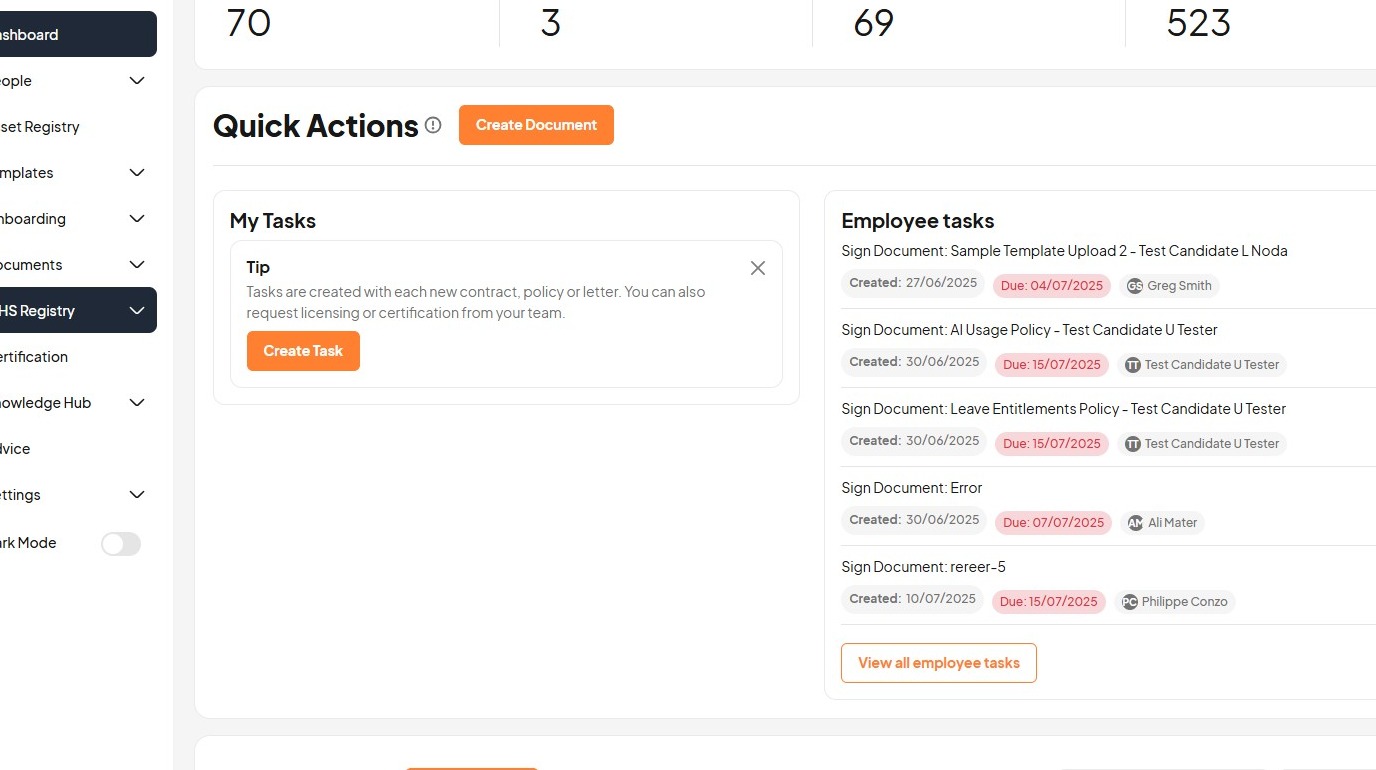
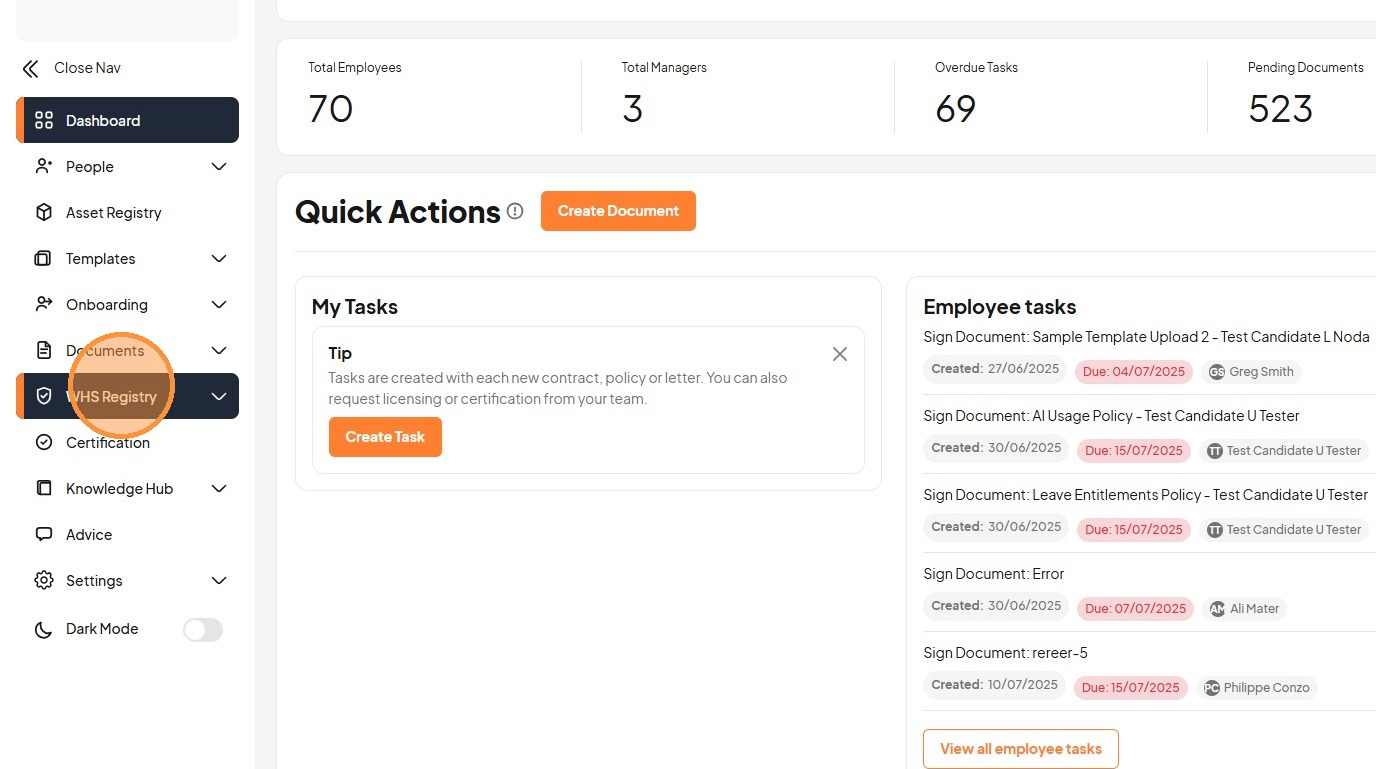
2. Click "WHS Registry"
3. Click "Dashboard"
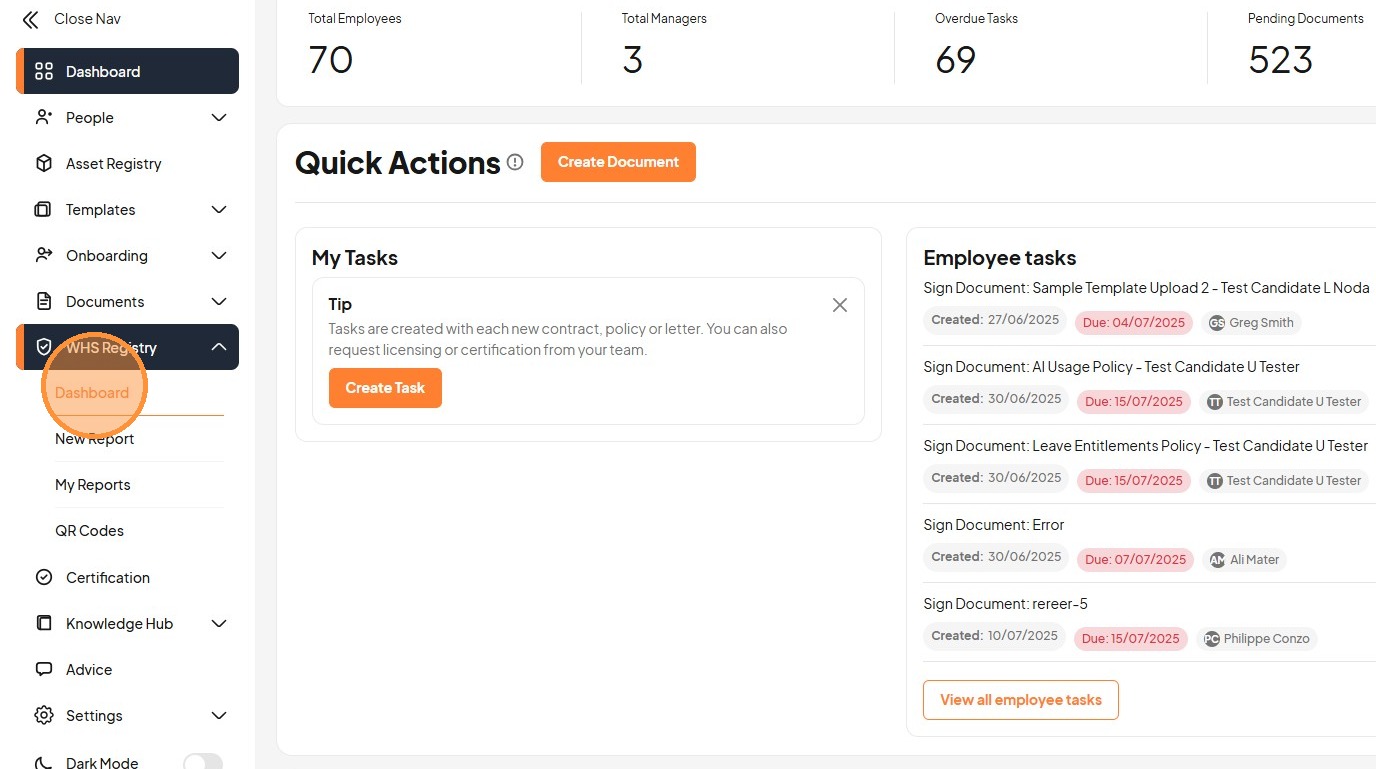
4. Click "QR Codes"
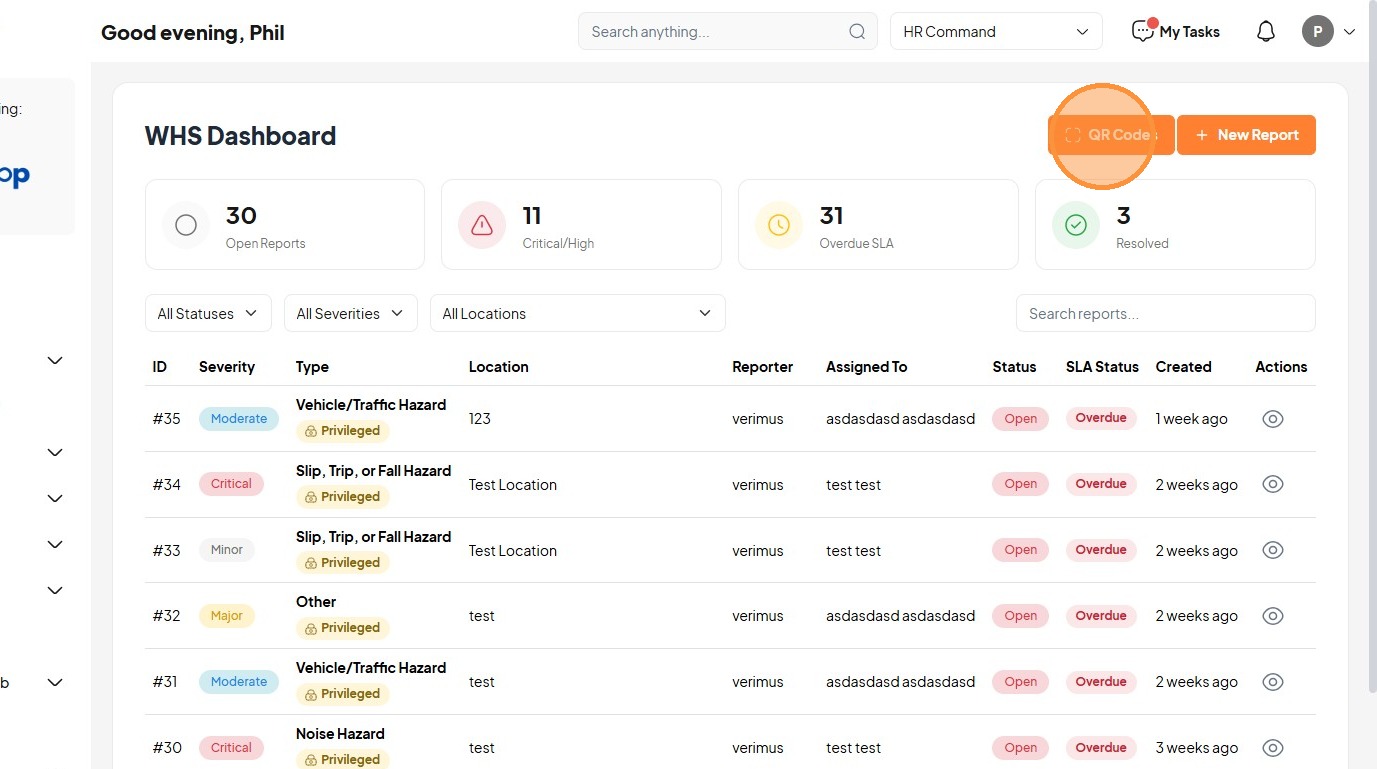
5. Click "Create QR Code"
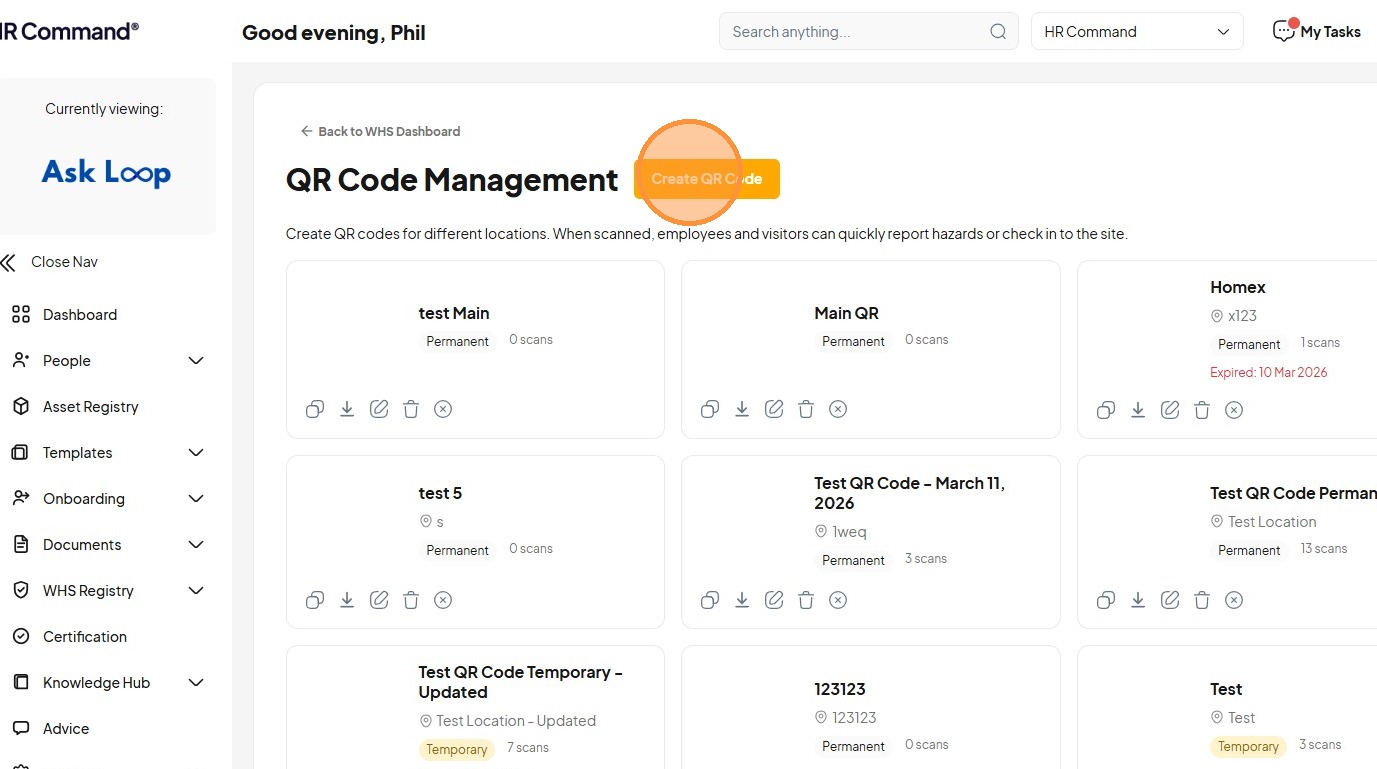
6. Click the "Name *" field.
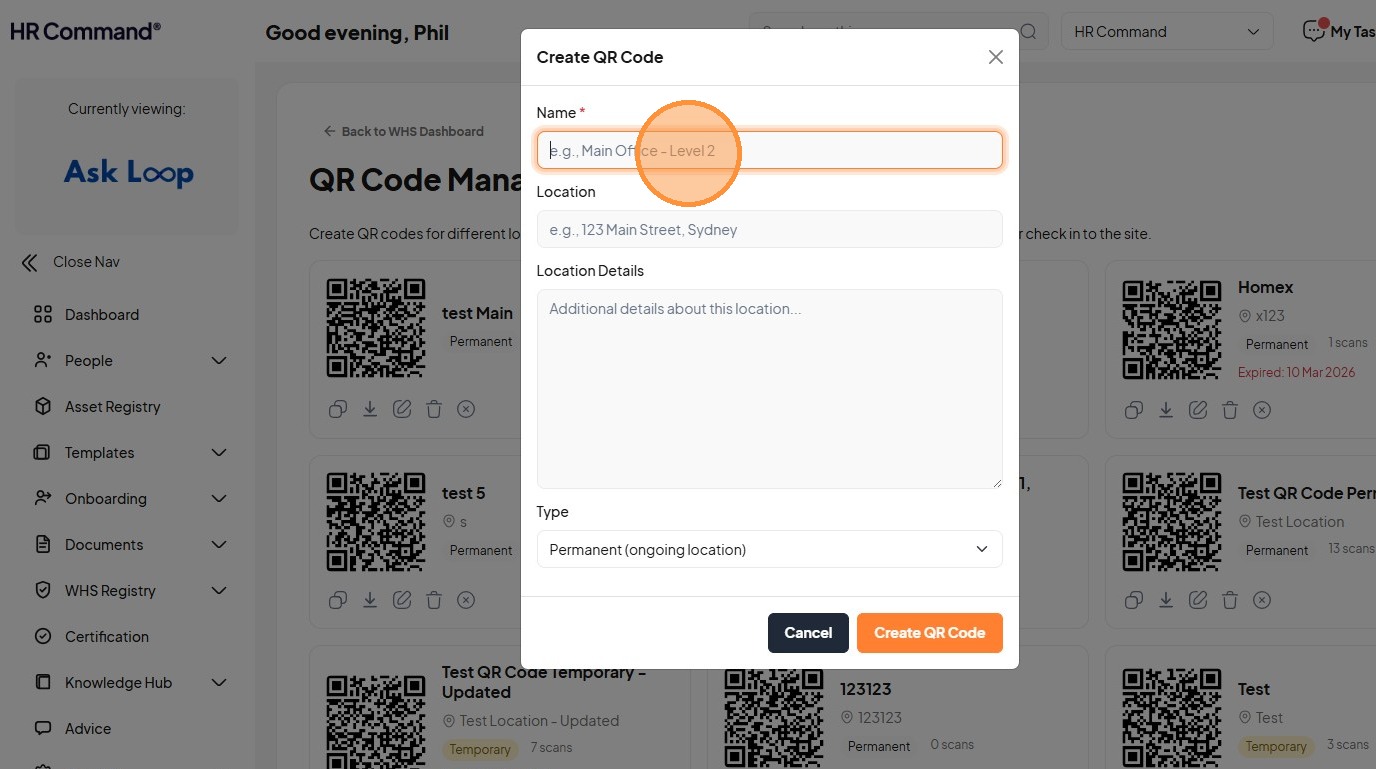
7. Type "Level 12 WHS Reporting [[Tab]] 50 Pitt Street, Sydney [[Tab]]"
8. Click the "Location Details" field.
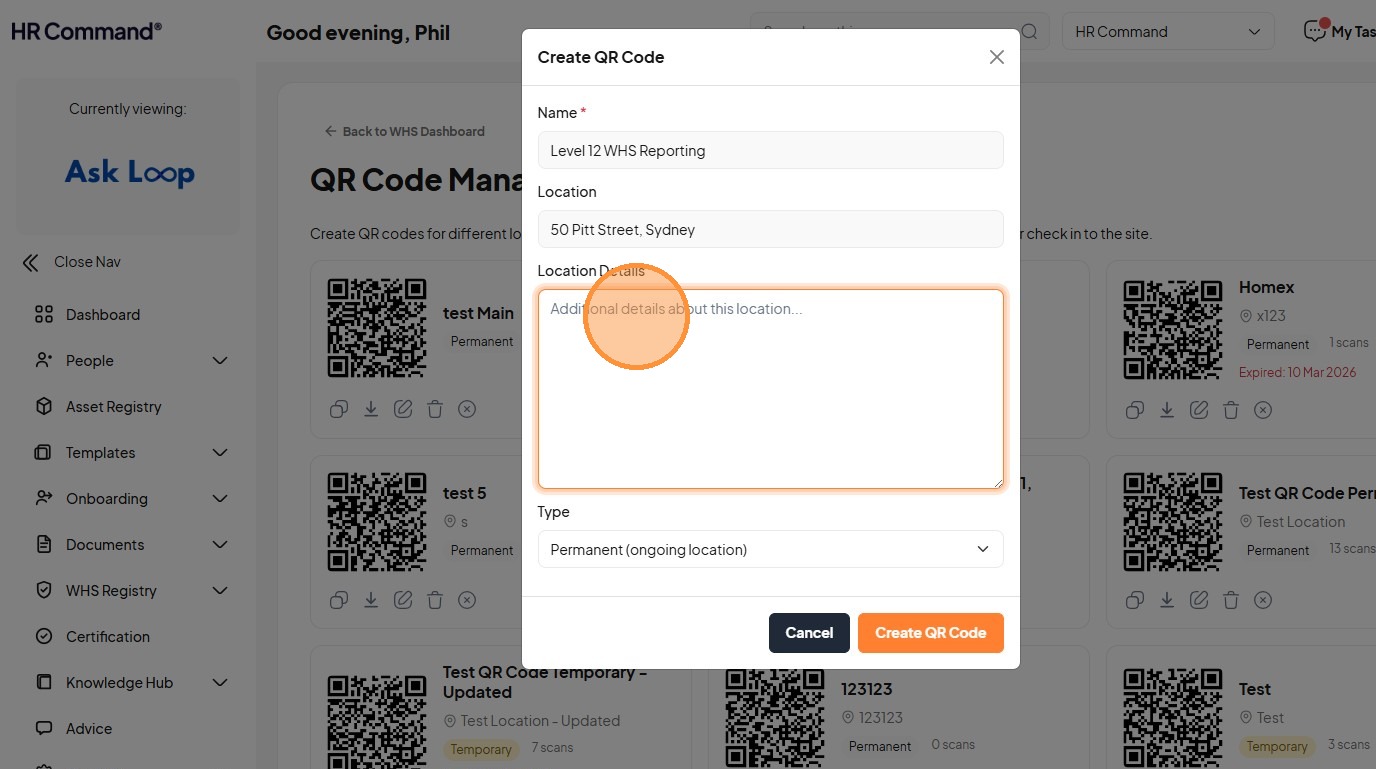
9. Type "Currently under construction and fit out."
10. Select the "Temporary (project/event)" option.
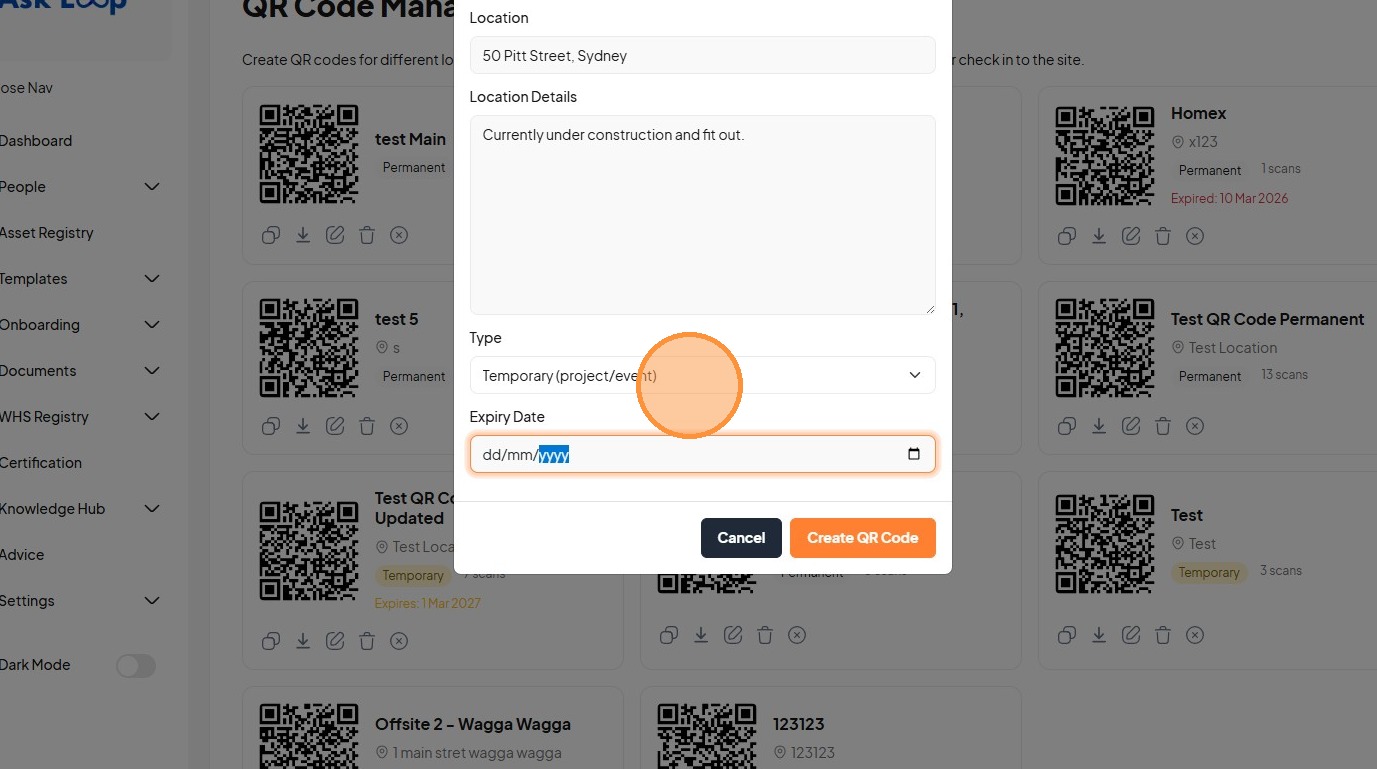
11. Click "Name * Location Location Details Type Permanent (ongoing location) Temporary (project/event) Expiry Date"
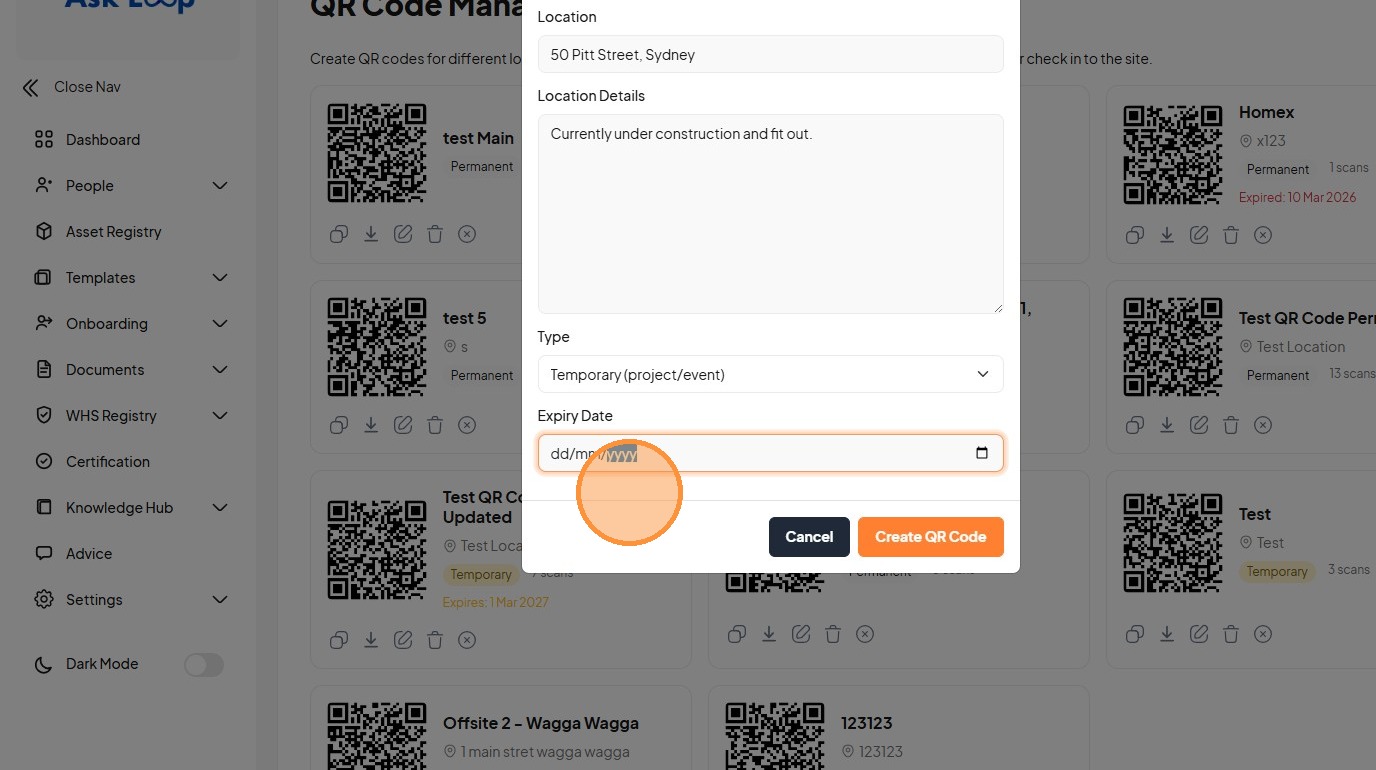
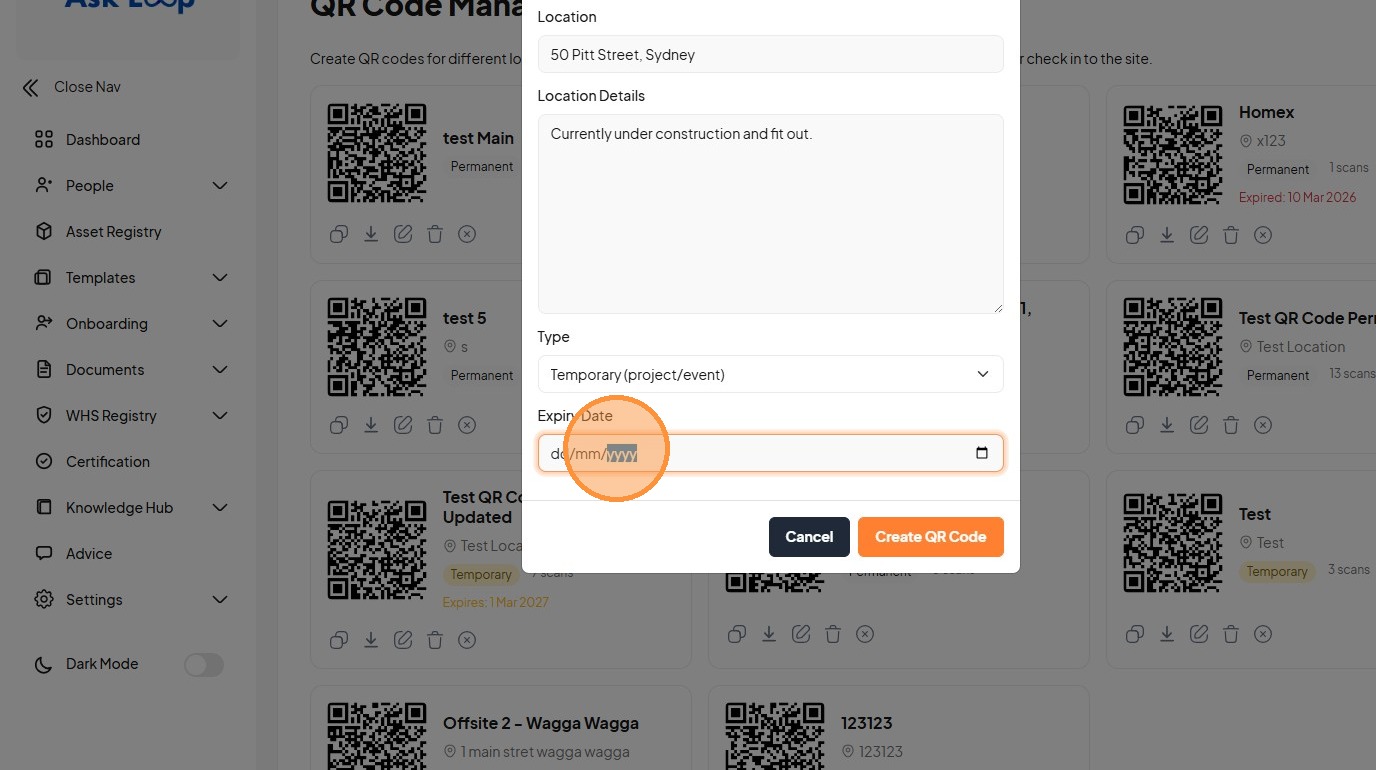
12. Click the "Expiry Date" field.
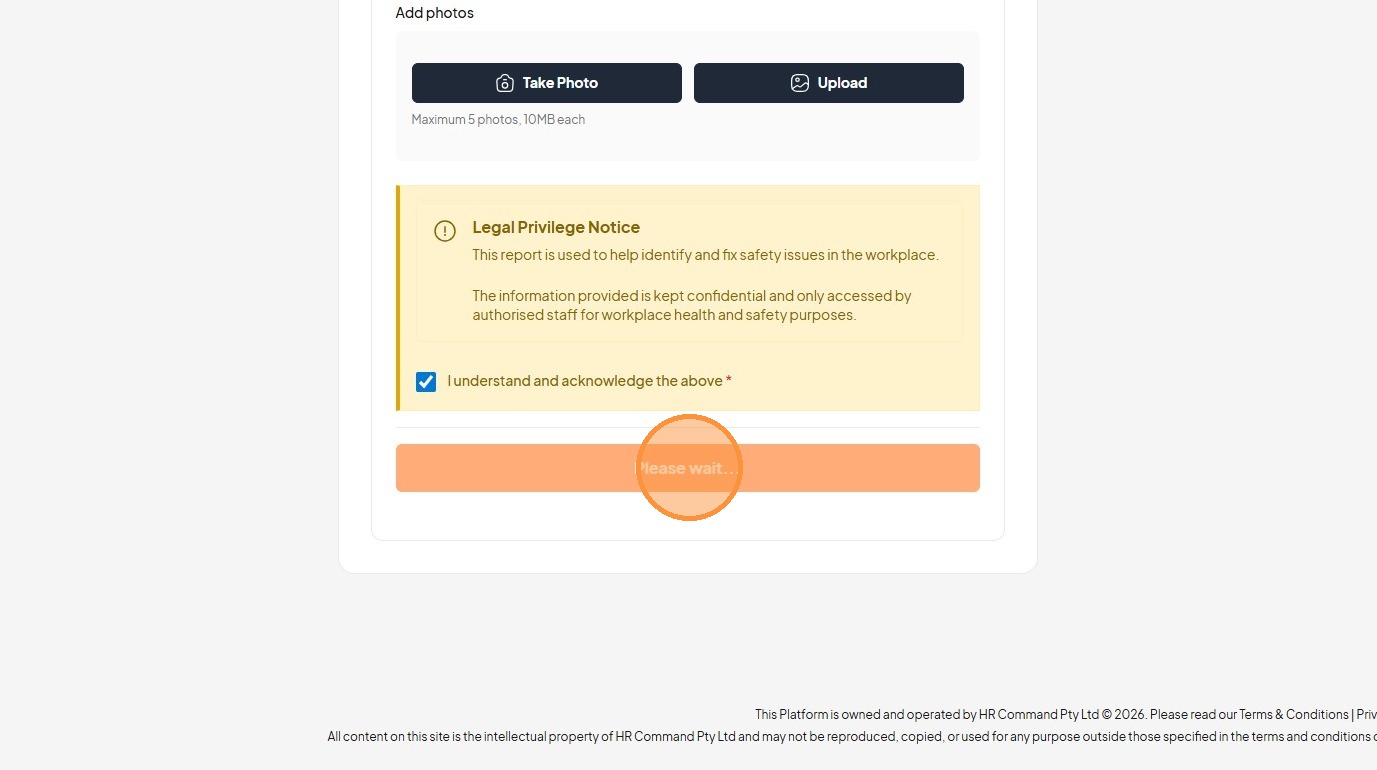
13. Click "Please wait..."
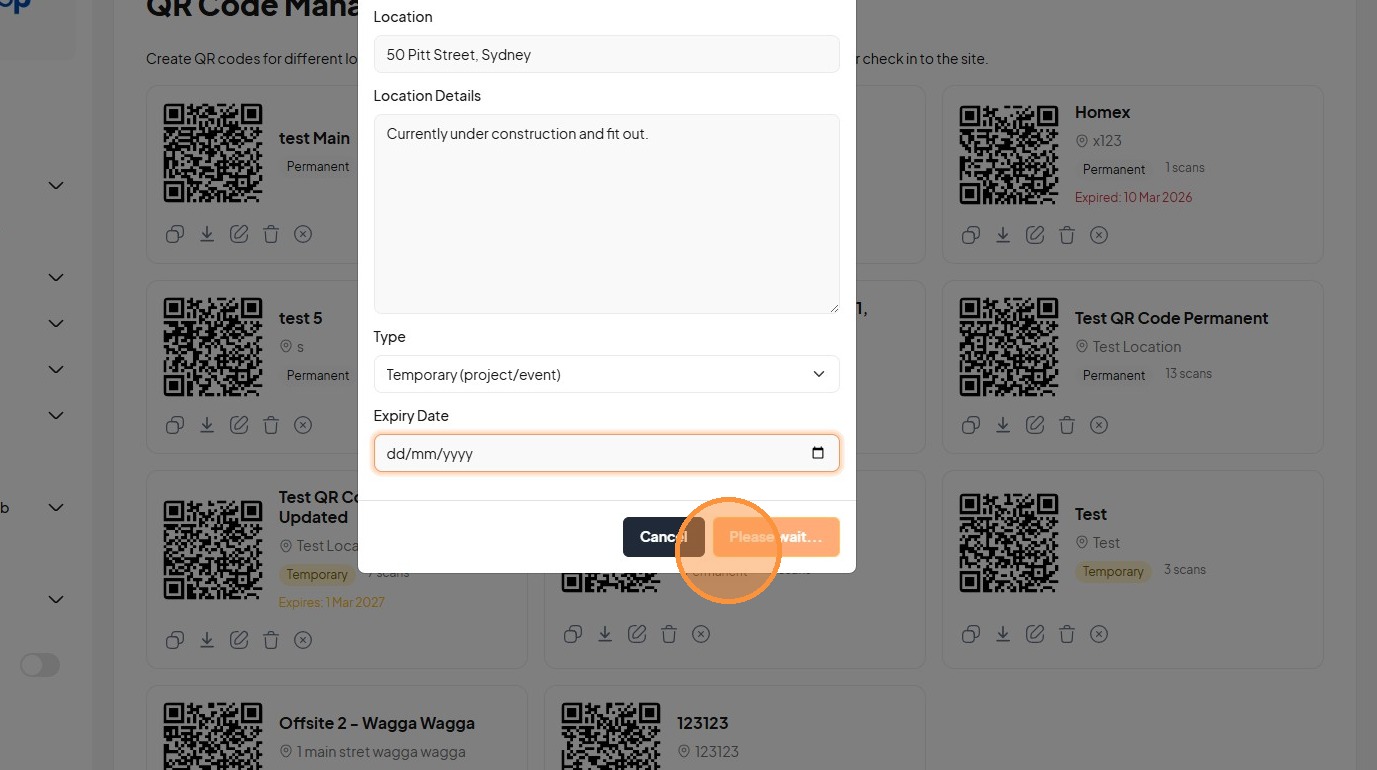
14. Click this icon.
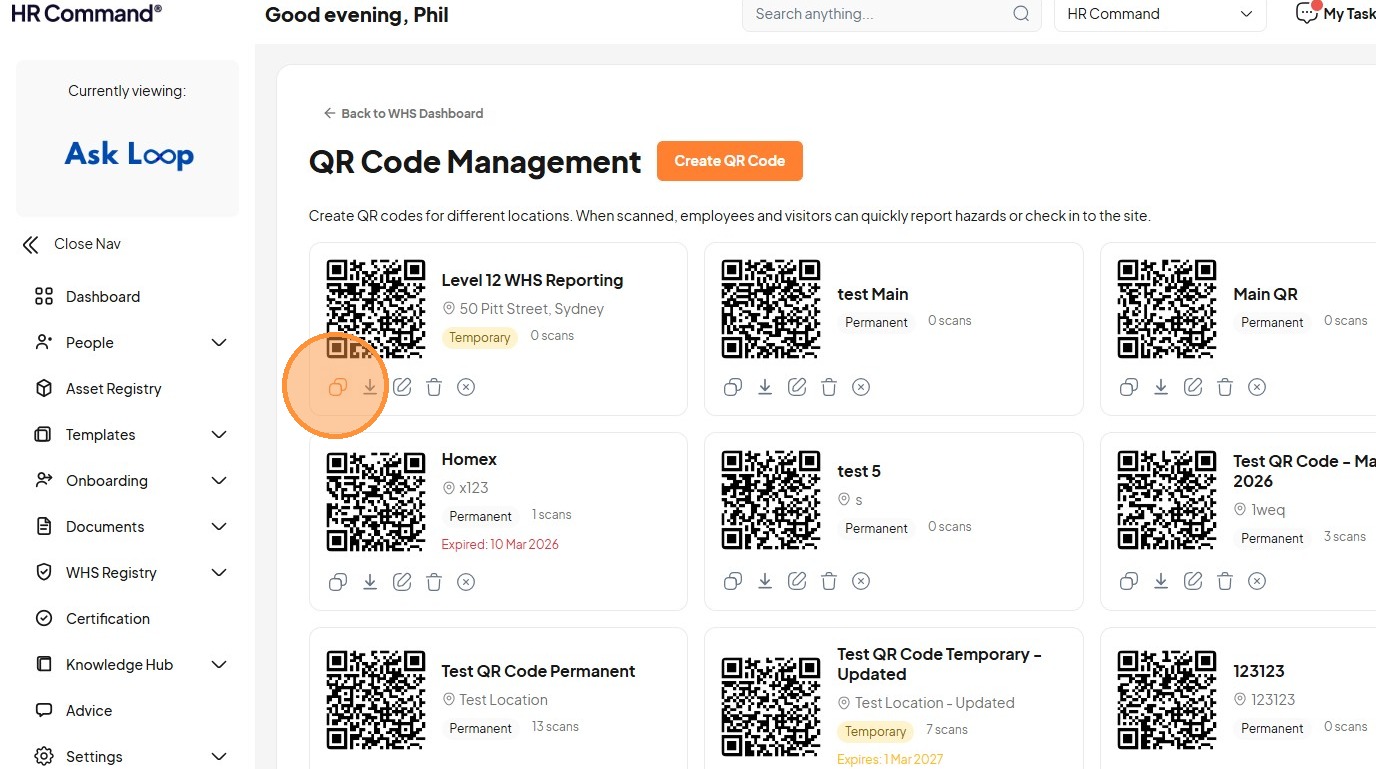
15. Click this icon.
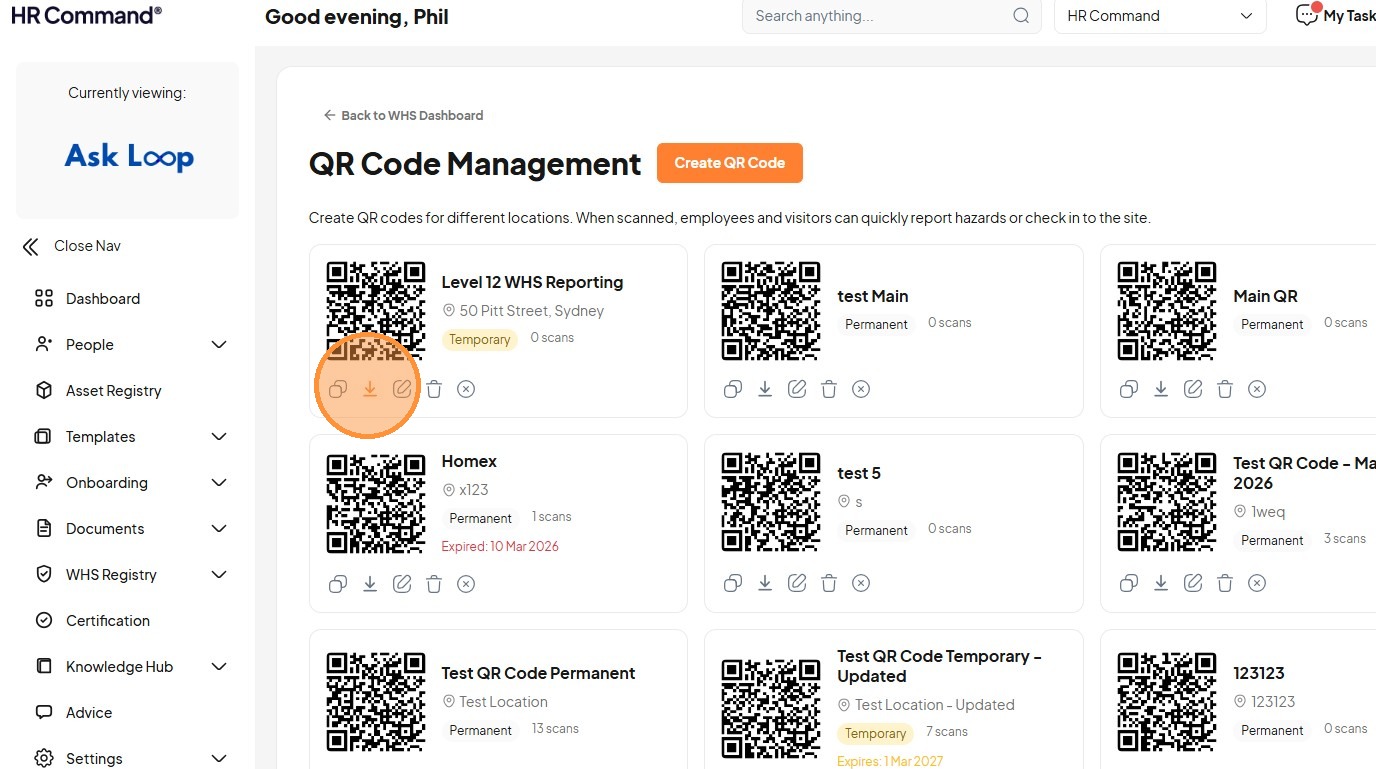
16. Click this icon.
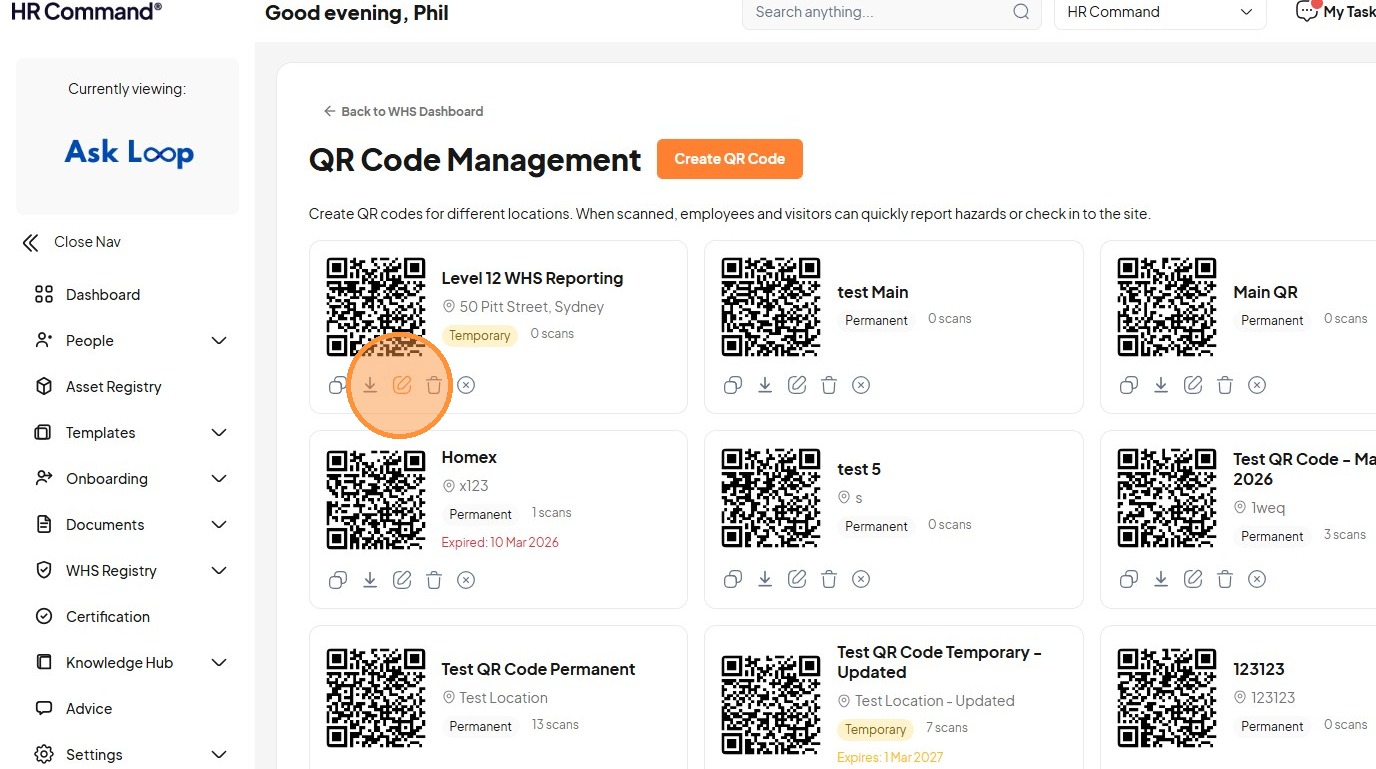
17. Click this button.
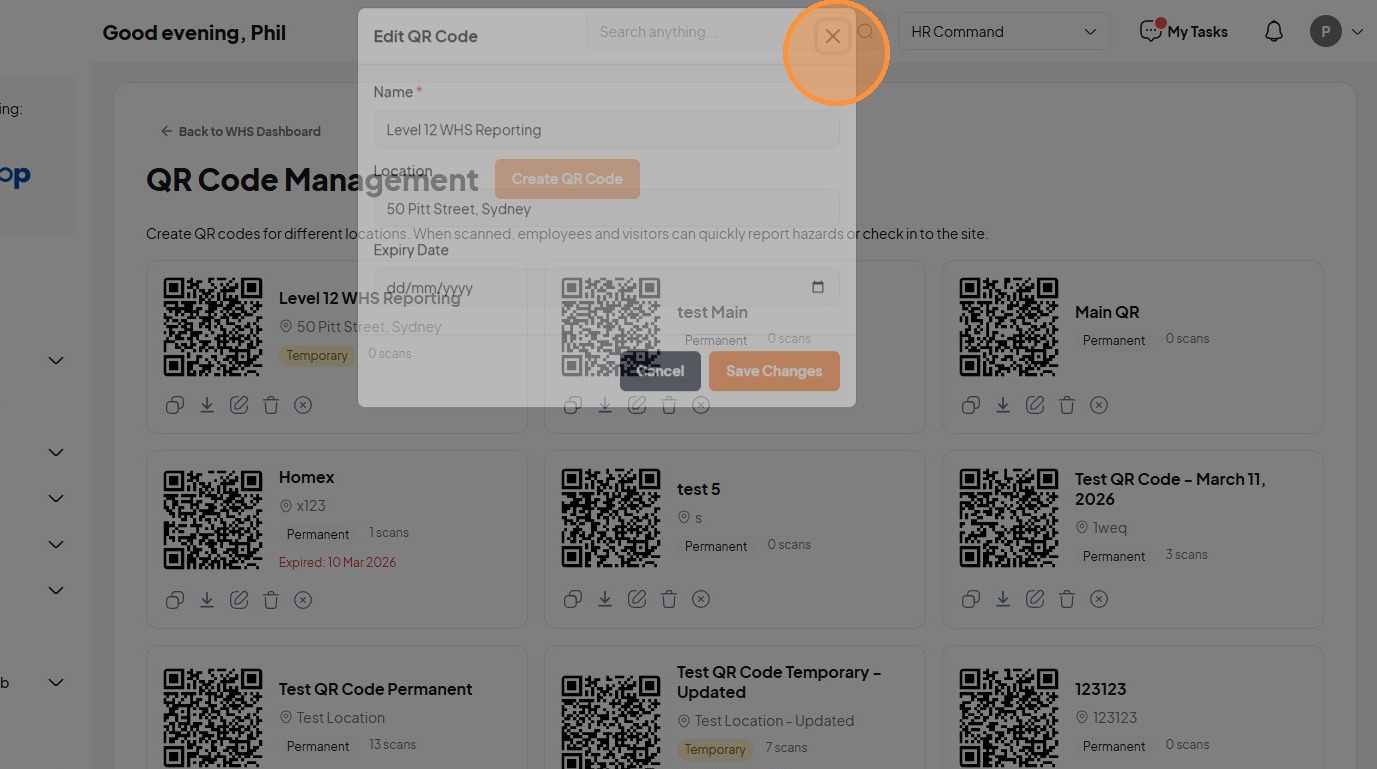
18. Click "WHS Registry"
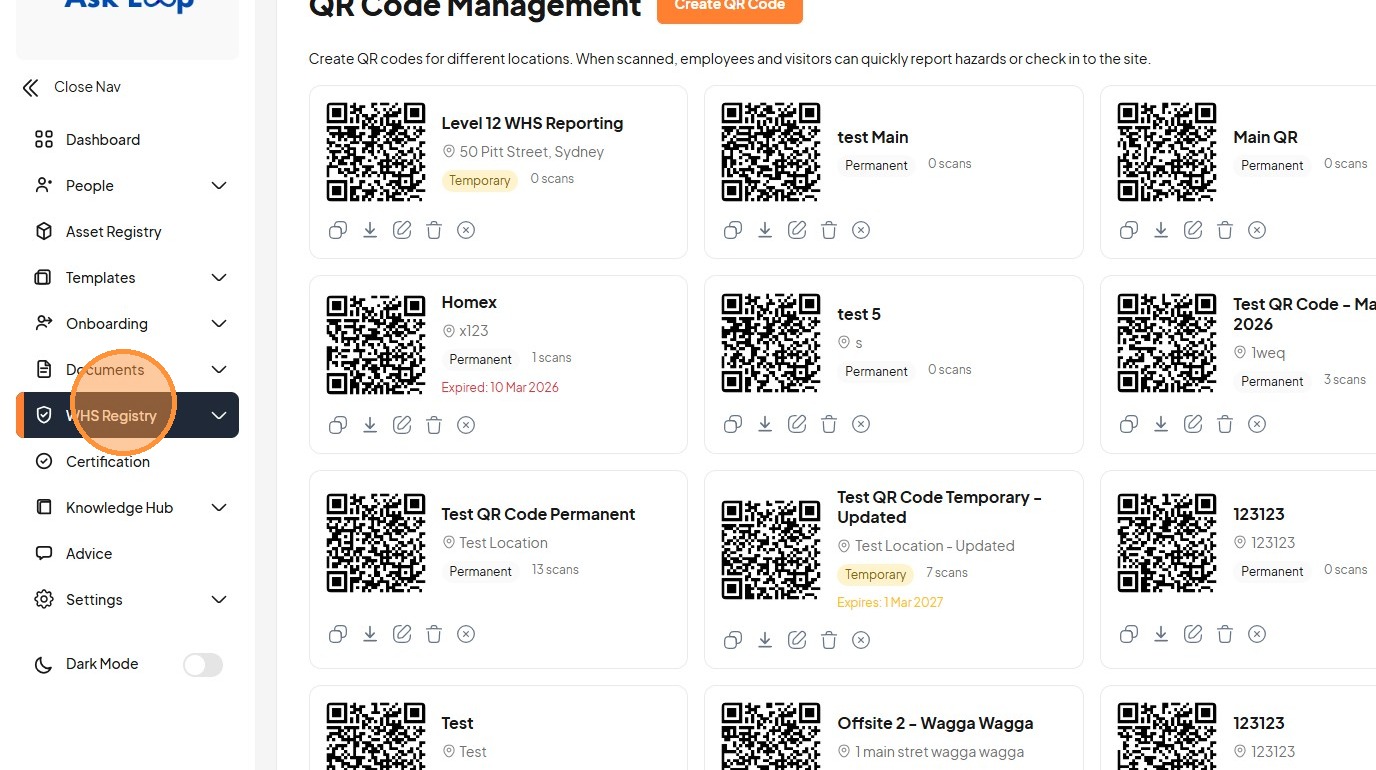
19. Click "New Report"
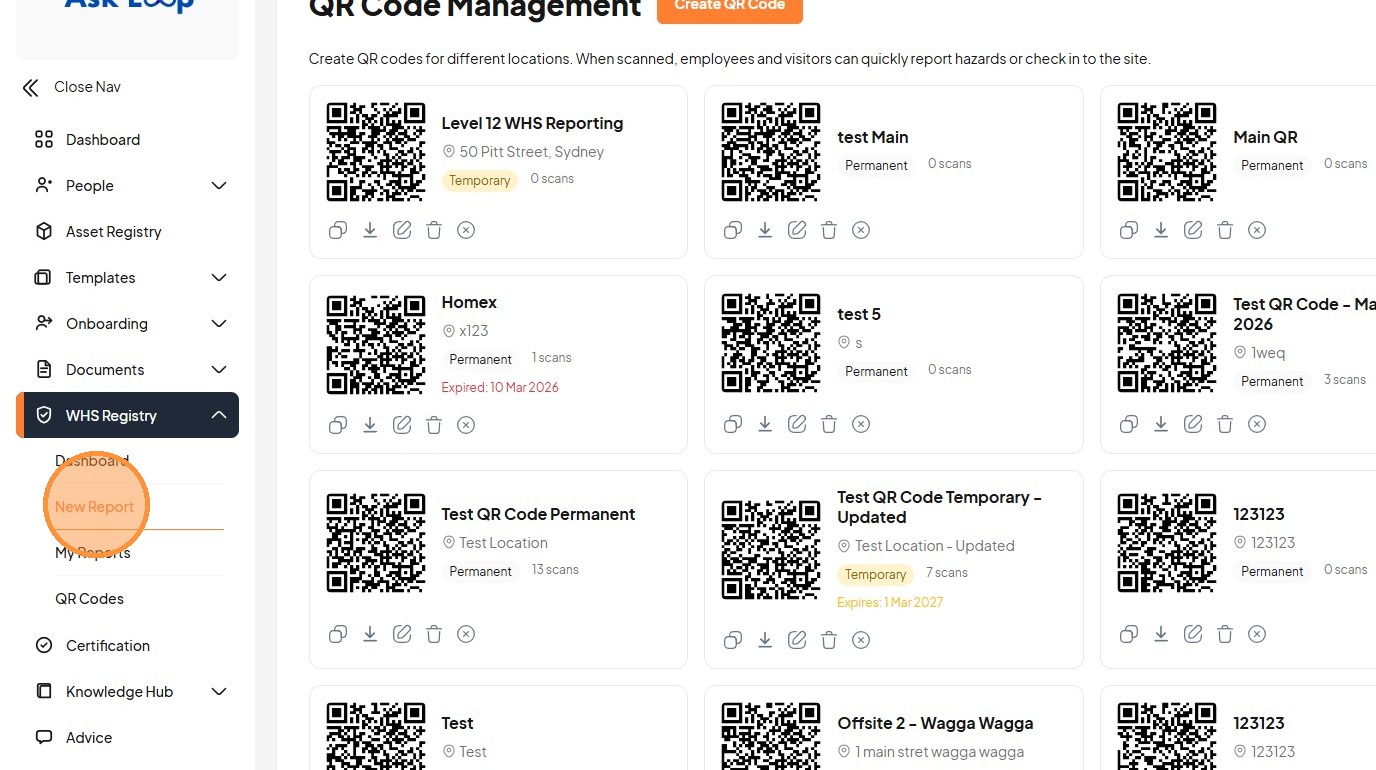
20. Click "Slip, Trip, or Fall Hazard"
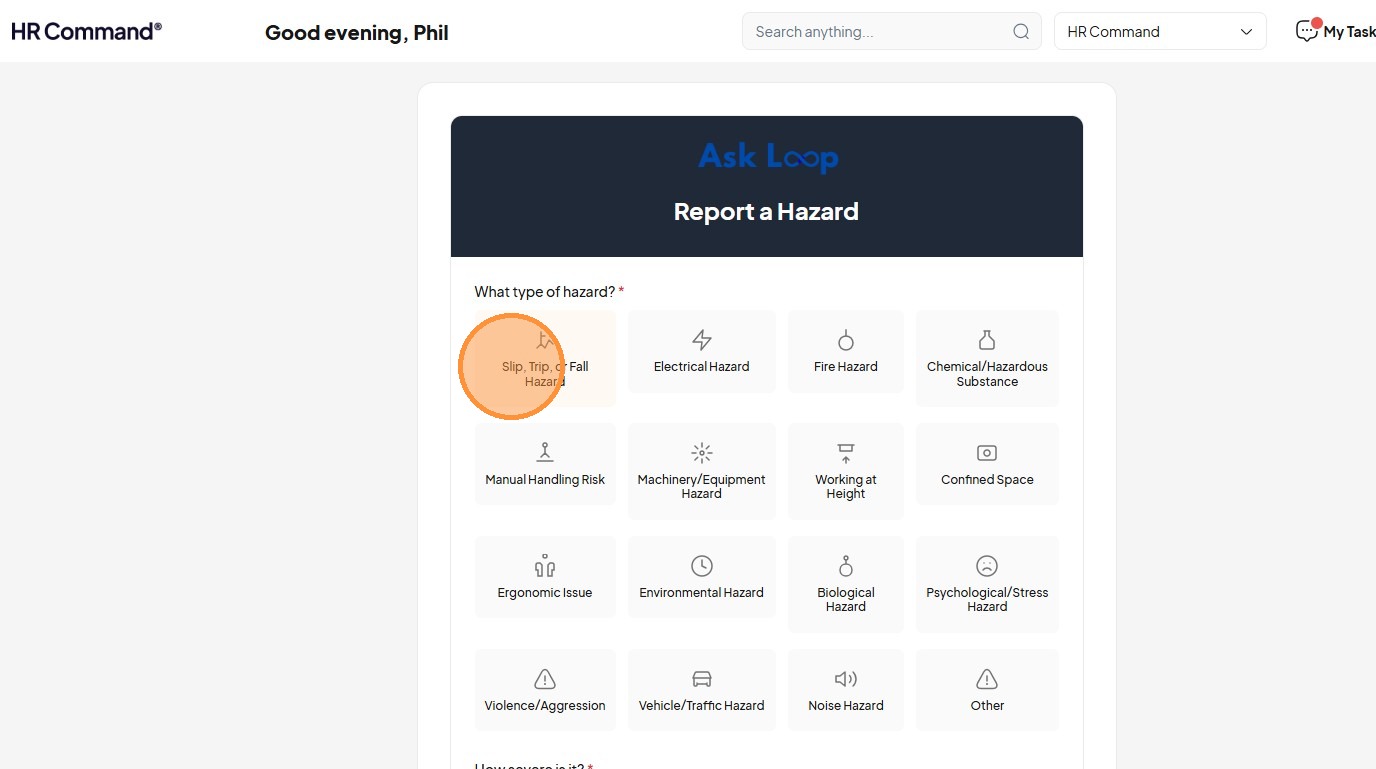
21. Click "Major Significant risk, urgent action neededSLA: 1 day"
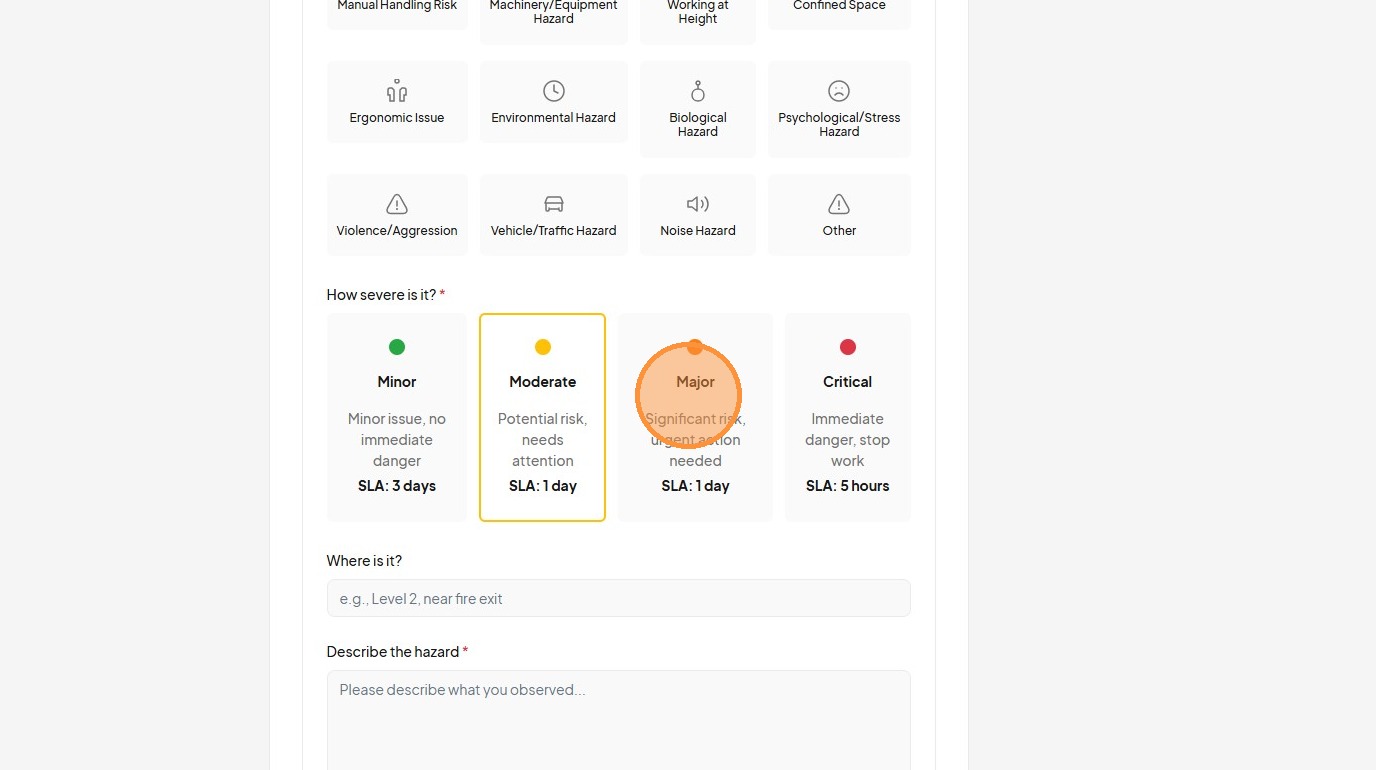
22. Click the "Where is it?" field.
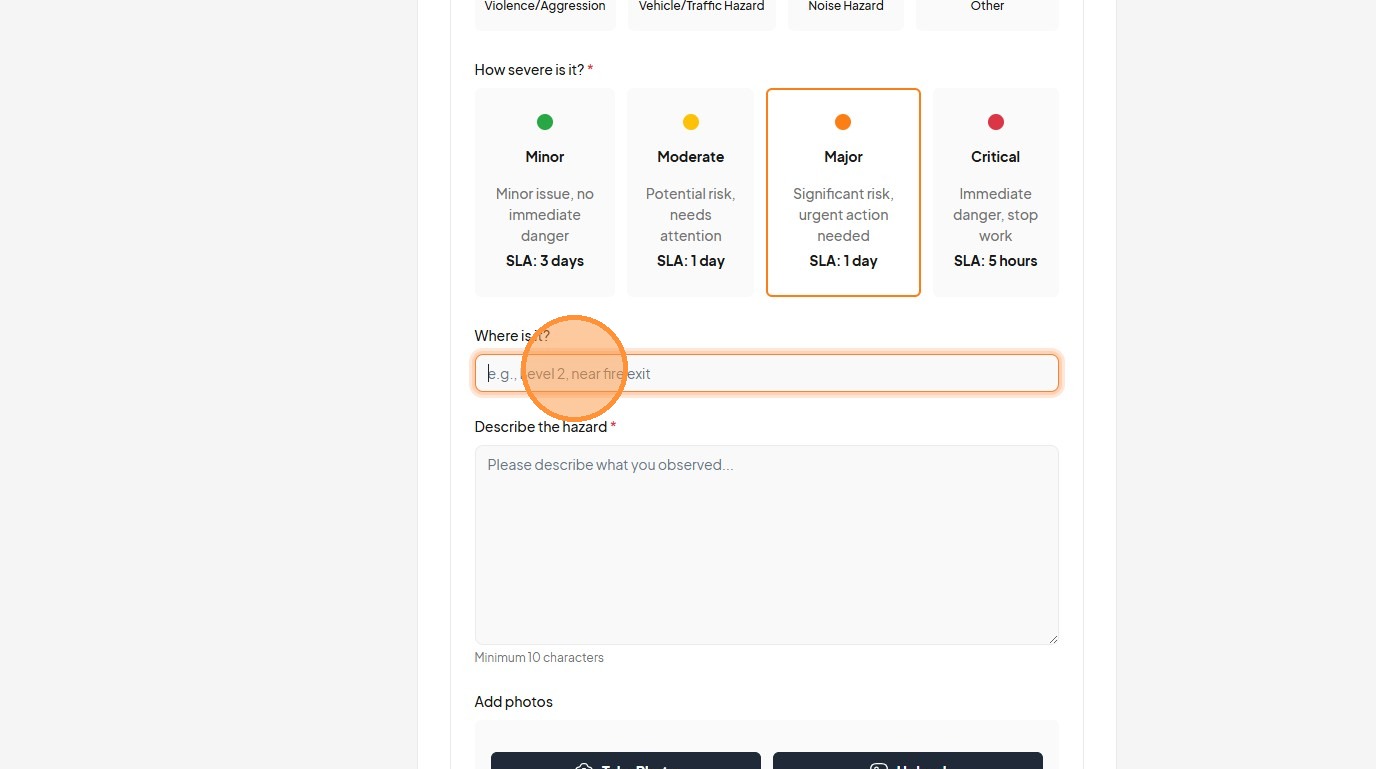
23. Type "50 Pitt Street Level 11"
24. Click the "Describe the hazard *" field.
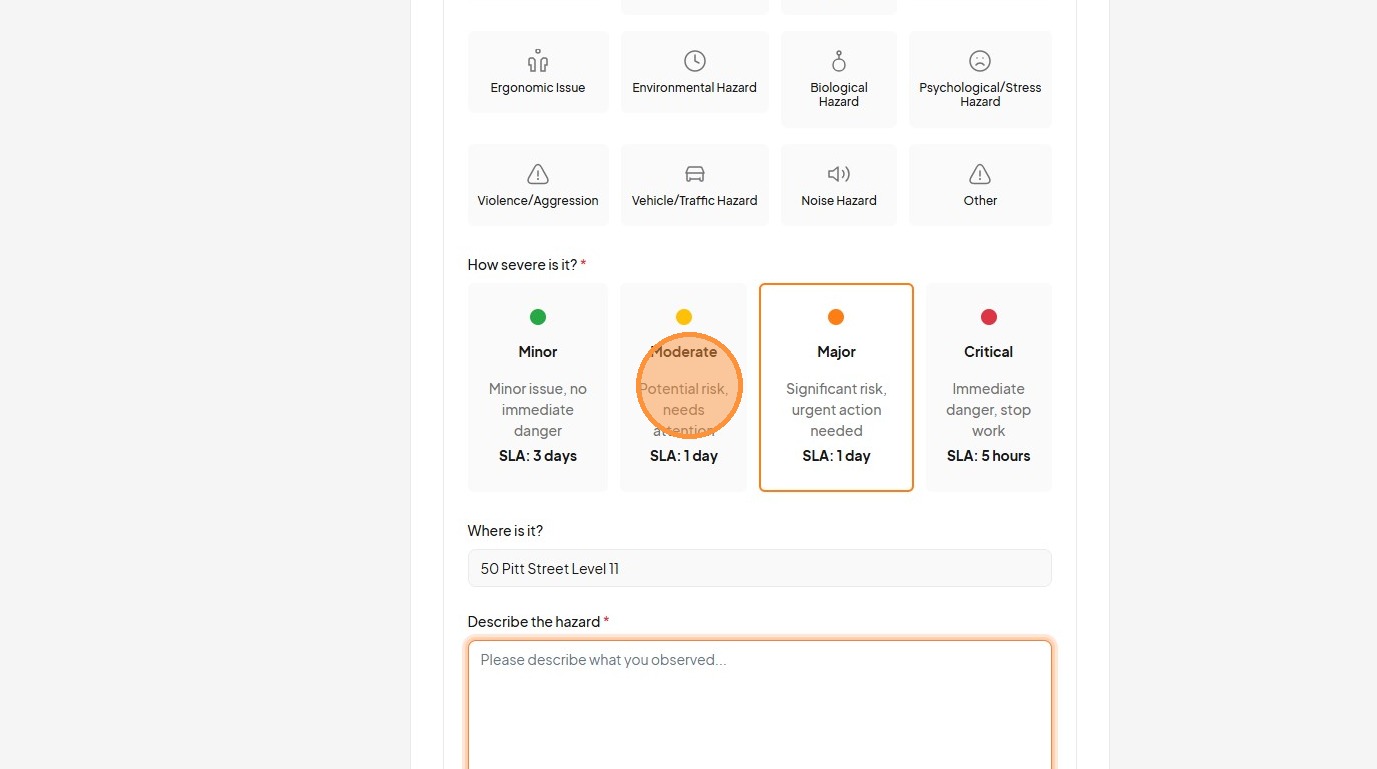
25. Click the "Describe the hazard *" field.
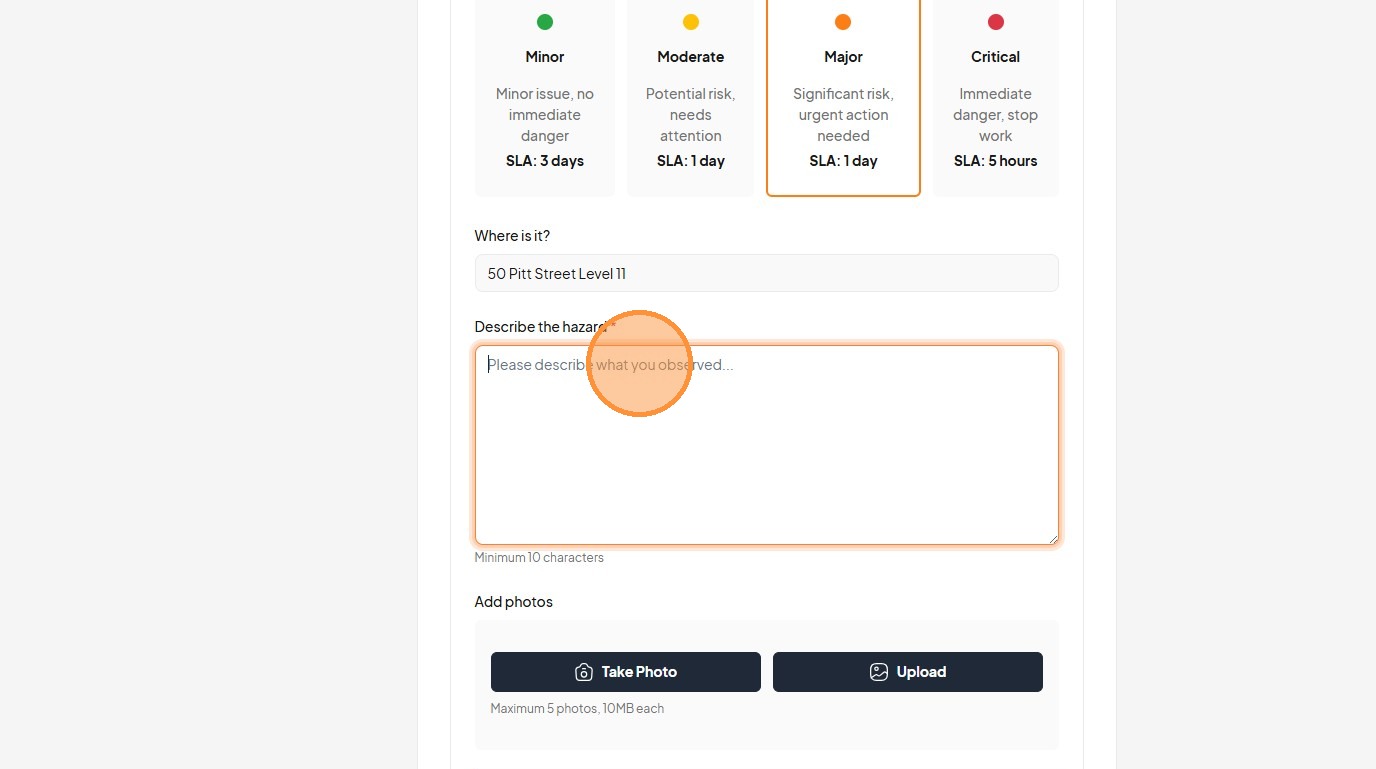
26. Click the "Describe the hazard *" field.
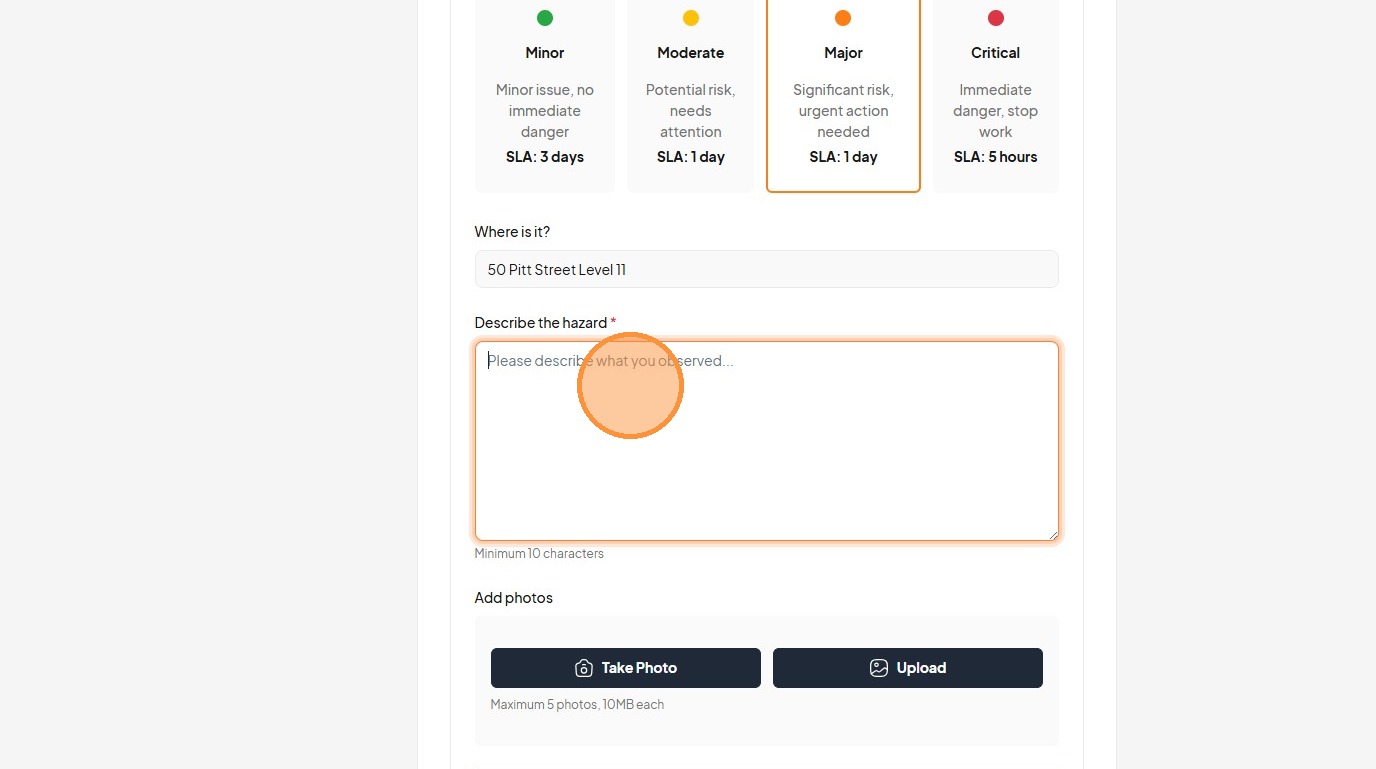
27. Type "Contractor slipped on liquid that was not safetly cleaned. [[esc]]"
28. Click "Take Photo"
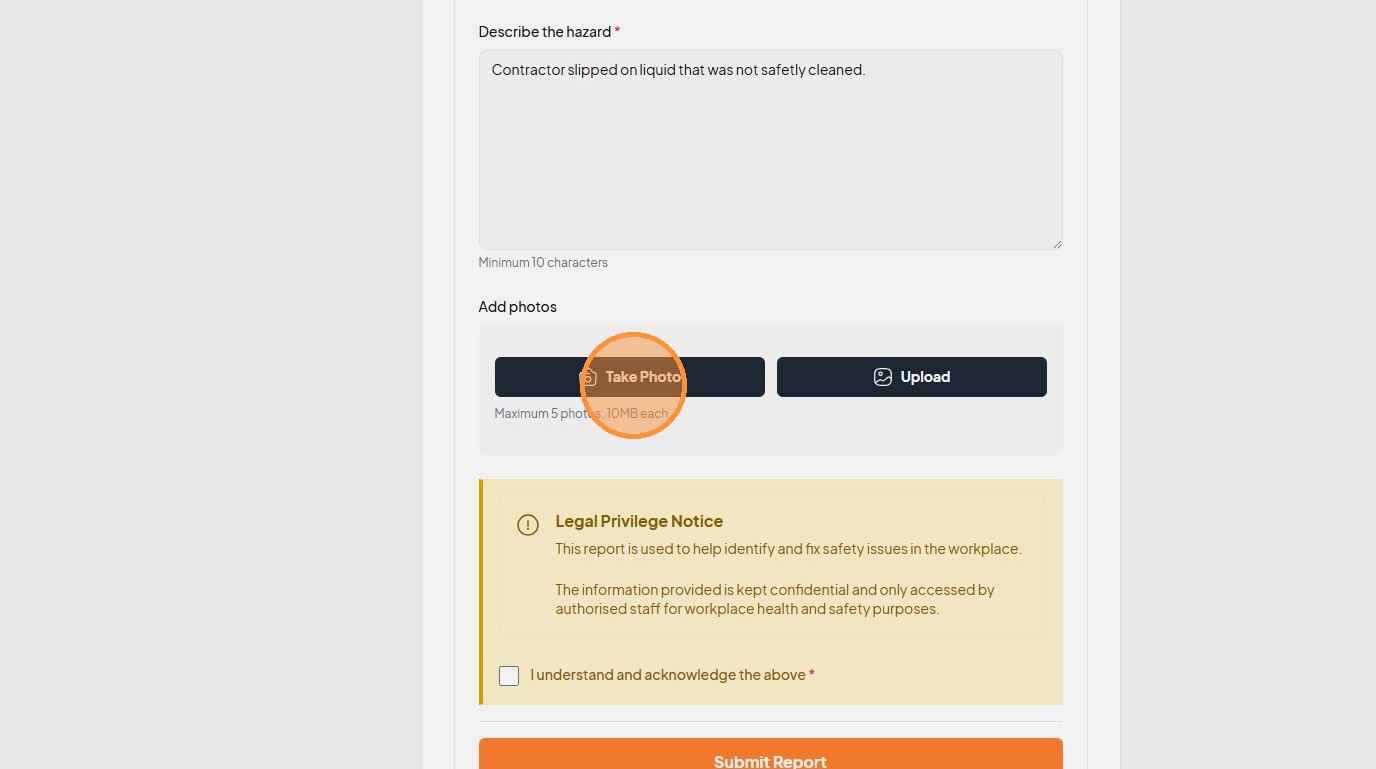
29. Click this icon.
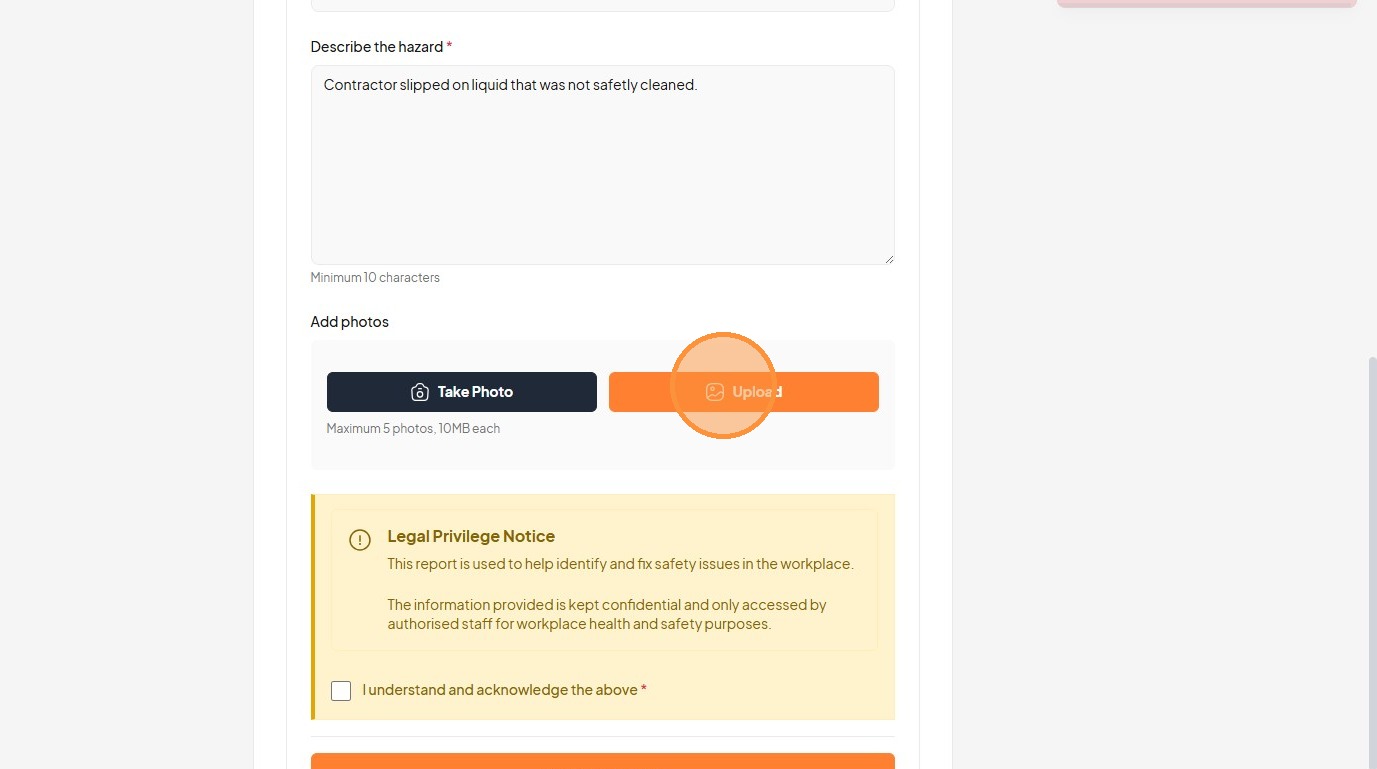
30. Click the "I understand and acknowledge the above *" field.
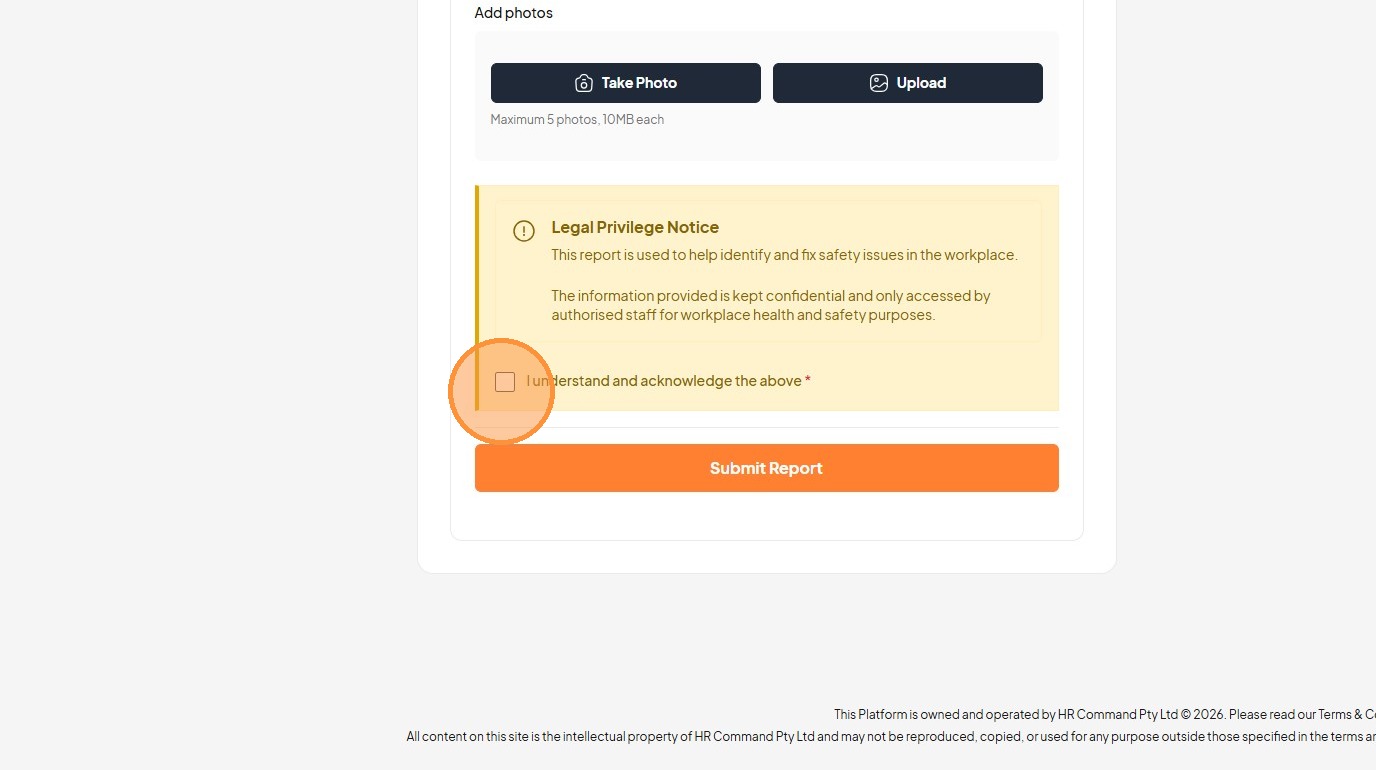
31. Click "Submit Report"