How to Register and Assign a New Access Card
Learn how to add a new physical asset to the company registry and assign it to a specific employee. This guide simplifies the process of tracking access cards to ensure proper equipment management.
1. secure.hrcommand.com.au
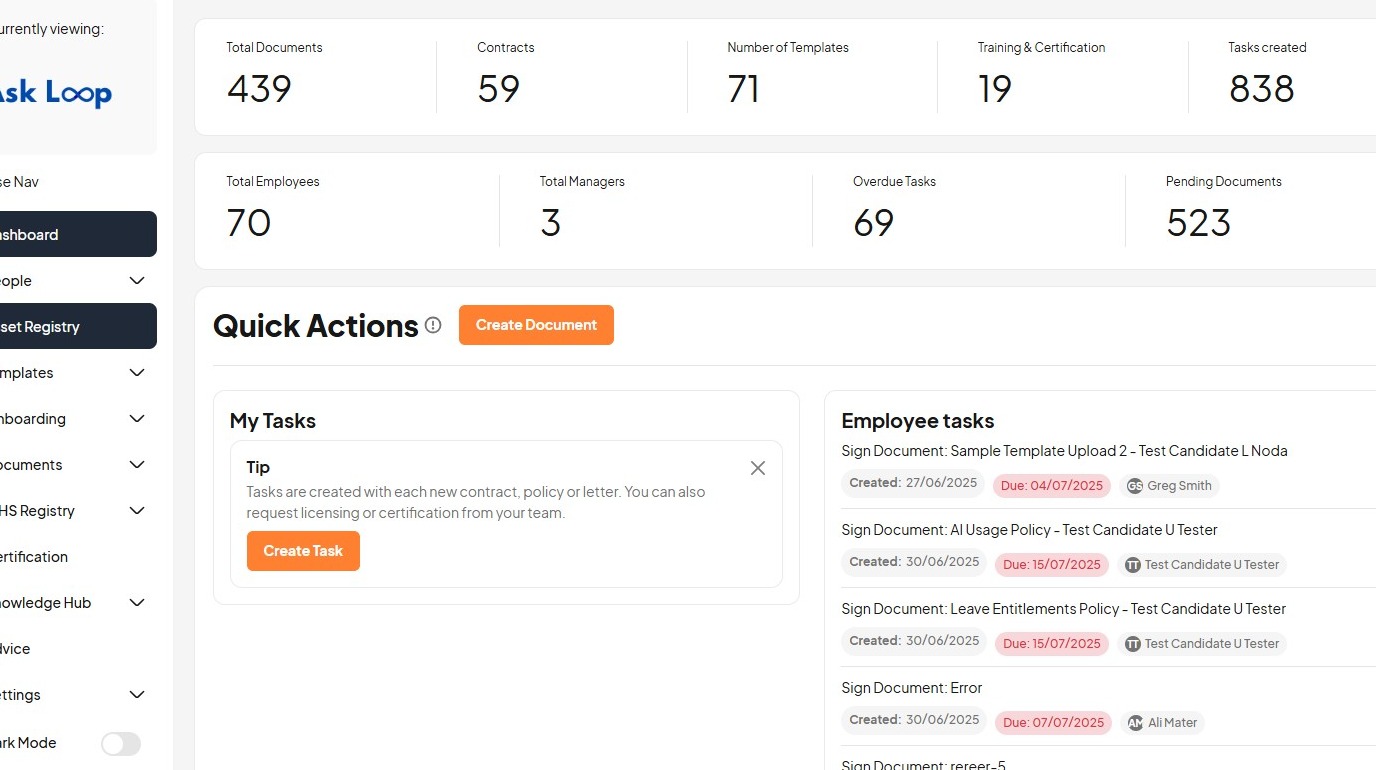
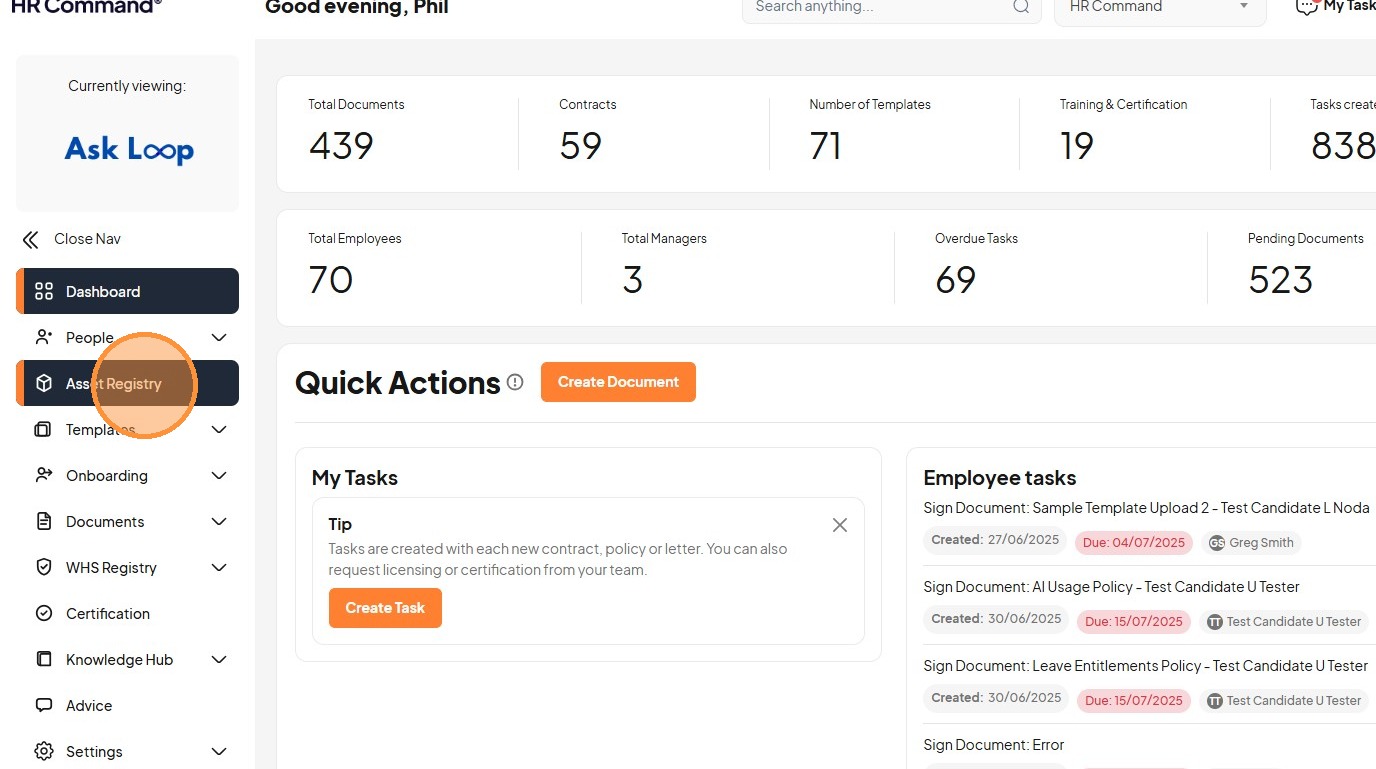
2. Click "Asset Registry"
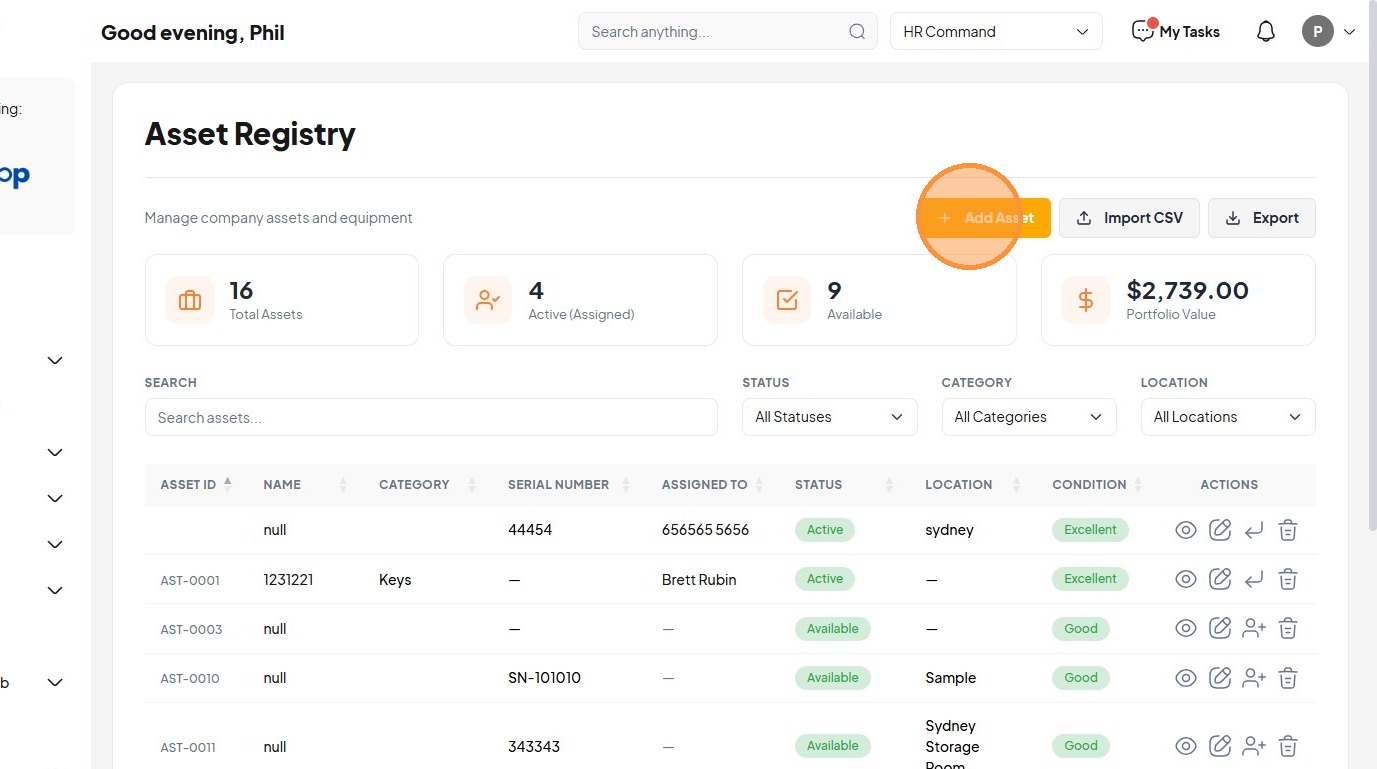
3. Click "Add Asset"
4. Click the "e.g., MacBook Pro 14" field.
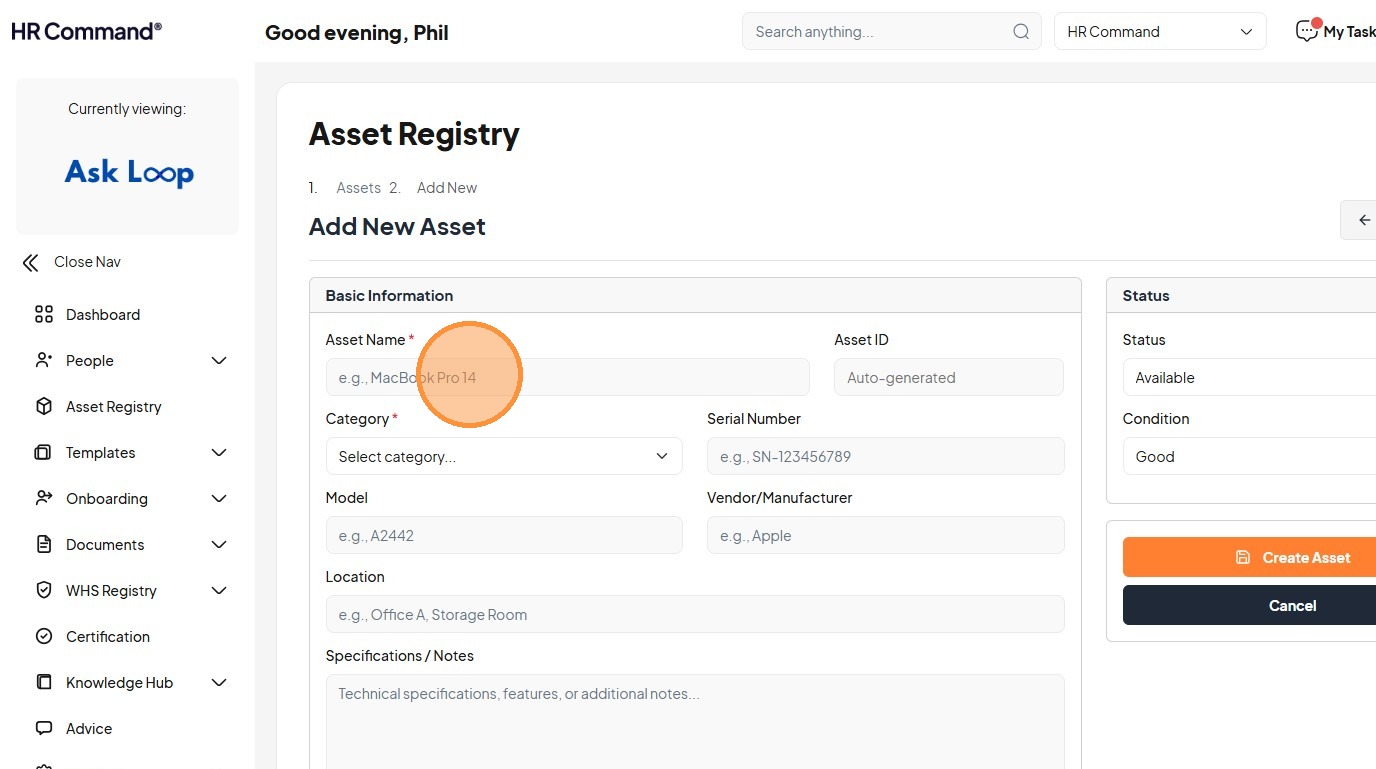
5. Type "Swipe card for access"
6. Select the " — Access Cards" option.
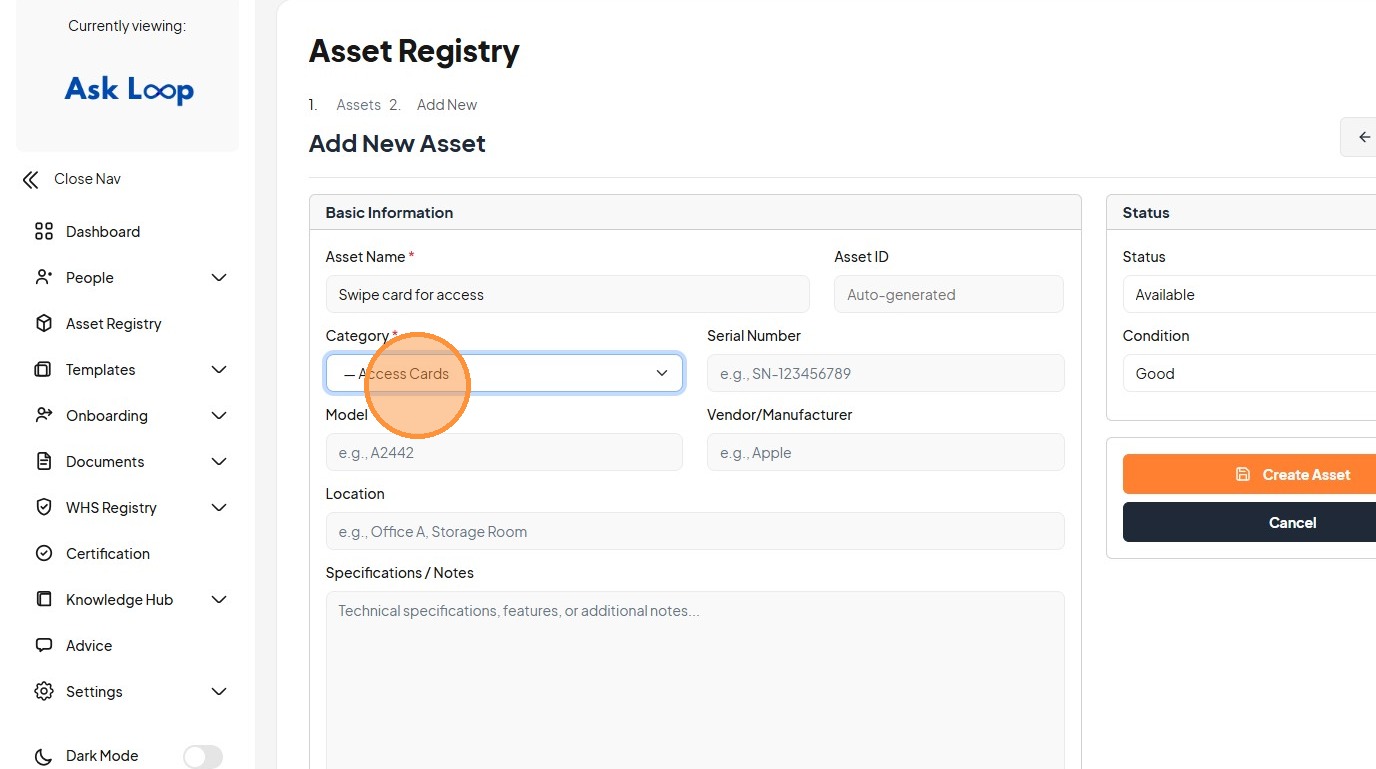
7. Click the "e.g., SN-123456789" field.
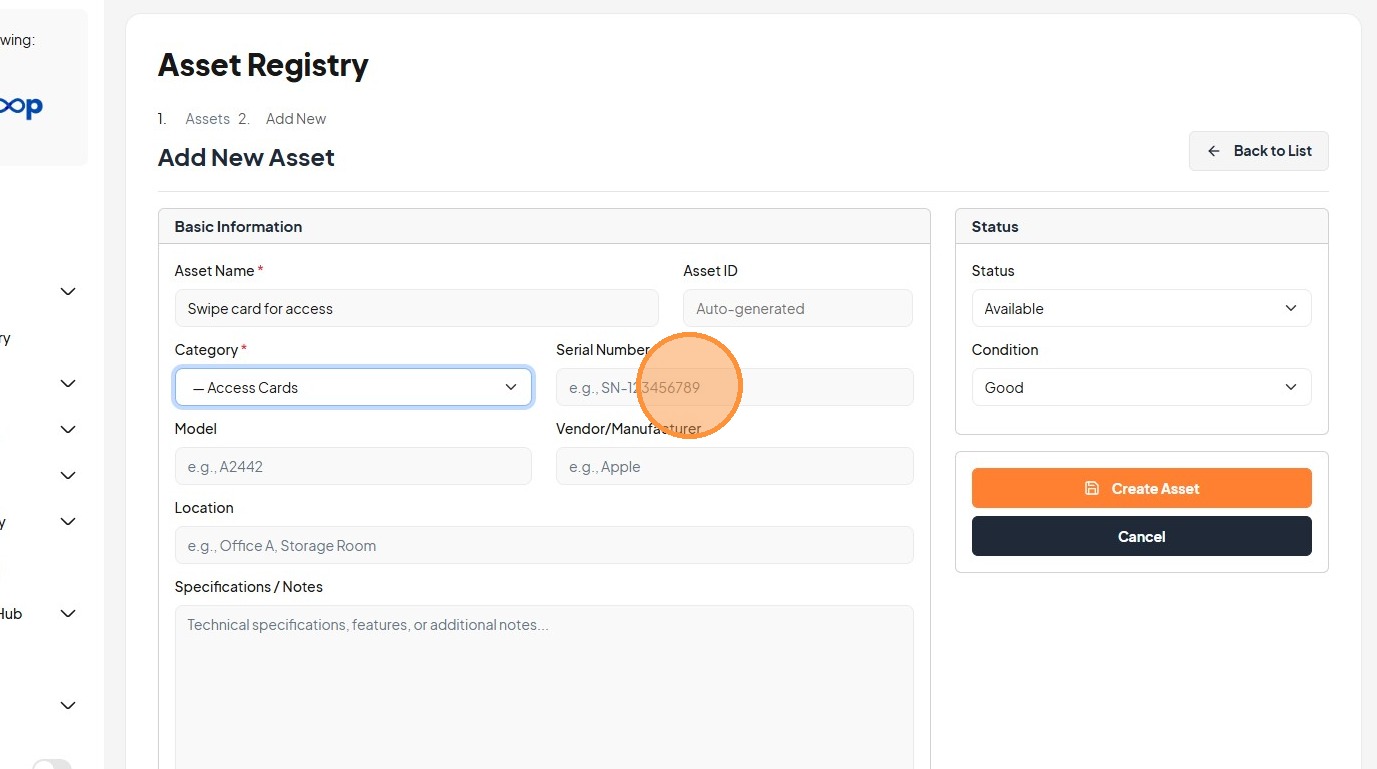
8. Type "6559"
9. Click the "e.g., Office A, Storage Room" field.
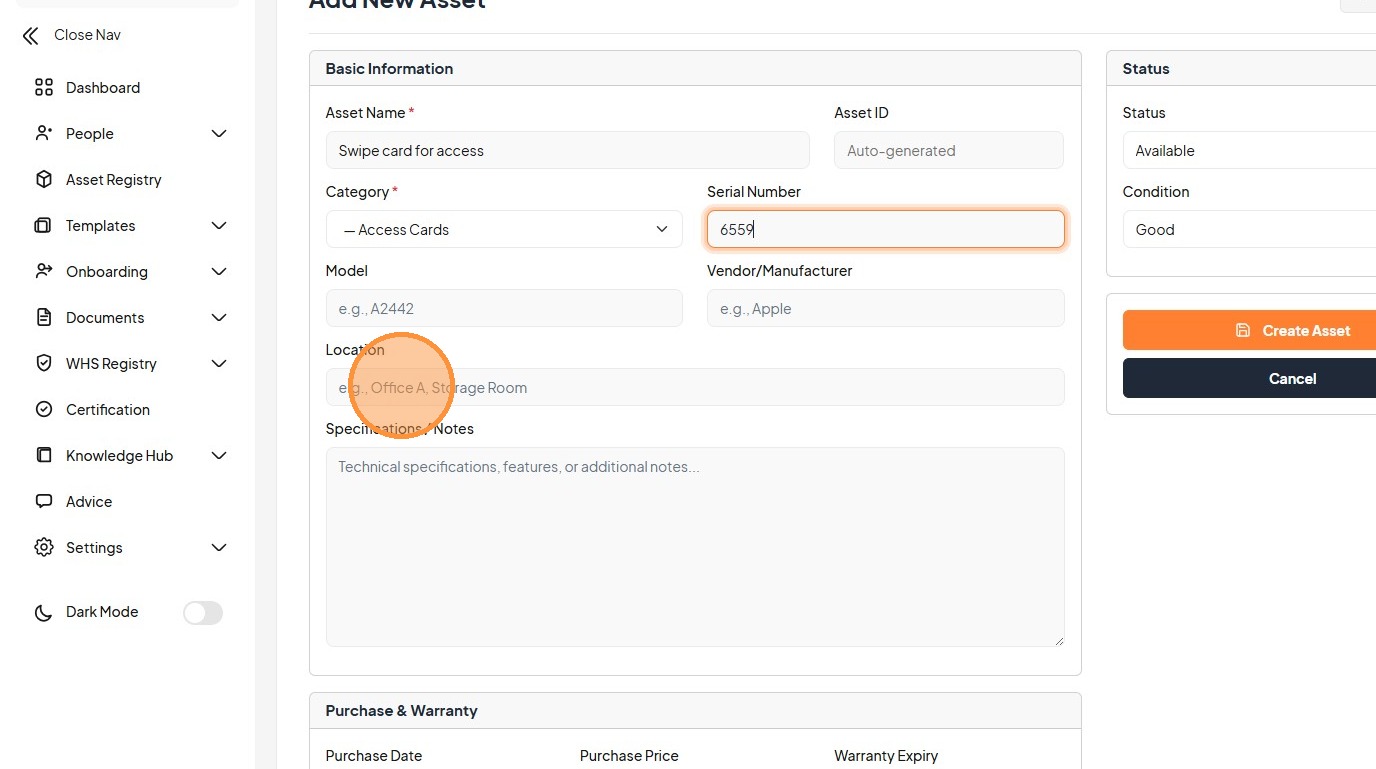
10. Type "Sydney Office"
11. Click the "Technical specifications, features, or additional notes..." field.
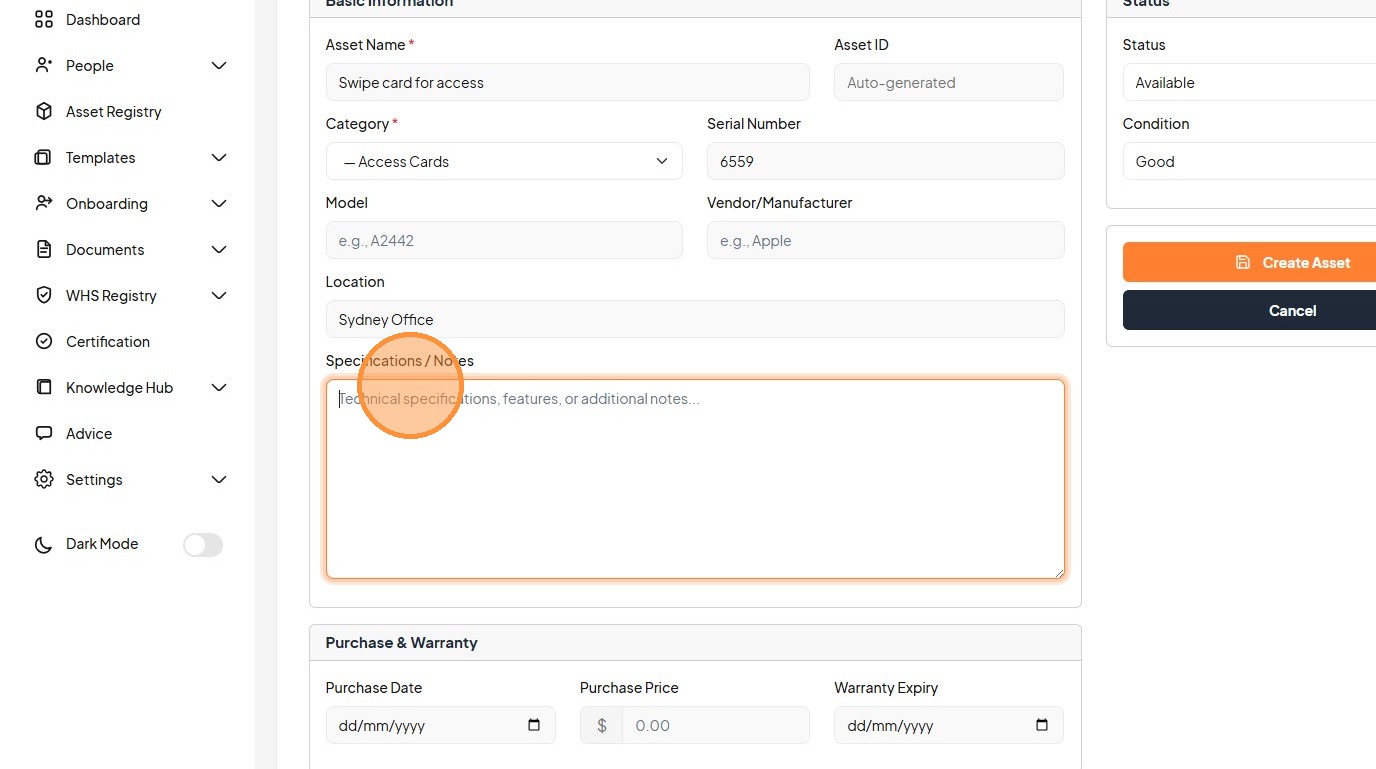
12. Click the "Technical specifications, features, or additional notes..." field.
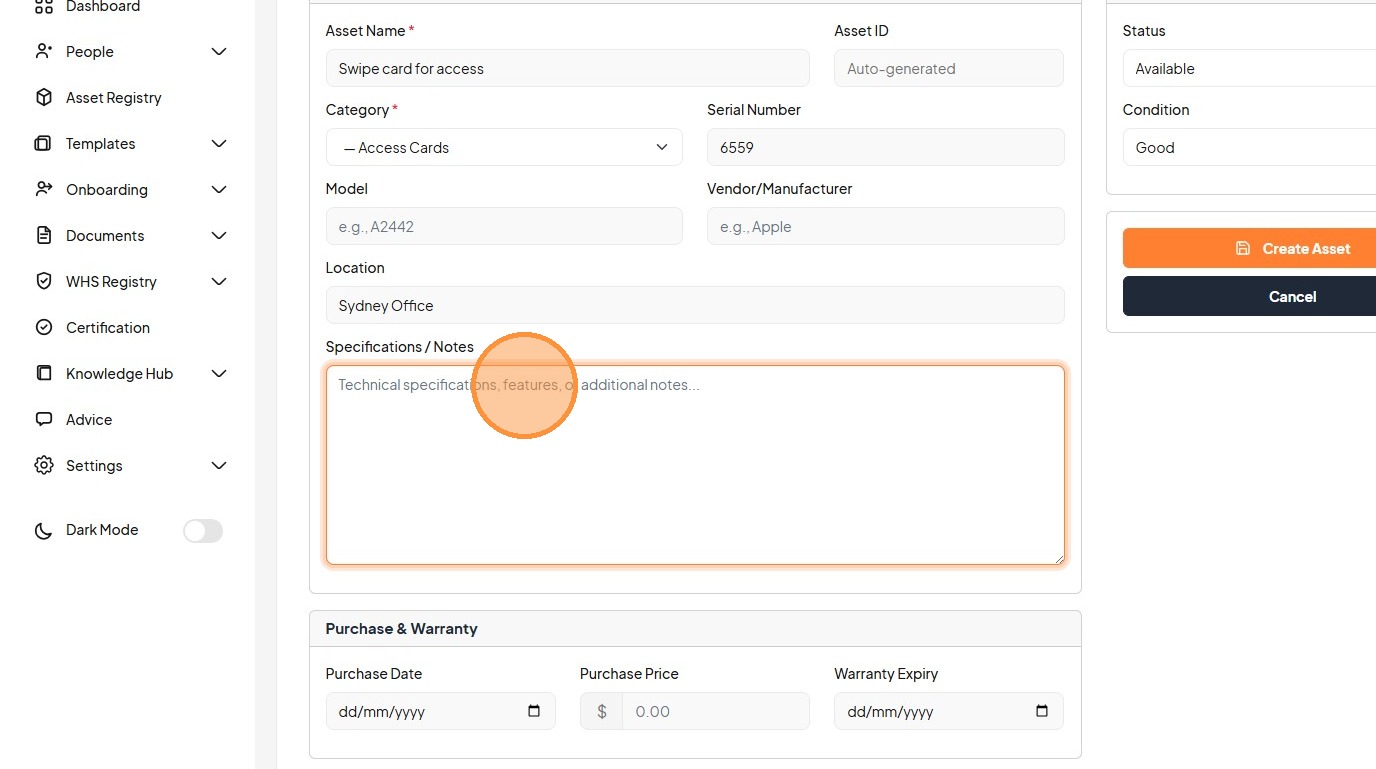
13. Type "No lanyard"
14. Click the "Technical specifications, features, or additional notes..." field.
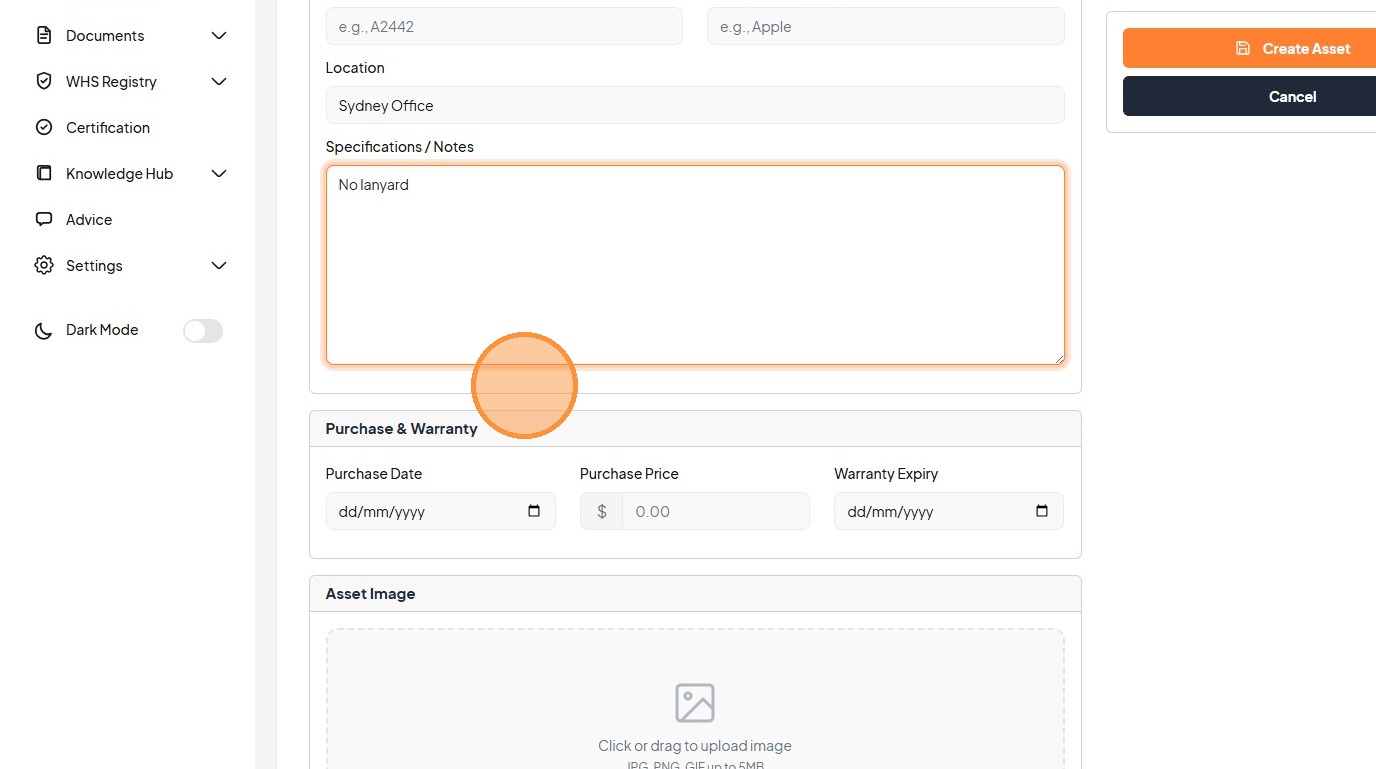
15. Click here.
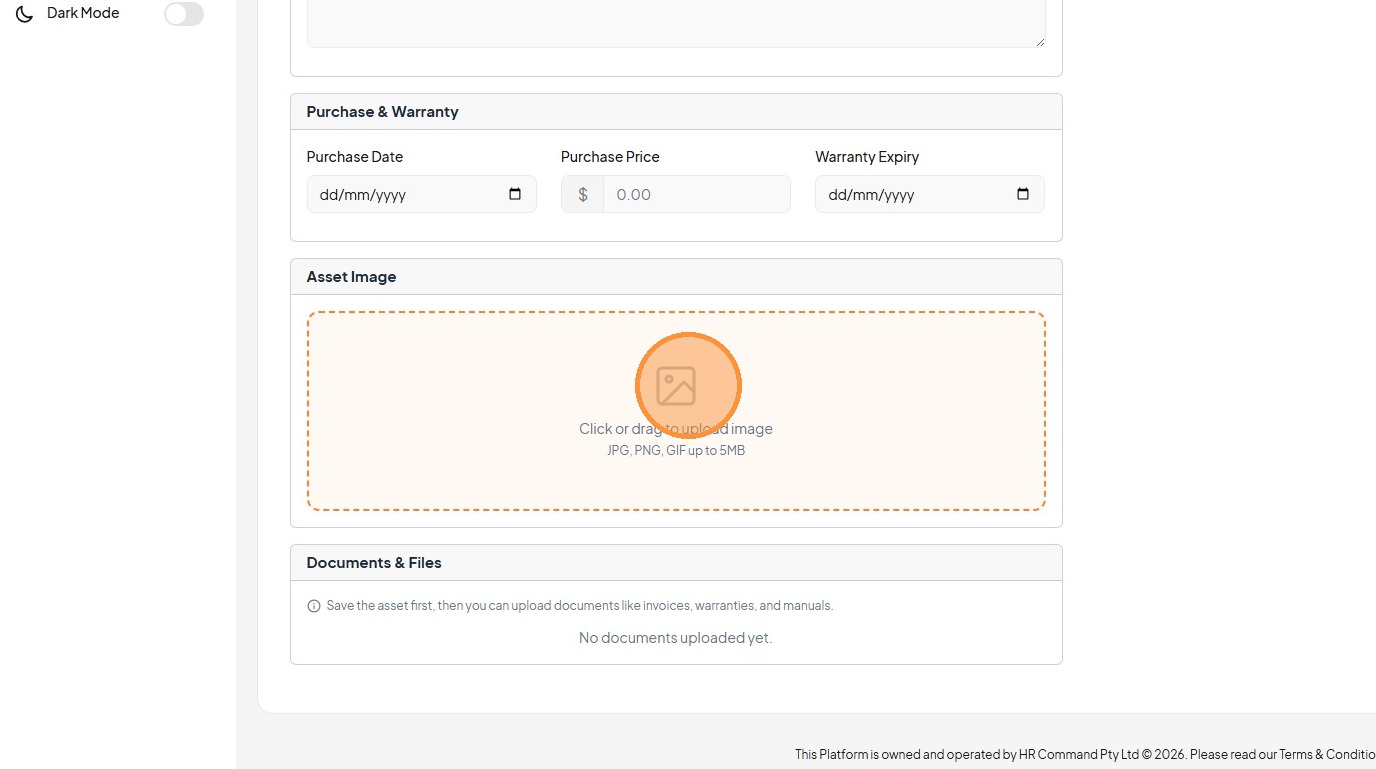
16. Click this dropdown.
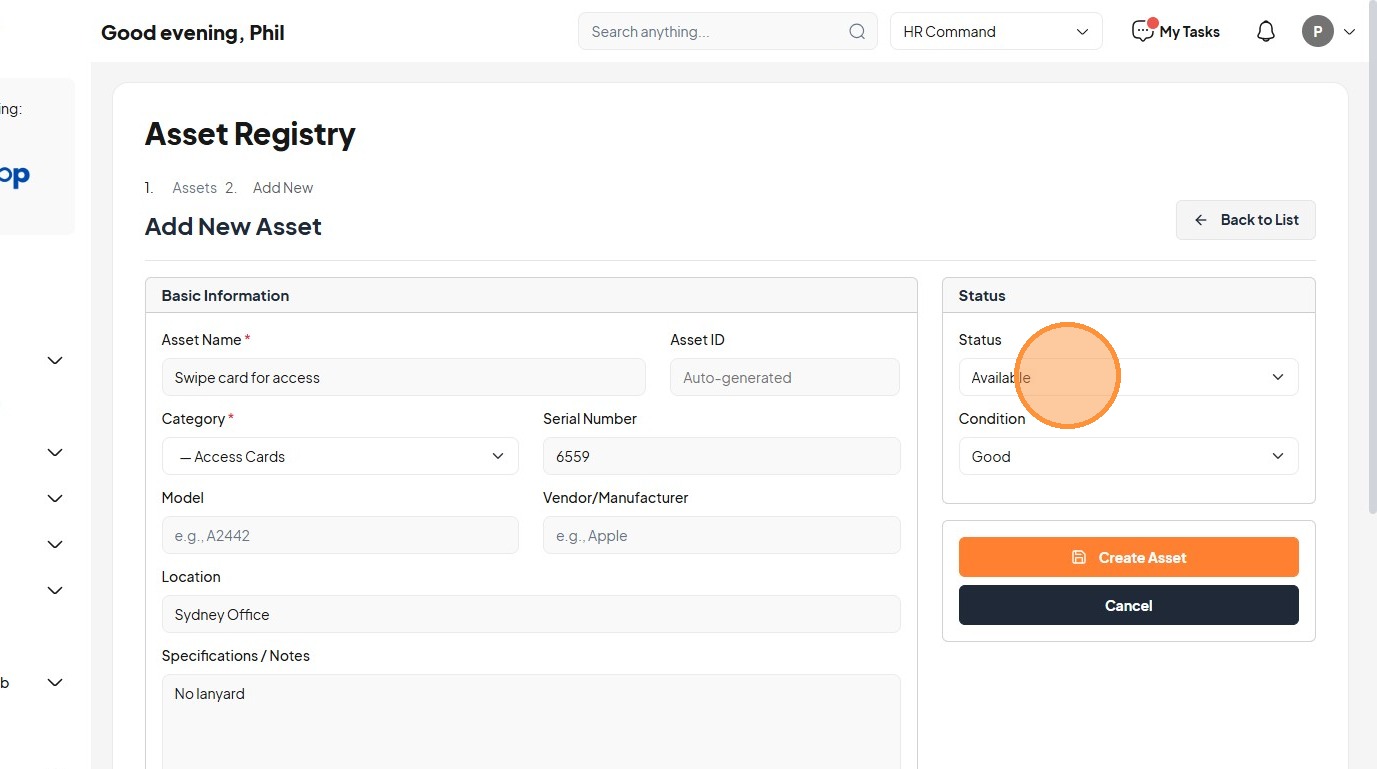
17. Click this dropdown.
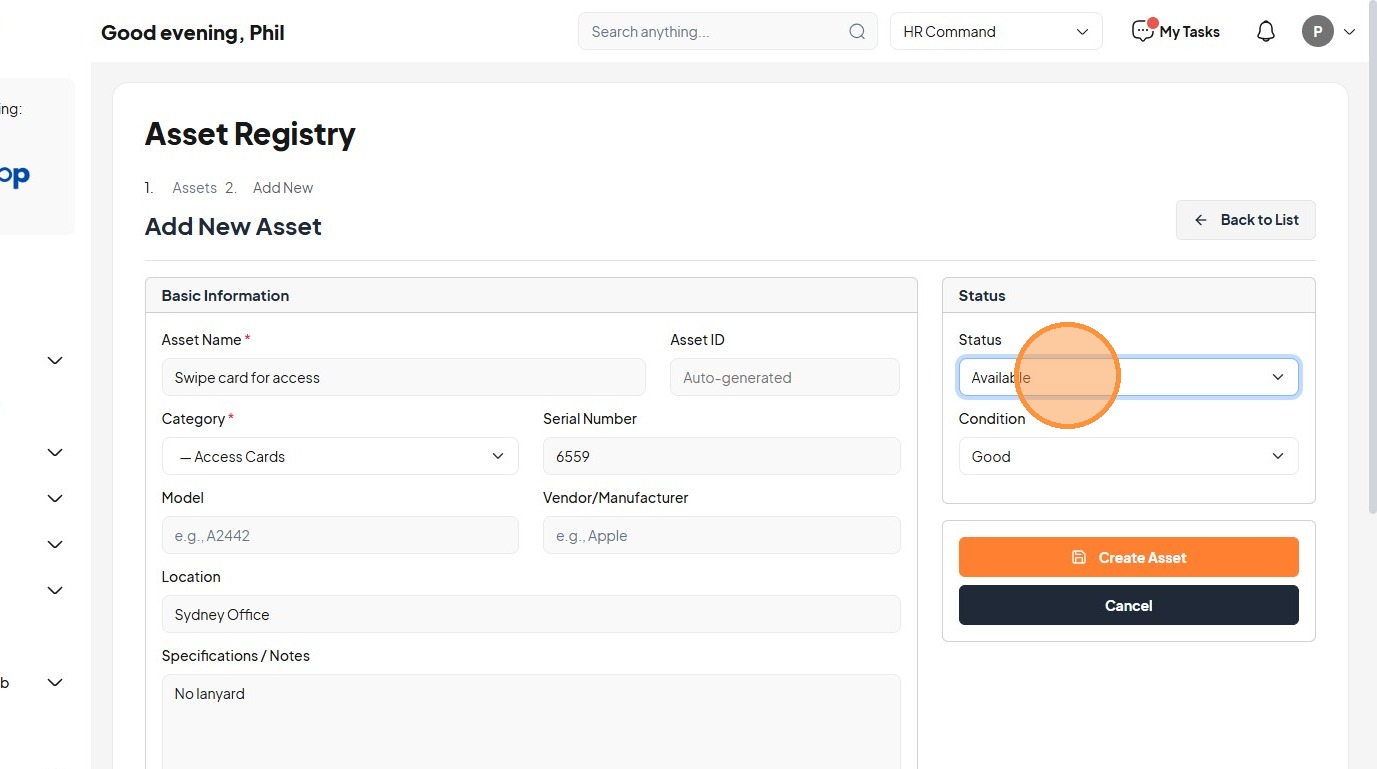
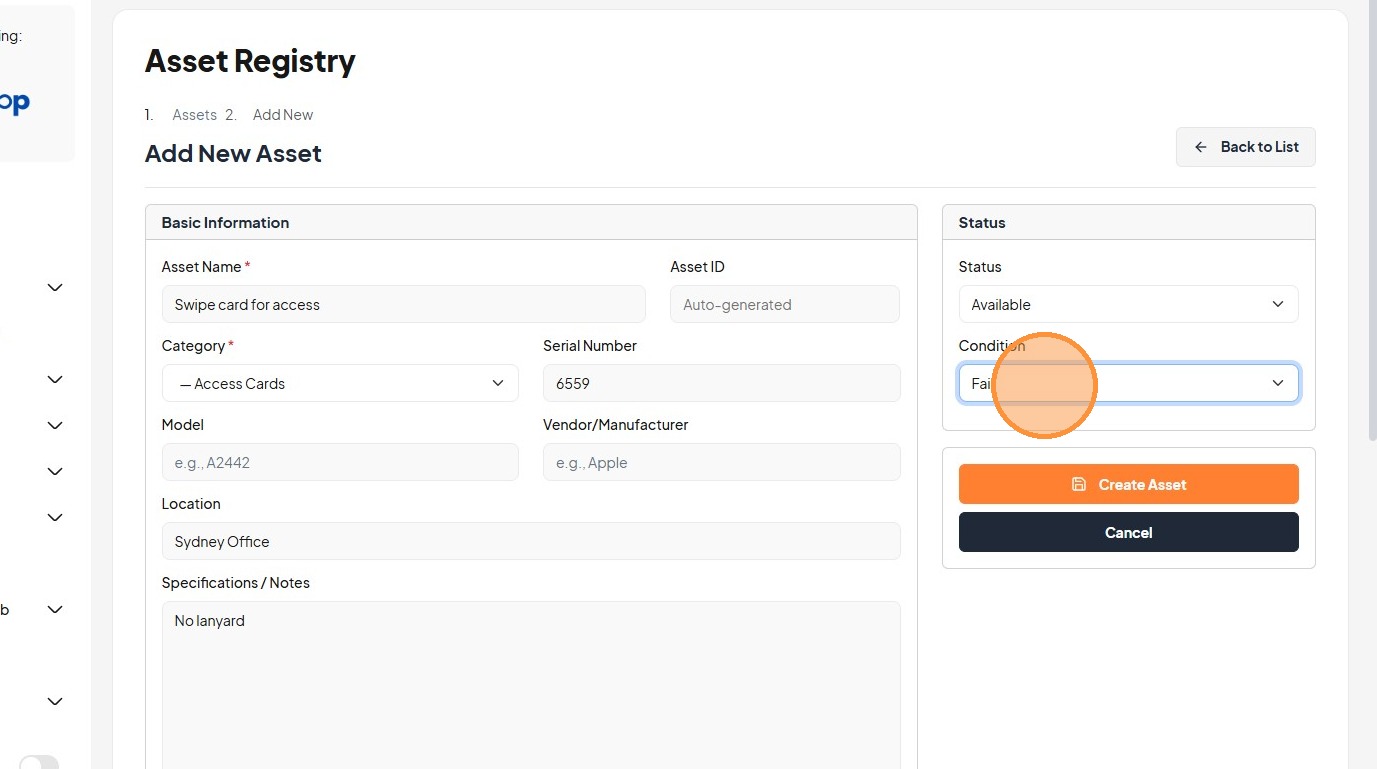
18. Select the "Fair" option.
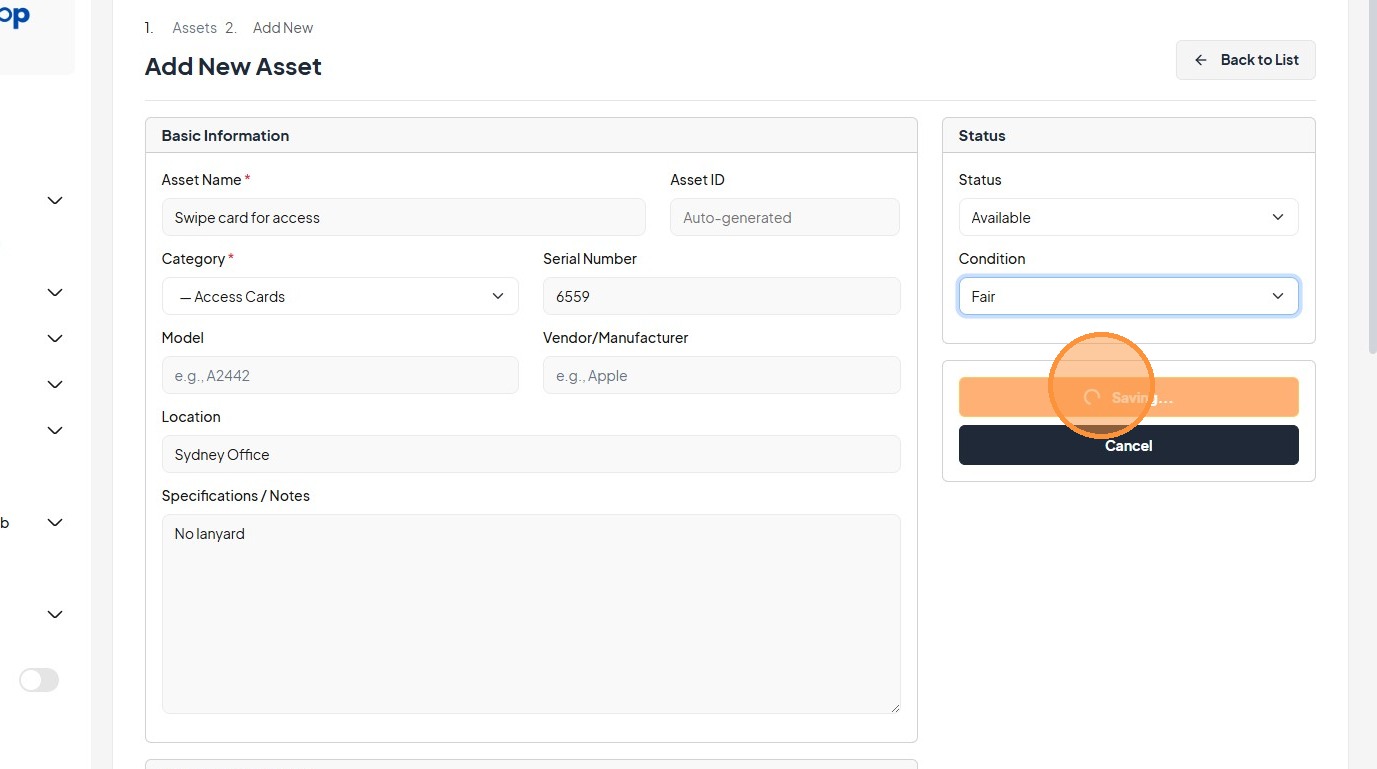
19. Click "Saving..."
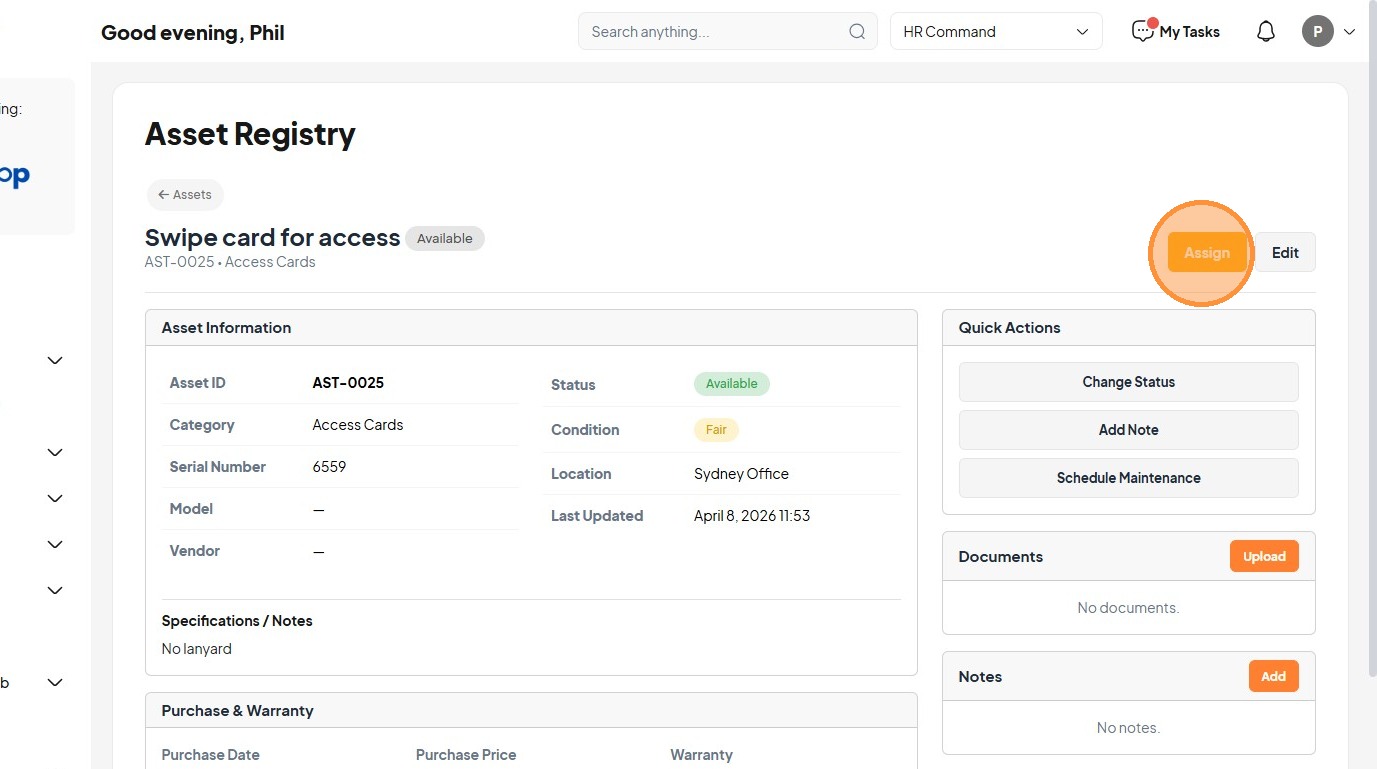
20. Click "Assign"
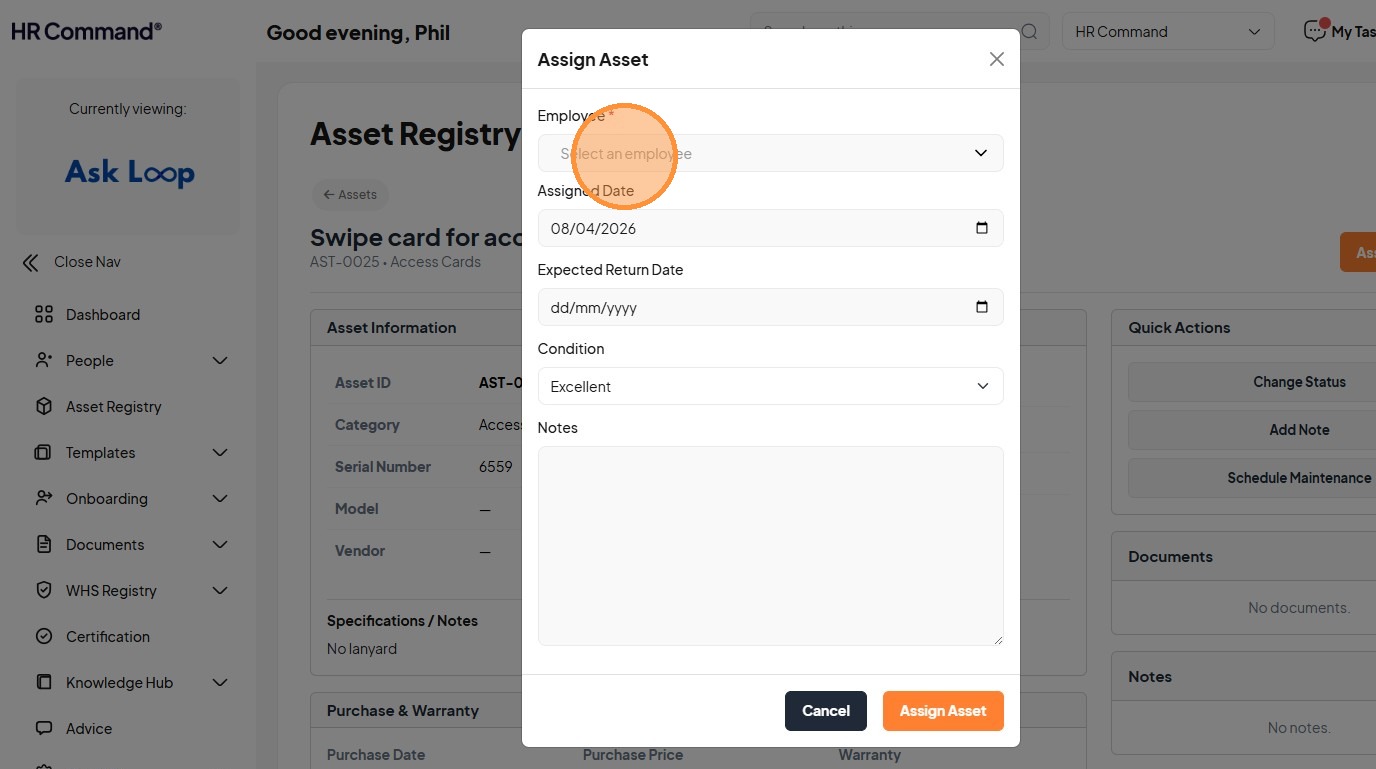
21. Click "Select an employee"
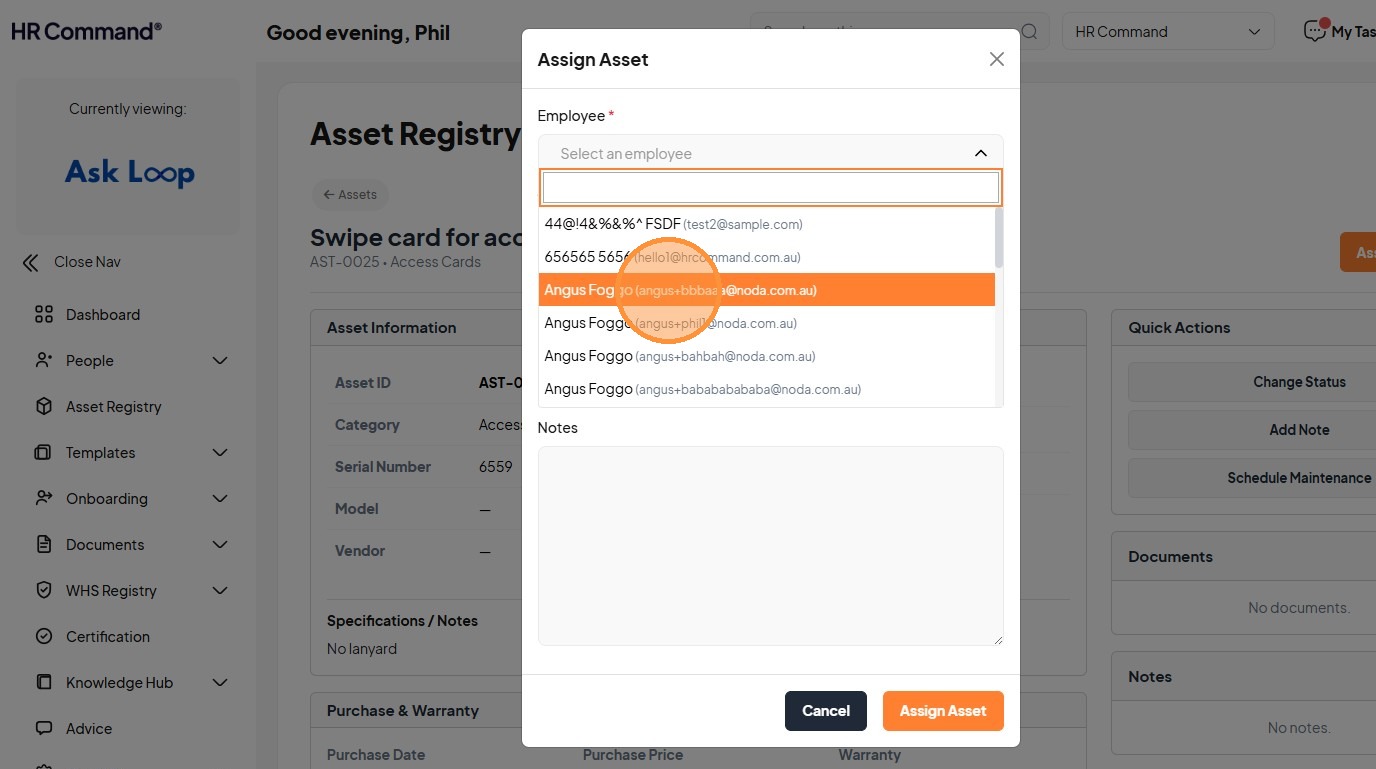
22. Click "(angus+bbbaaa@noda.com.au)"
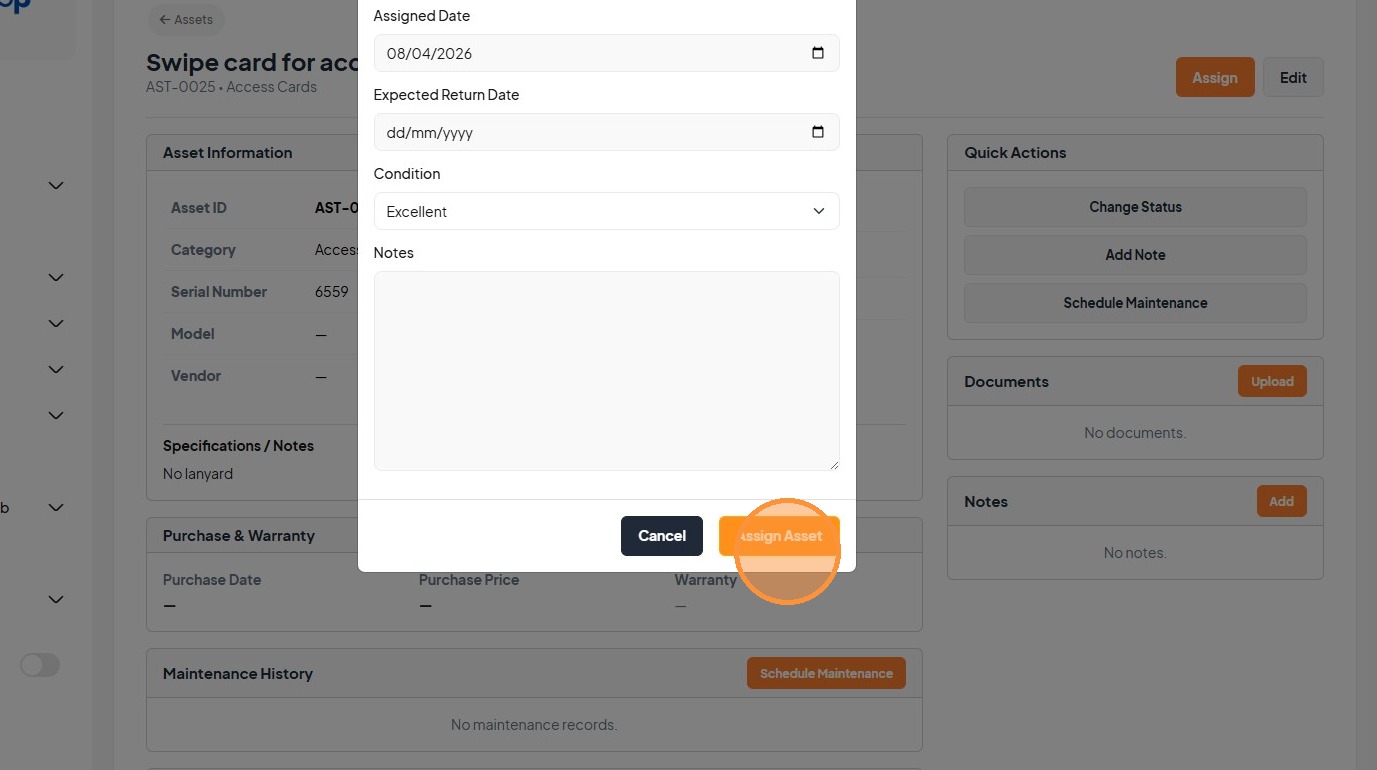
23. Click "Please wait..."
24. Click "Assets"
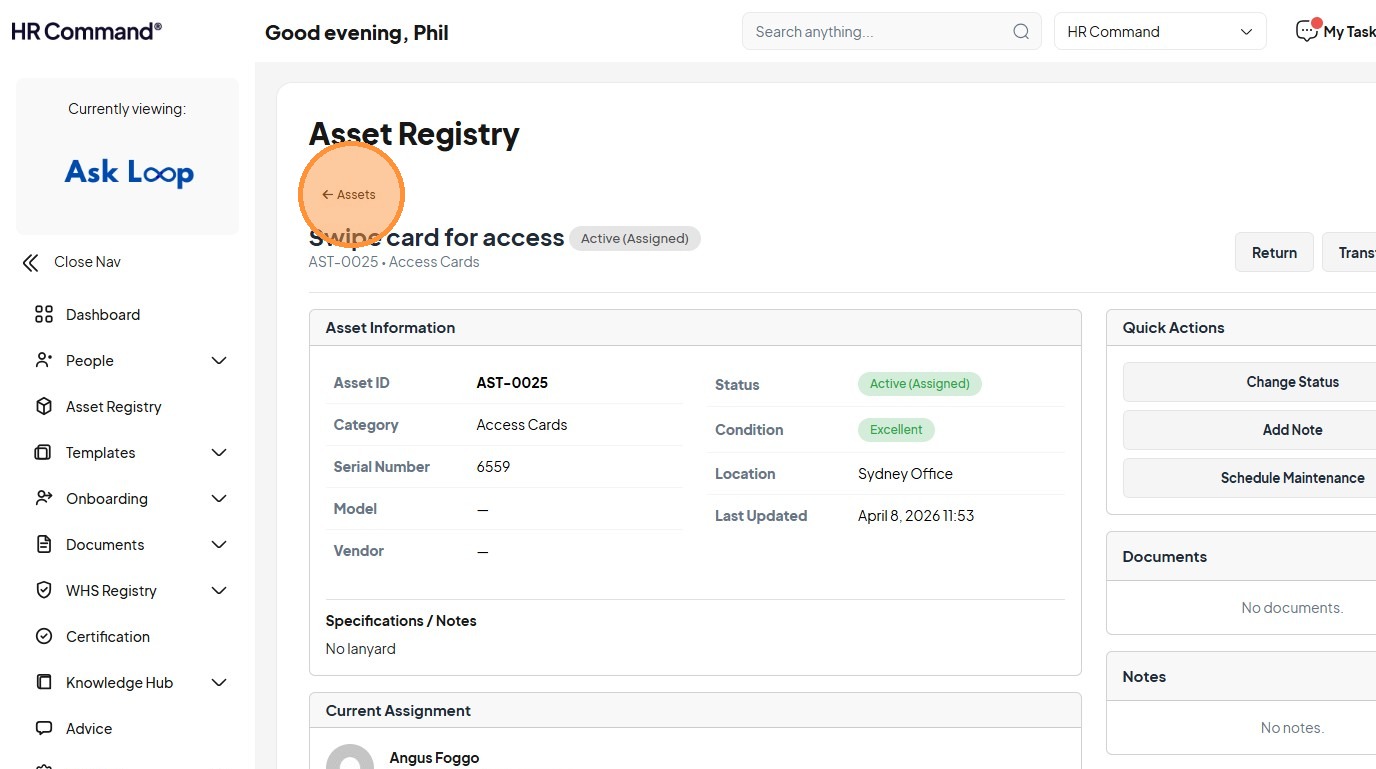
25. Click this icon.
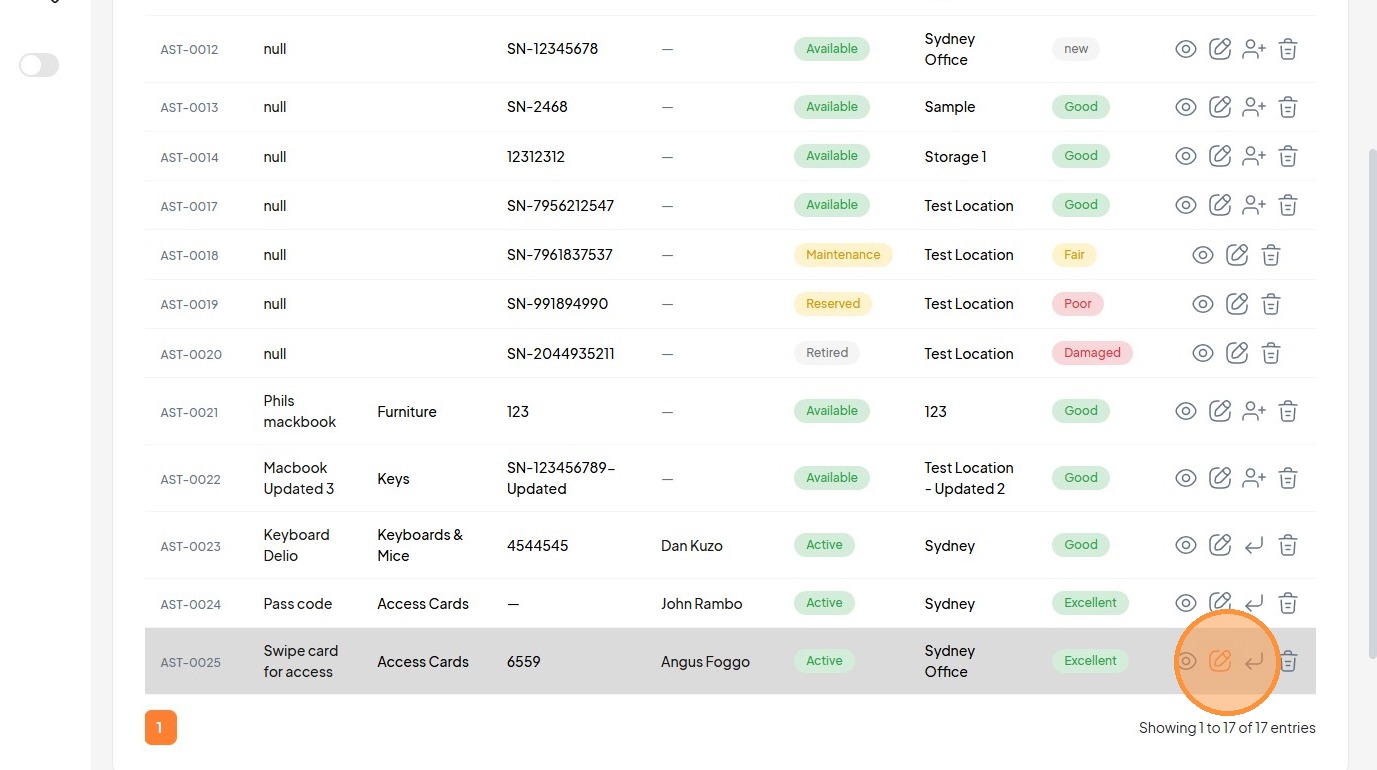
26. Click "Saving..."
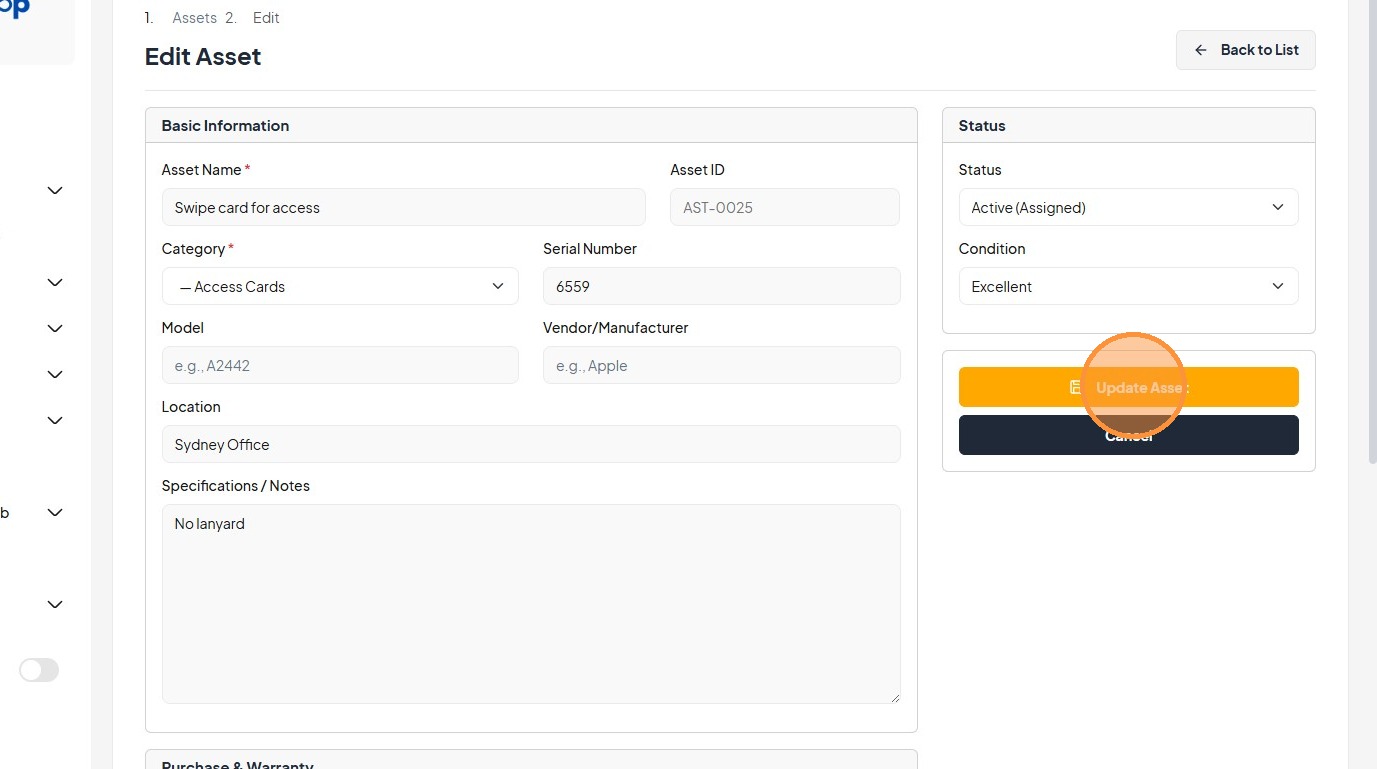
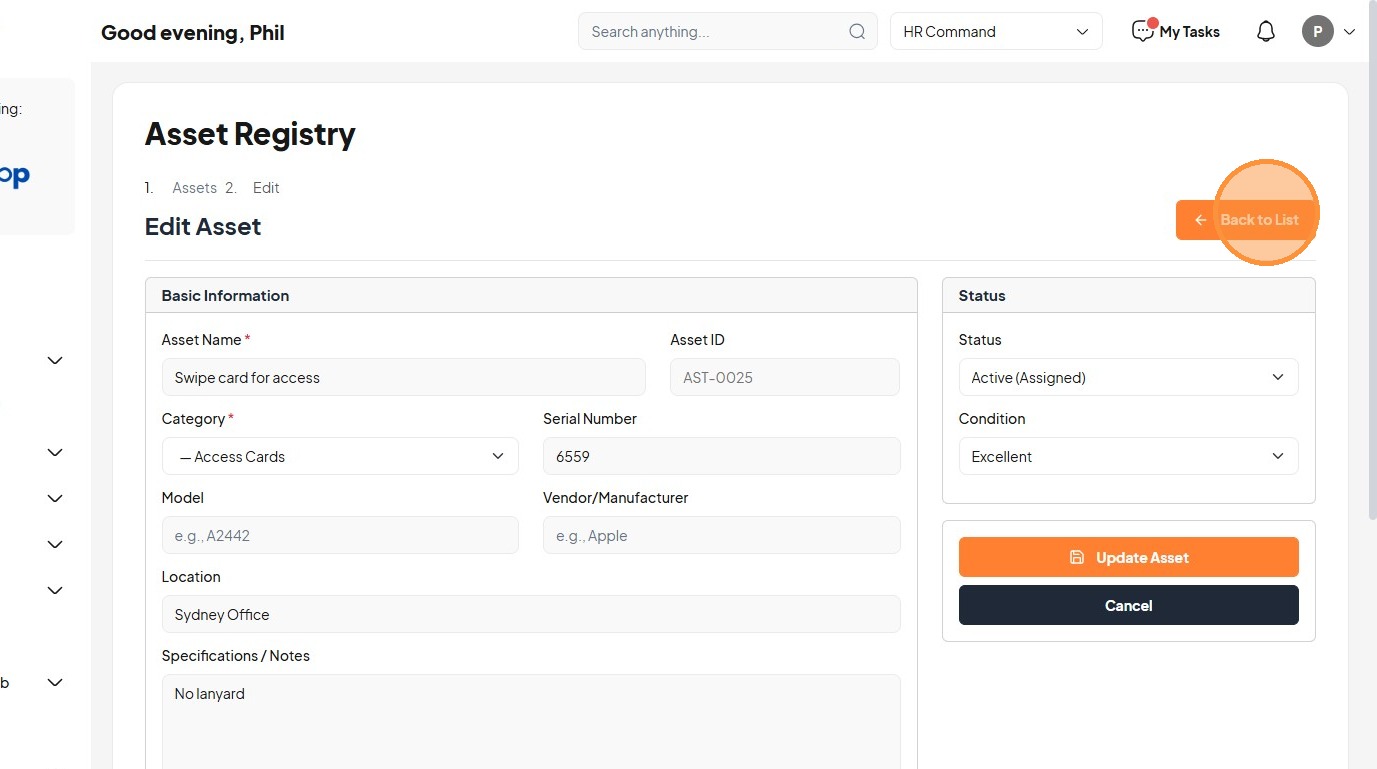
27. Click "Back to List"