Learn how to build, configure, and publish a new training course using the learning management platform. This guide covers adding lessons, creating quizzes, setting prerequisites, and assigning the course to specific learners.
Course Initialization
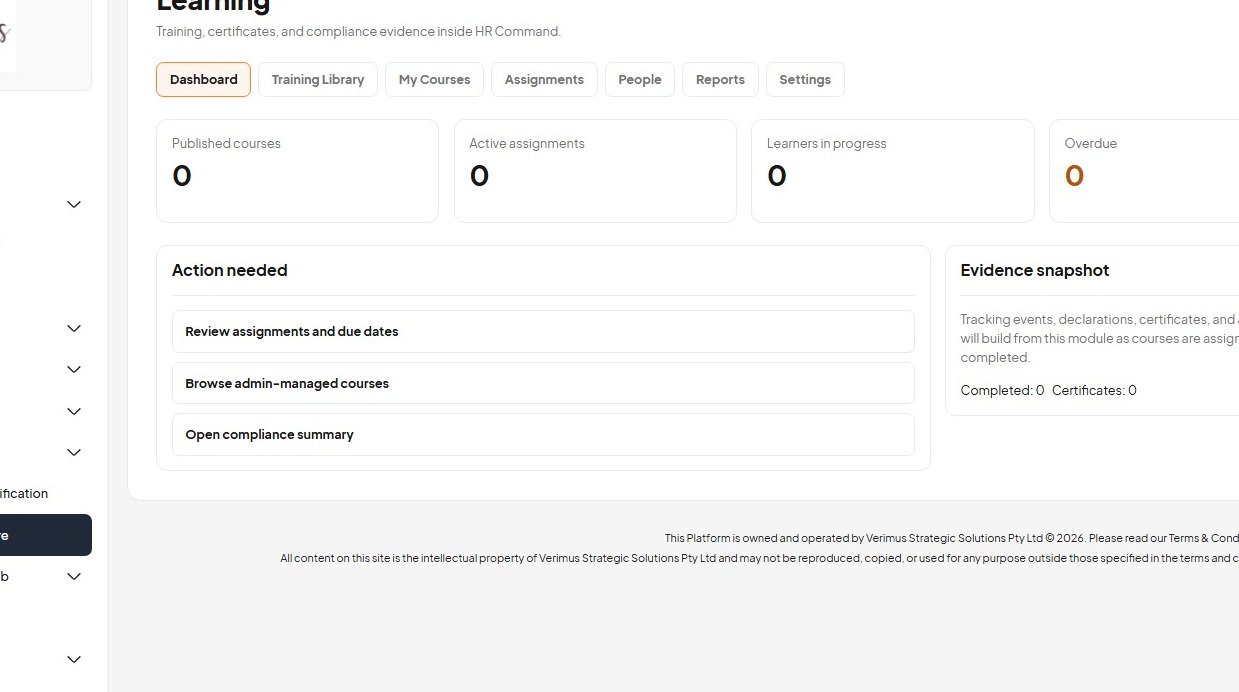
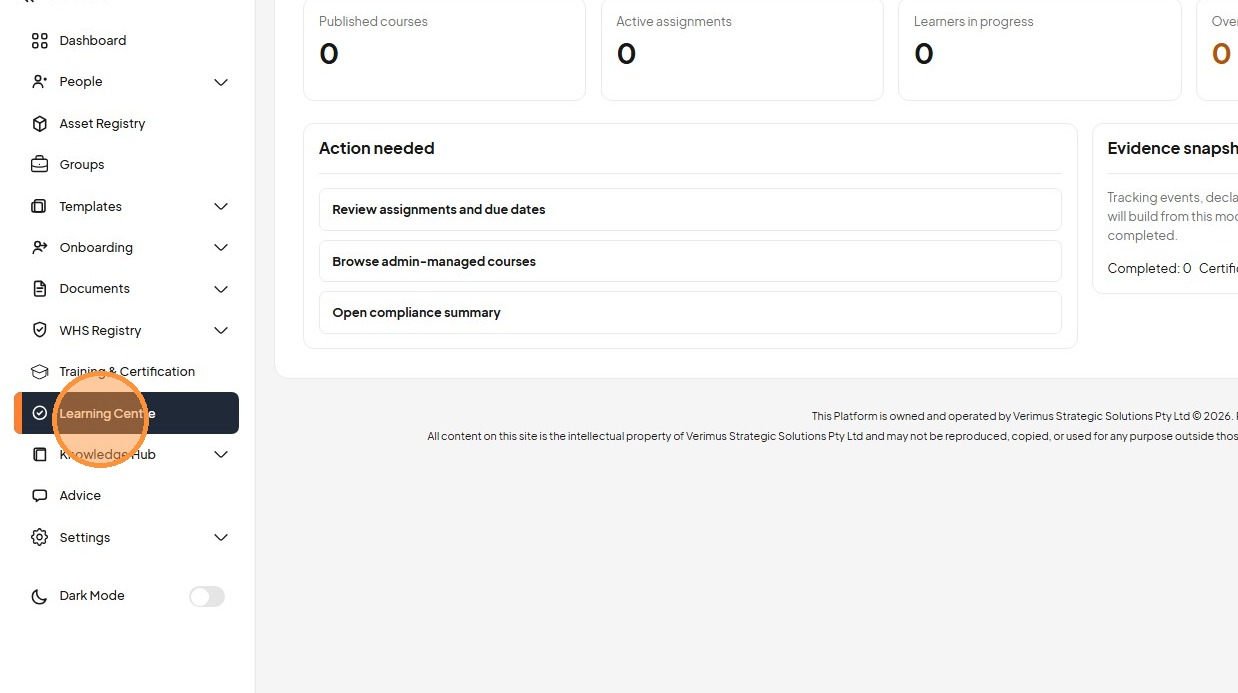
1. Navigate to the Learning Centre and open My Courses.
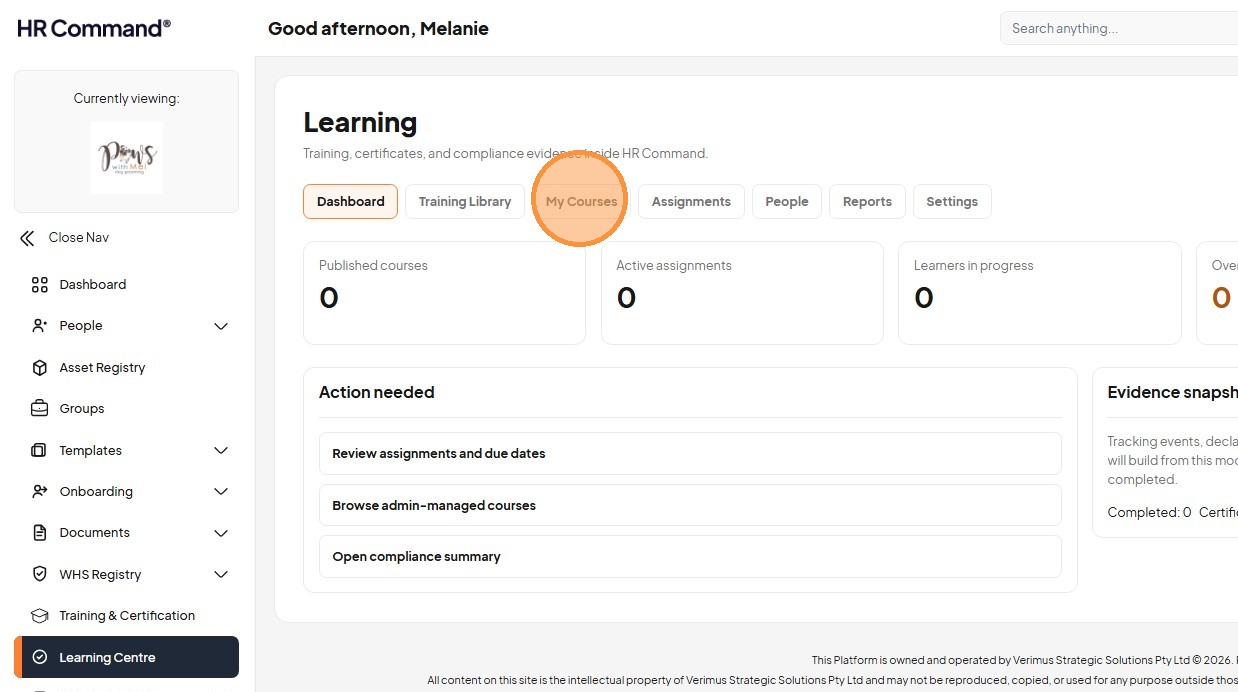
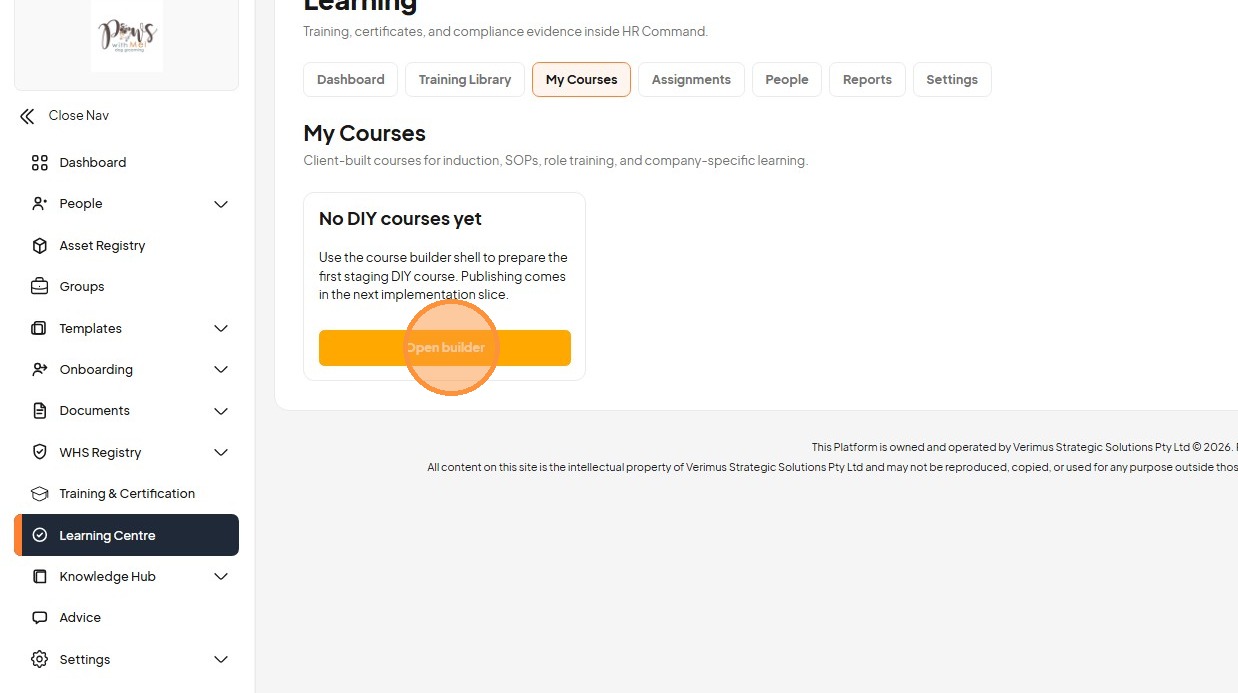
2. Click "Open builder" to create a new course.
3. Enter the course title in the Course details field.
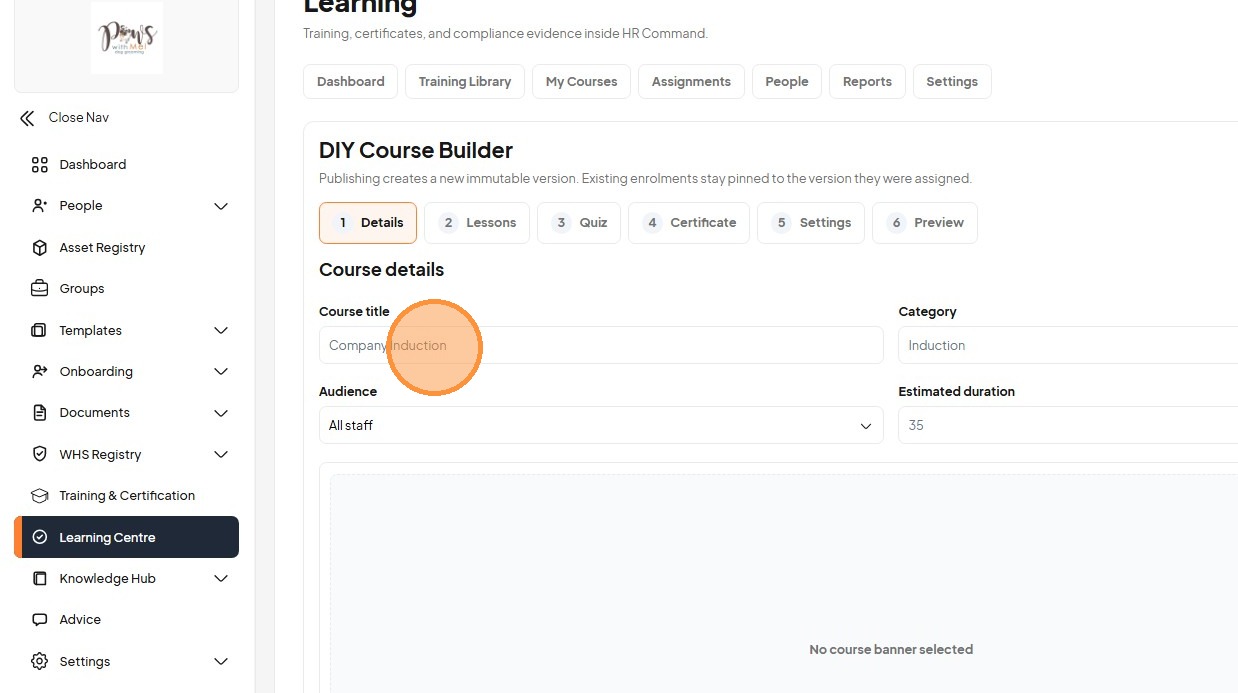
4. Select a Category from the dropdown menu.
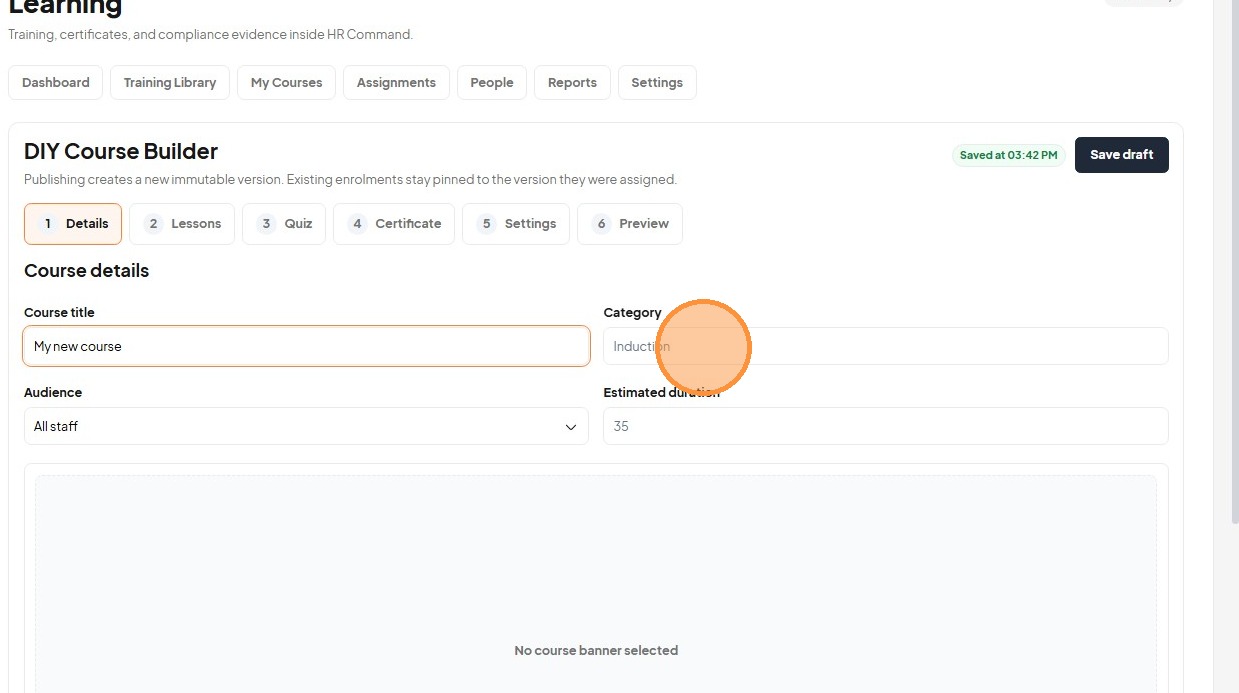
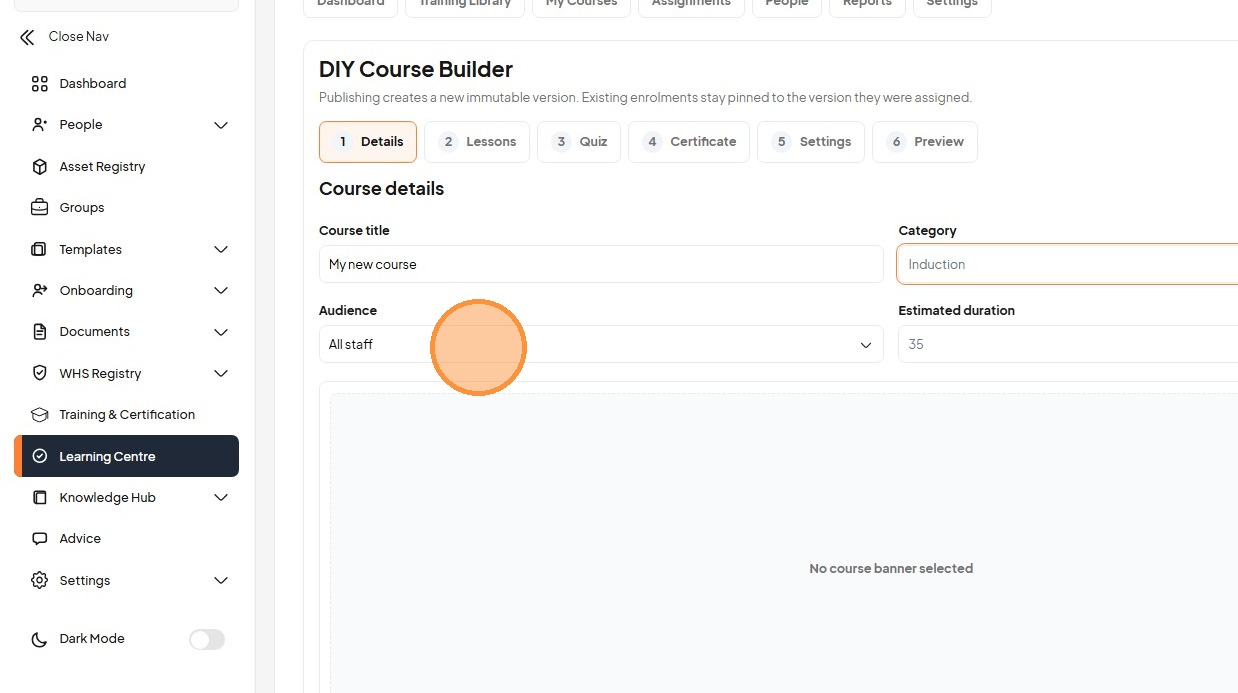
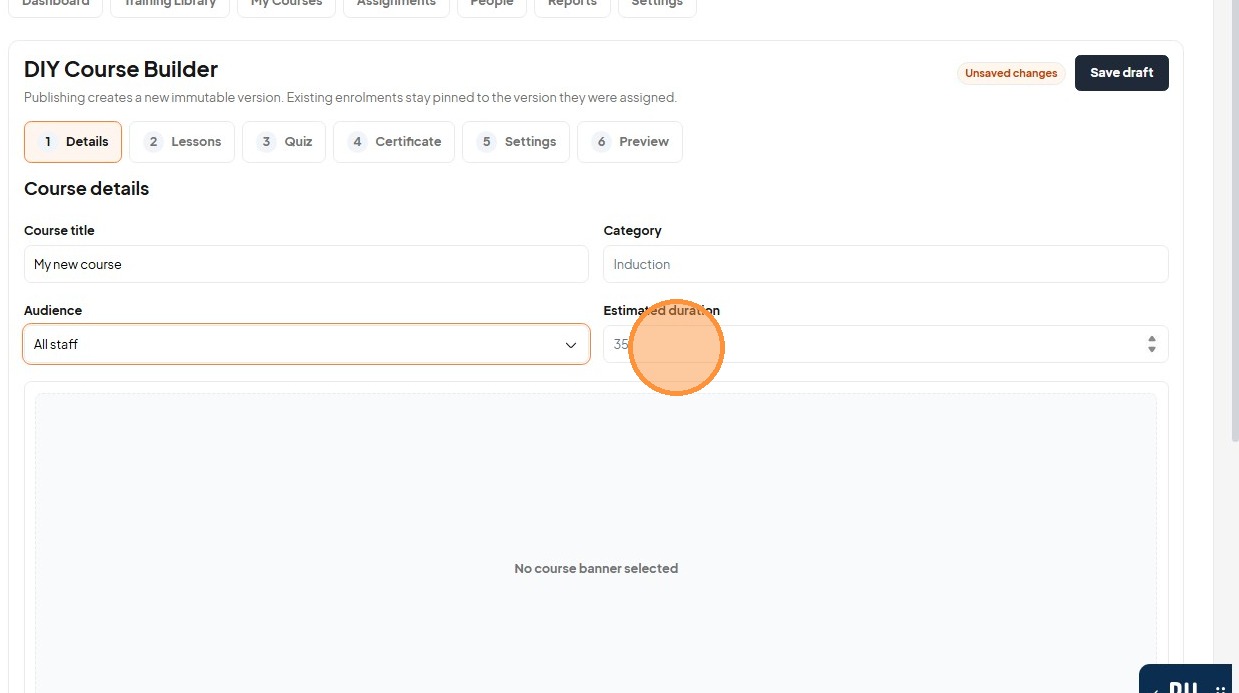
5. Set the Estimated duration for the course.
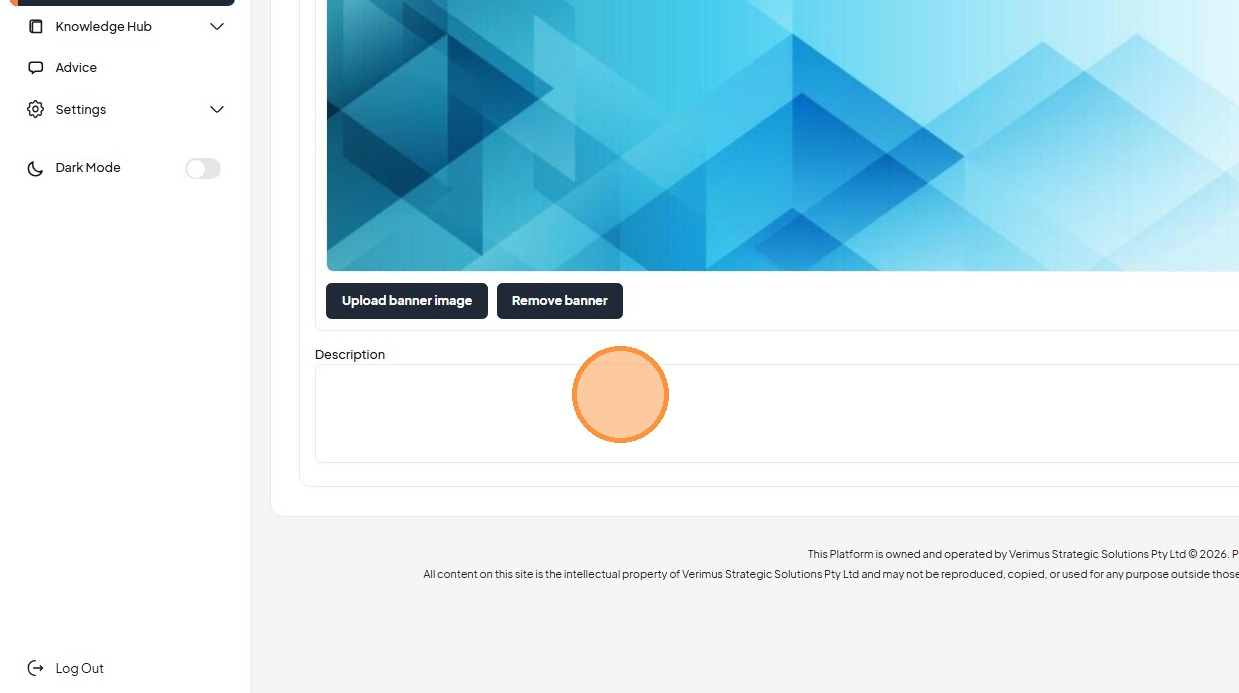
6. Click "Upload banner image"
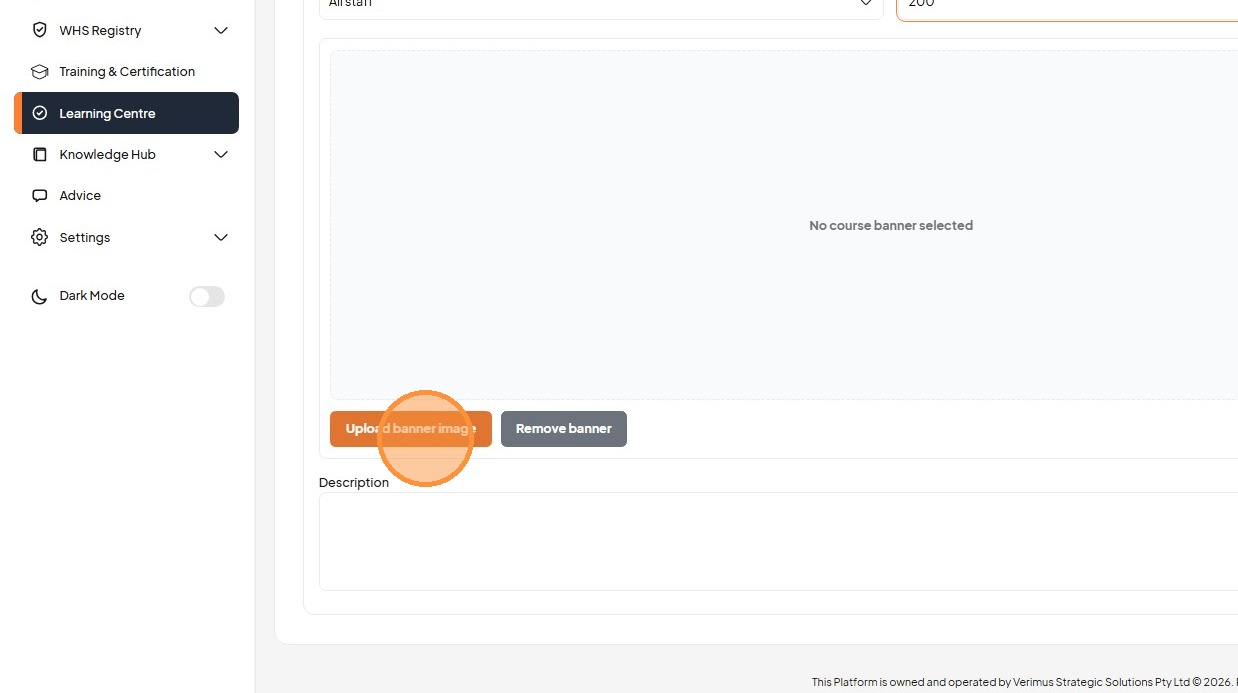
7. Type the course description into the text area.
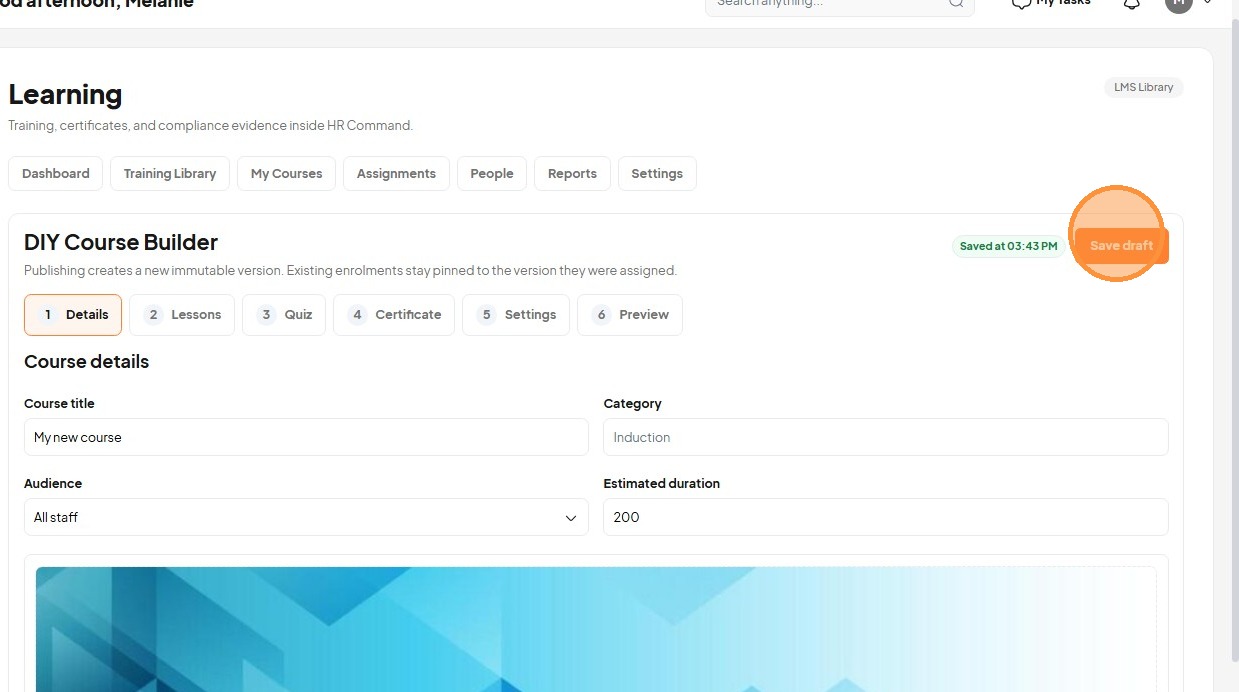
8. Click "Save draft"
Lesson Content Creation
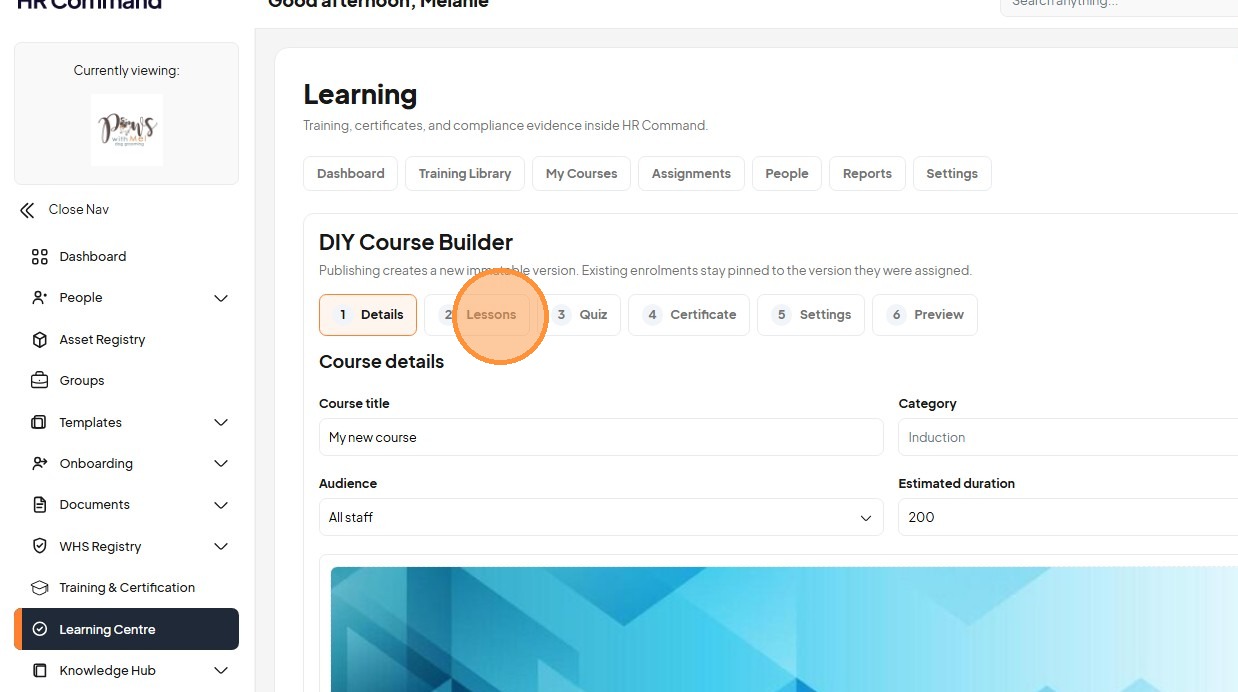
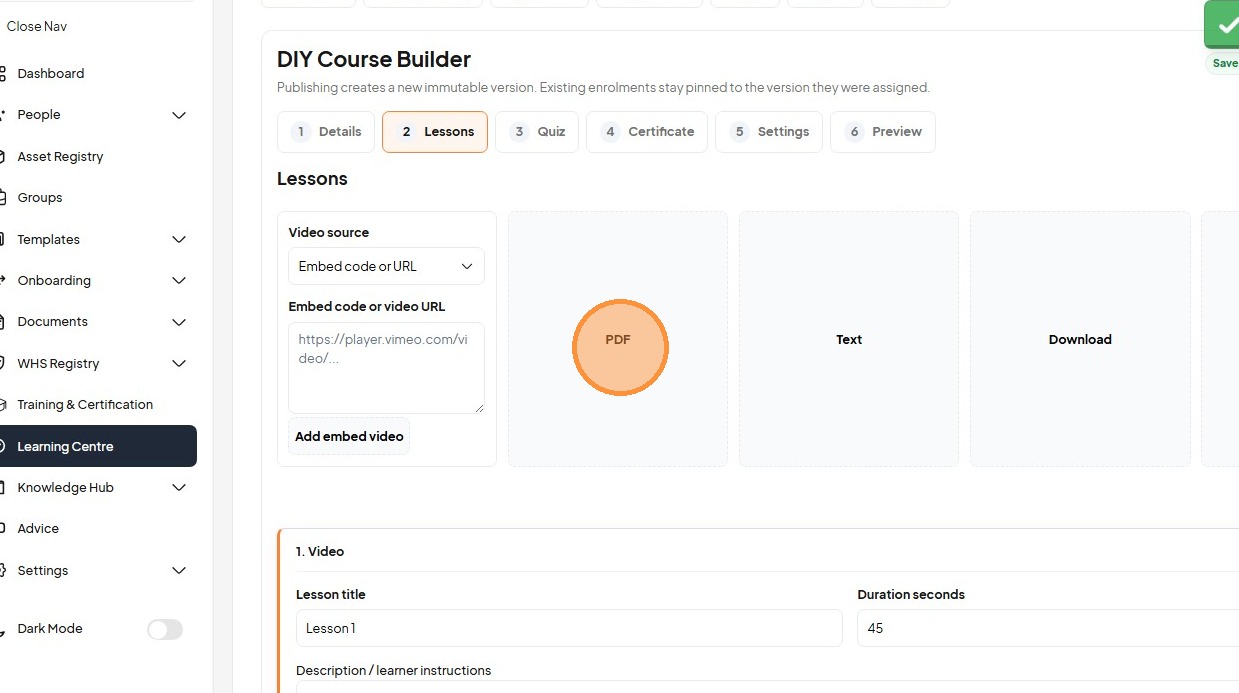
9. Switch to the "Lessons" tab to add content.
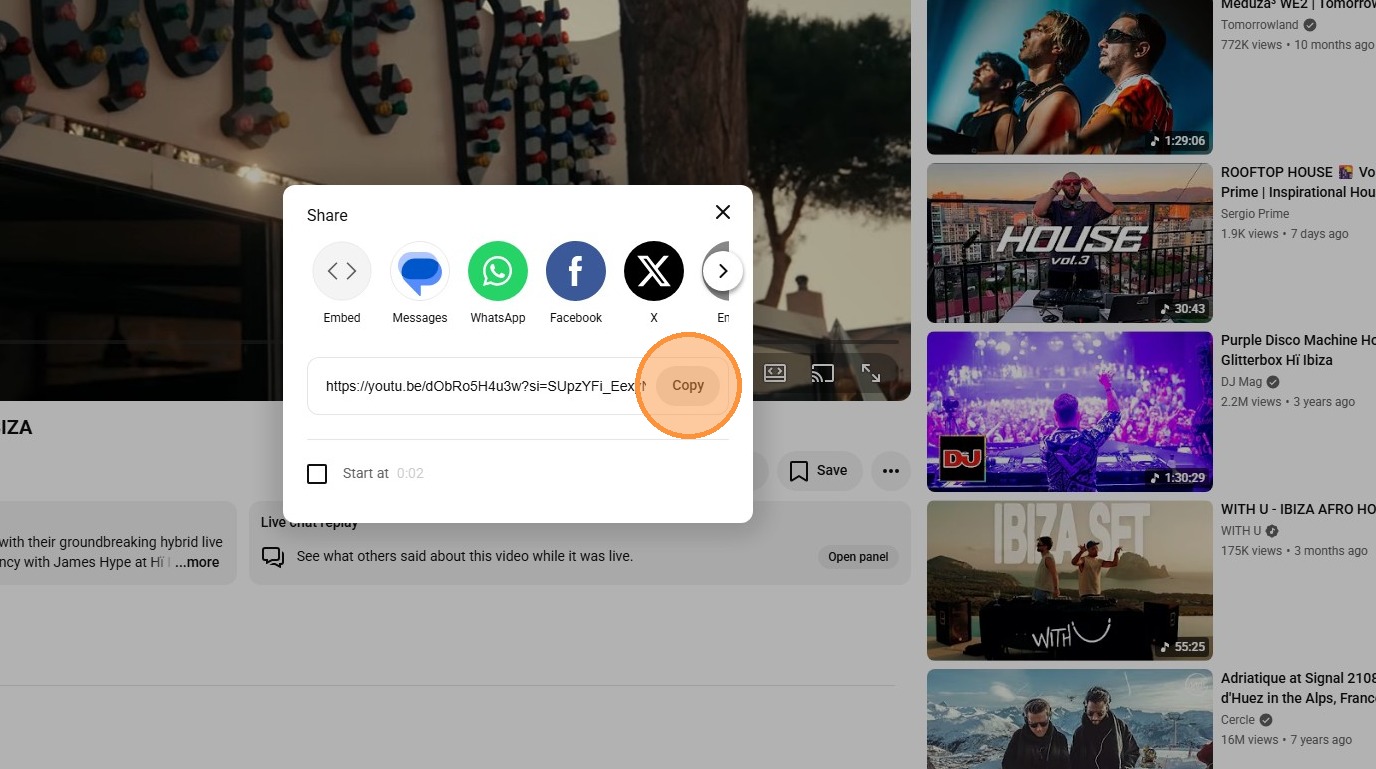
10. Click "Copy"
11. Switch to tab Learning
12. Select Embed code or URL and click Add embed video to insert the content.
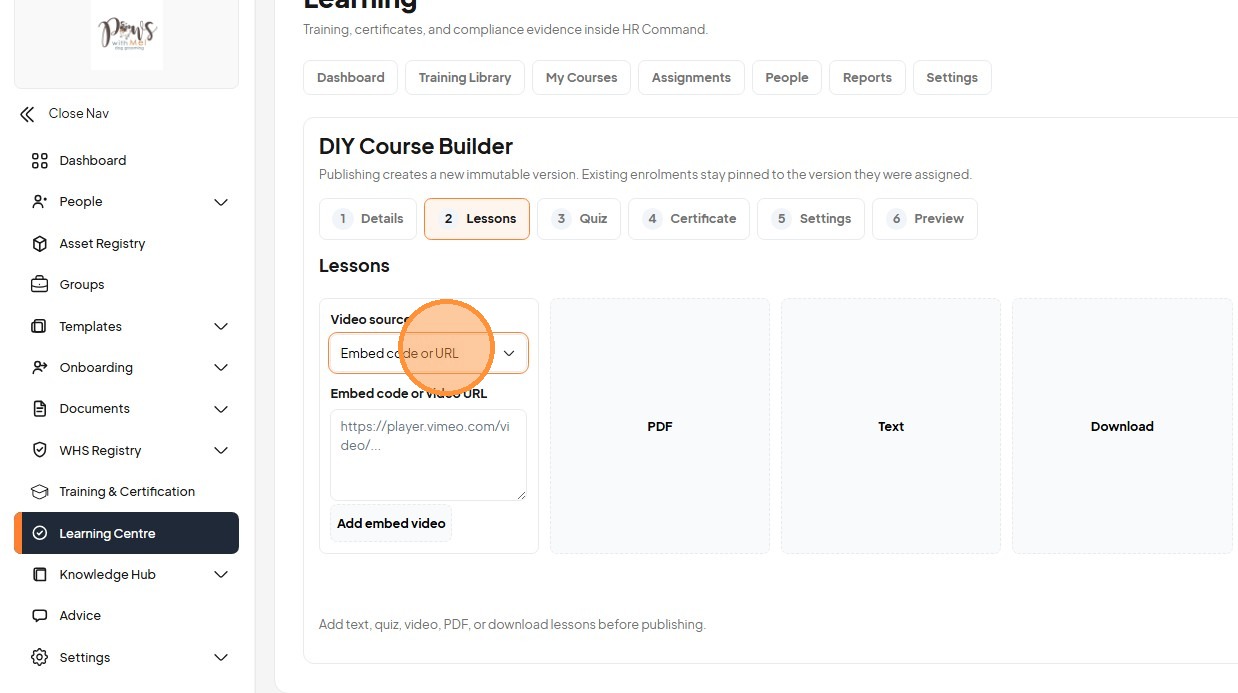
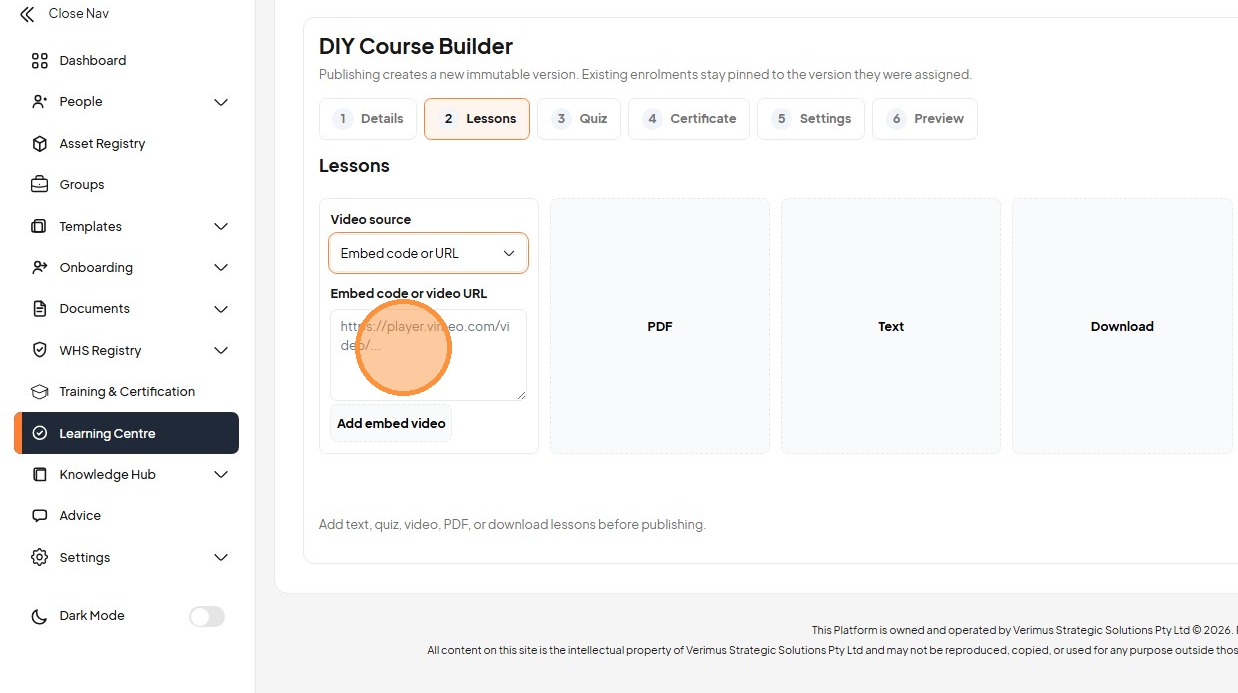
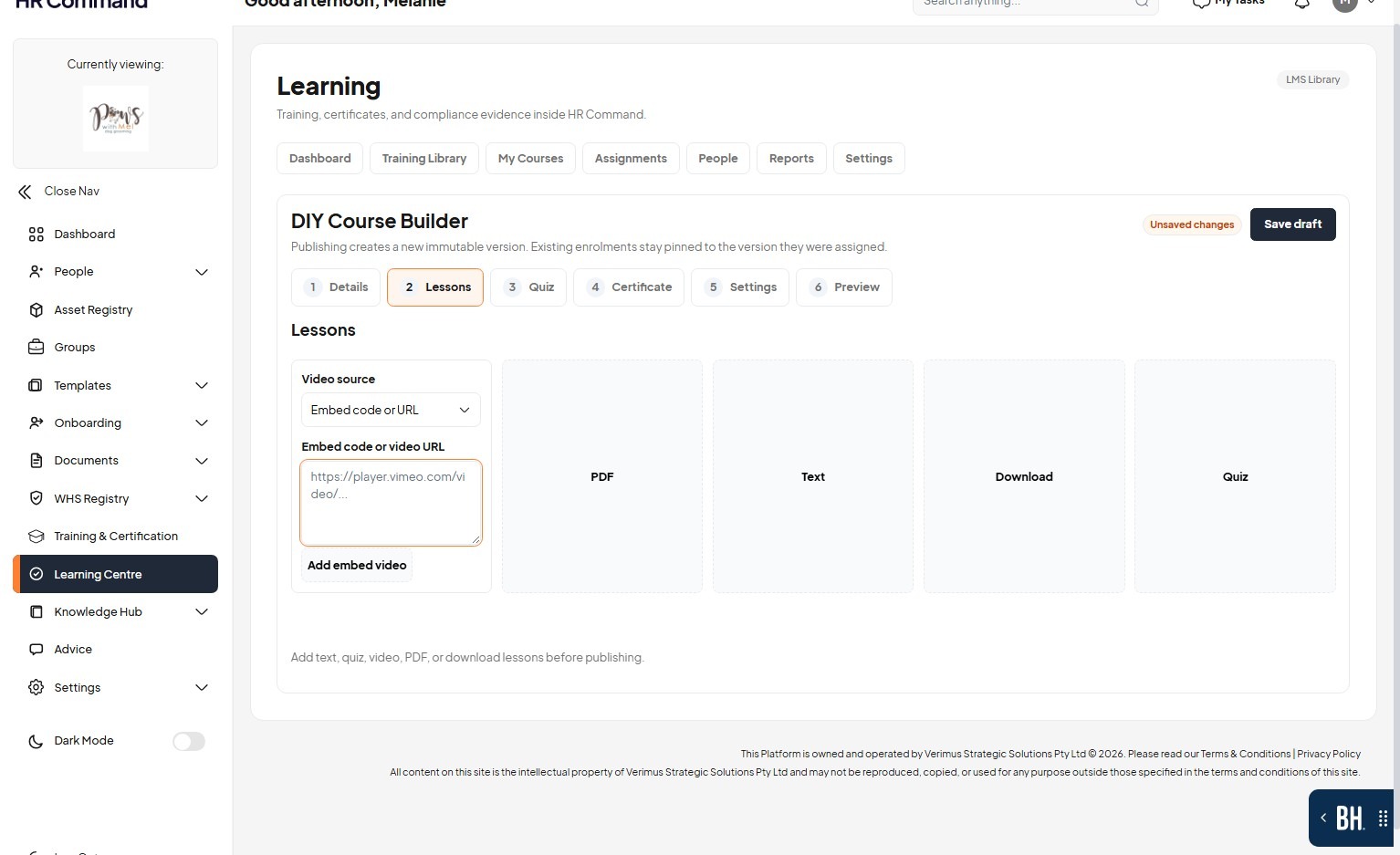
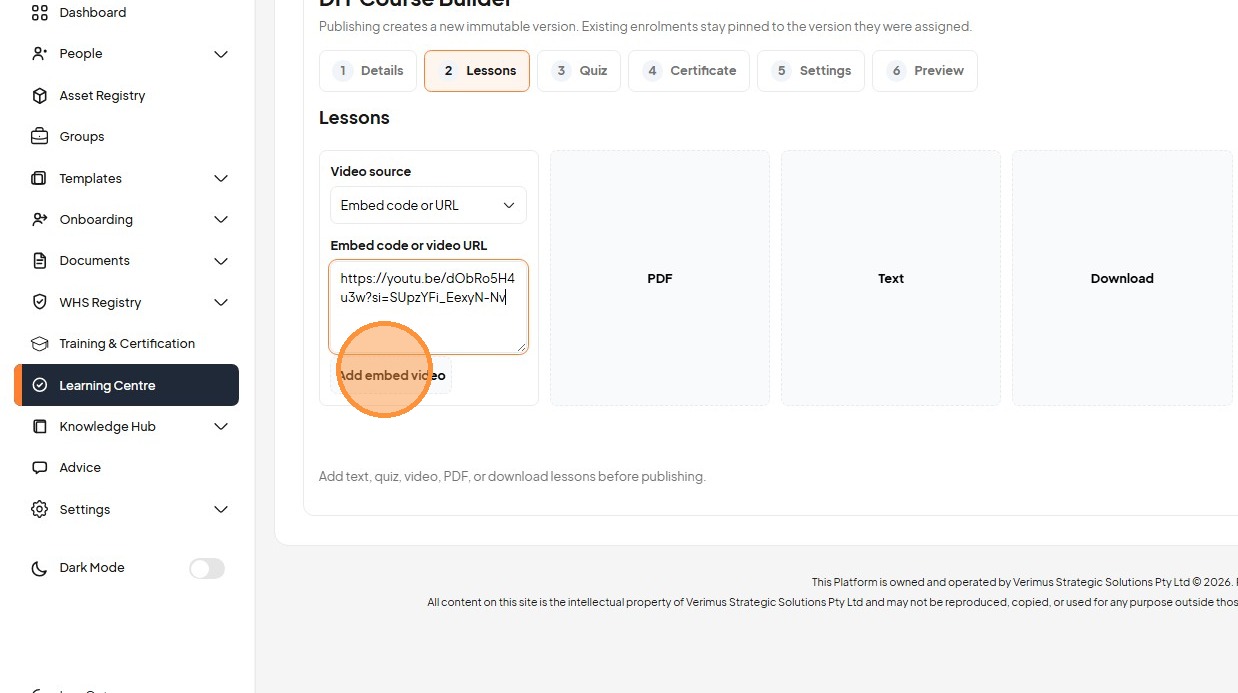
13. Set the title for the new video lesson.
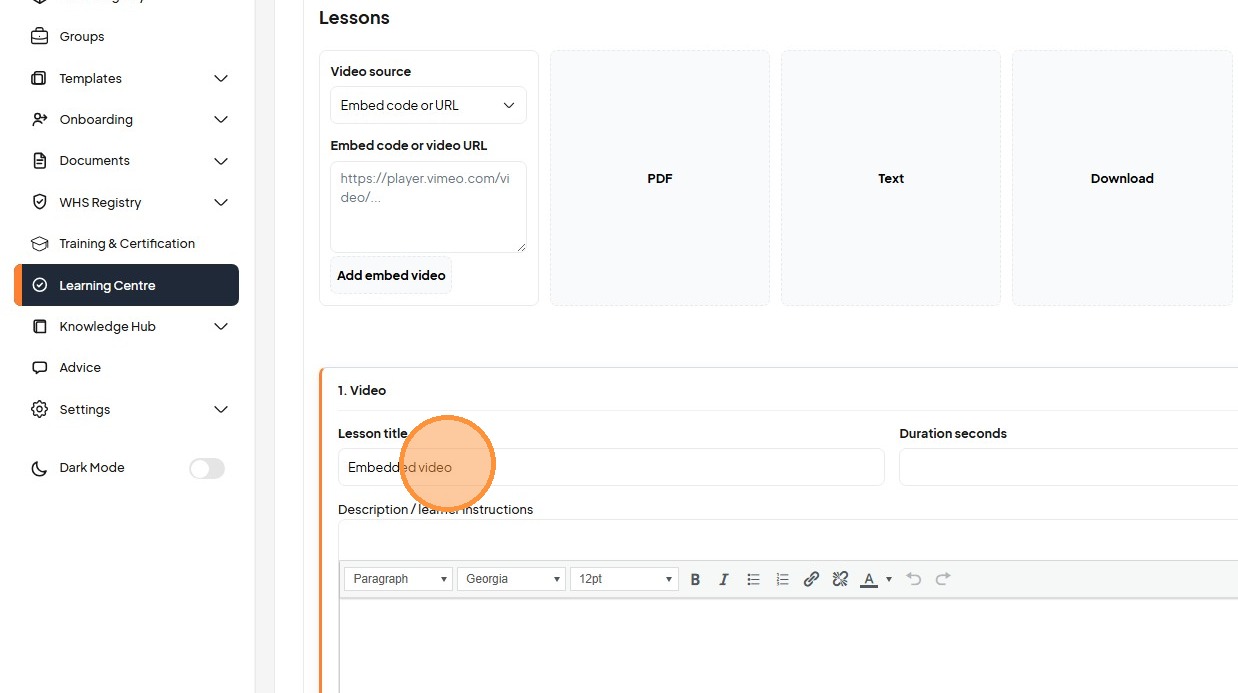
14. Enter the lesson duration in seconds.
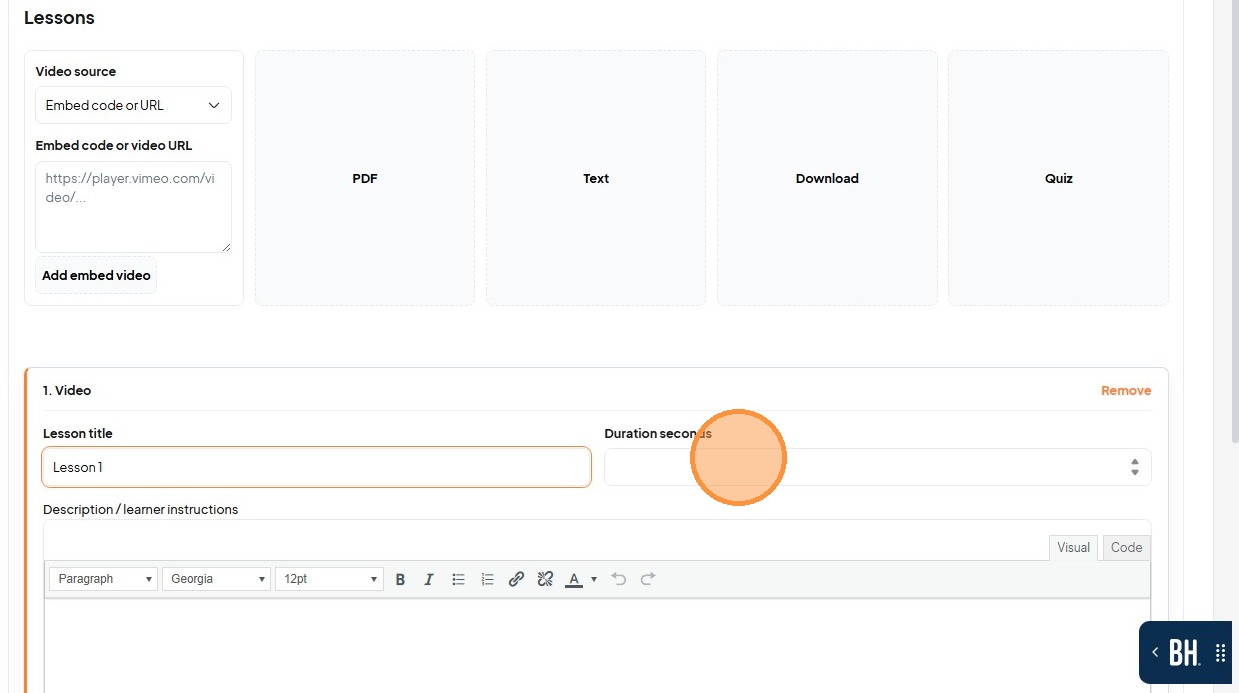
15. Provide a description for the lesson content.
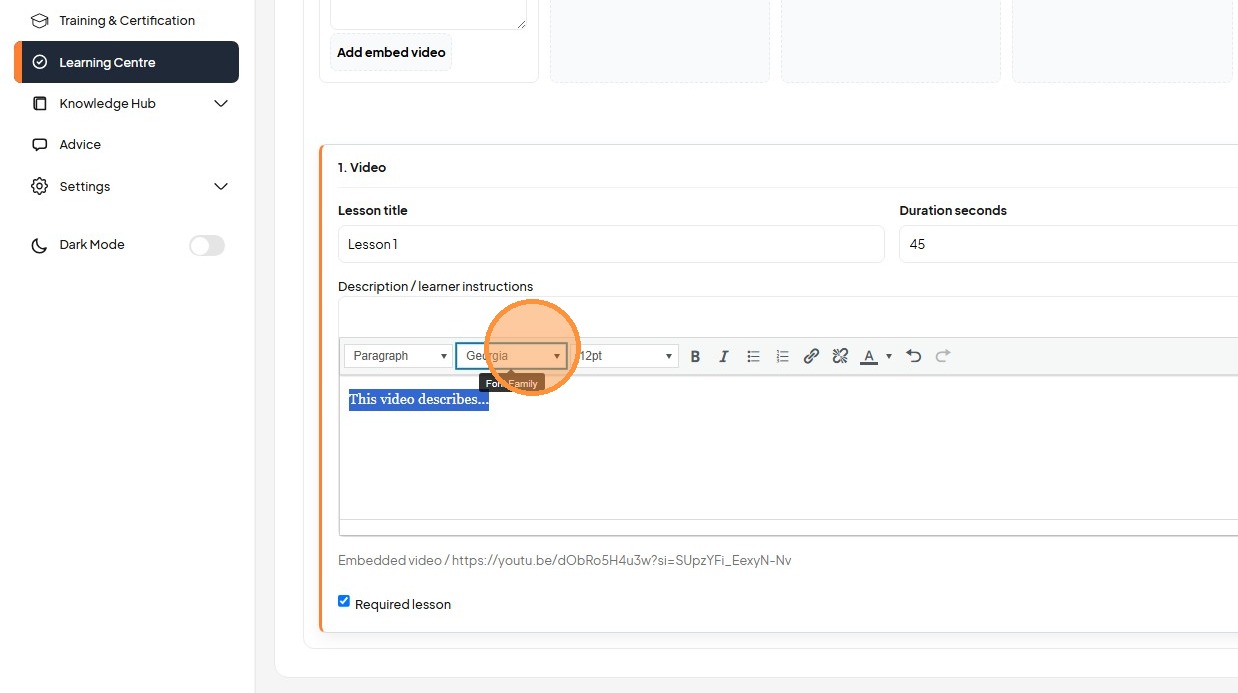
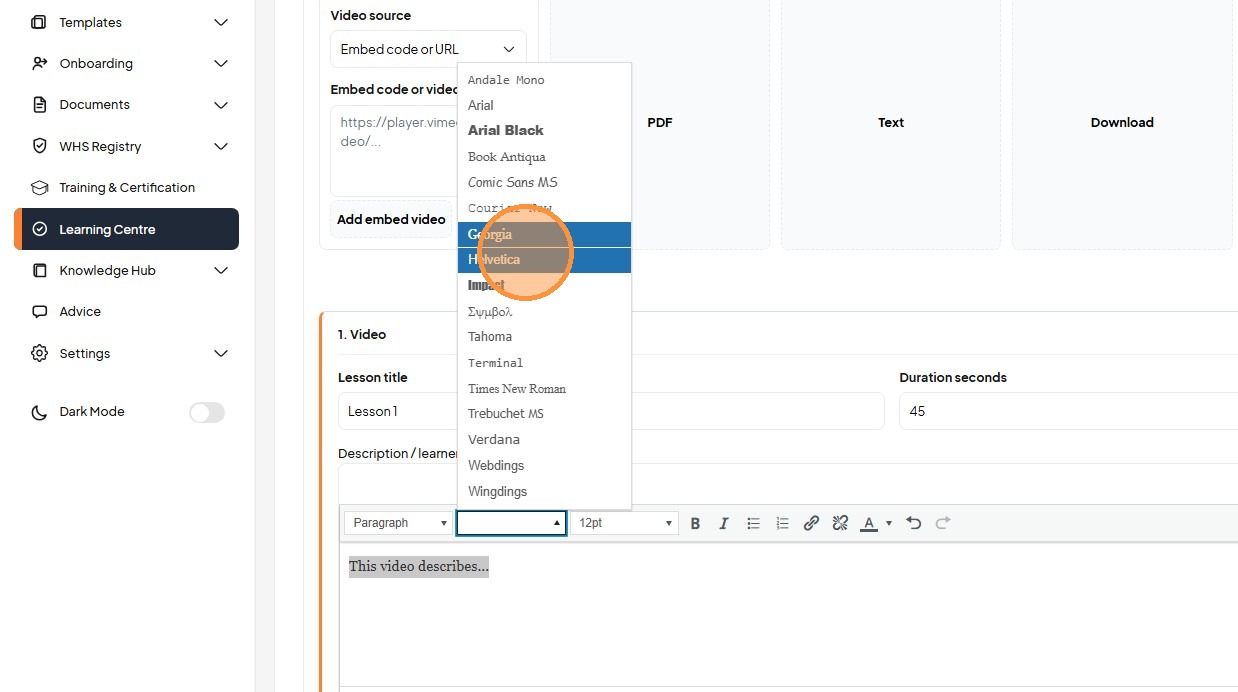
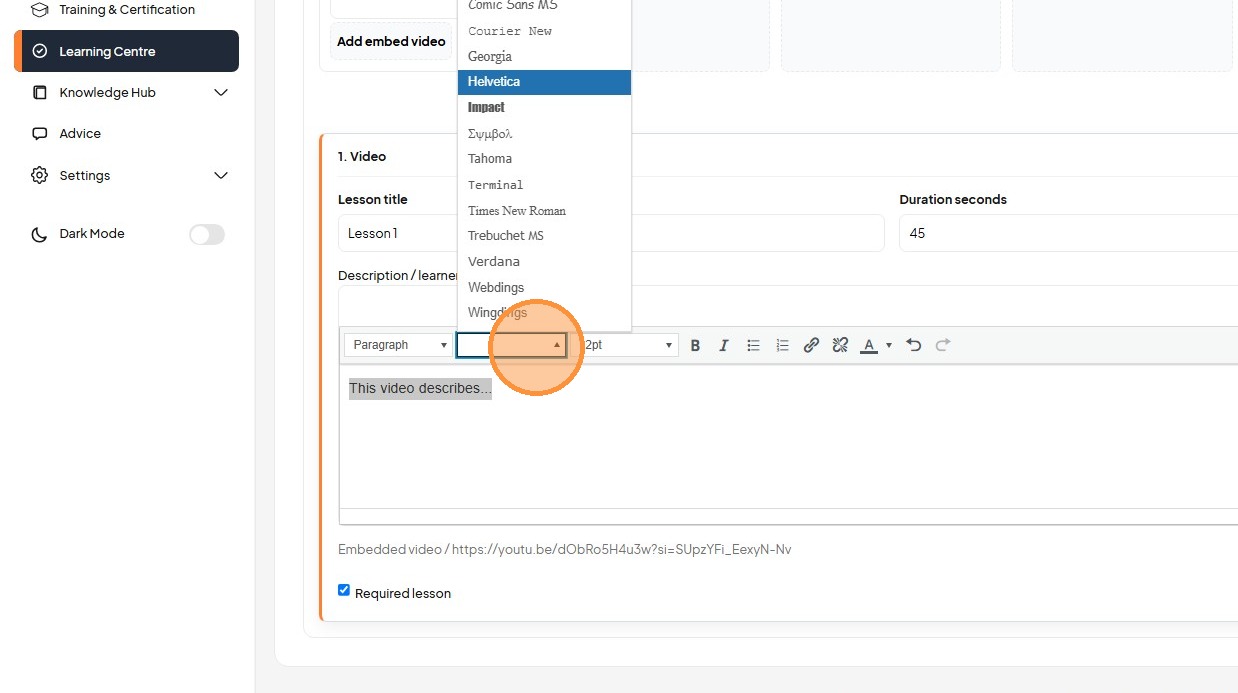
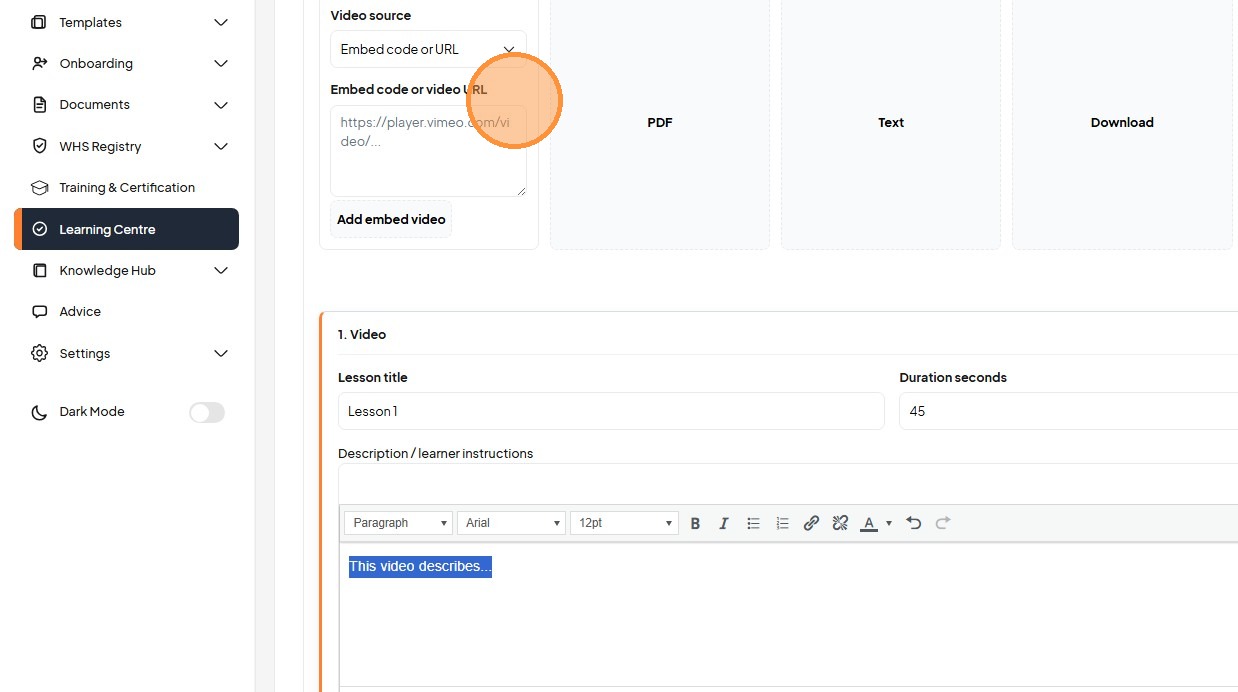
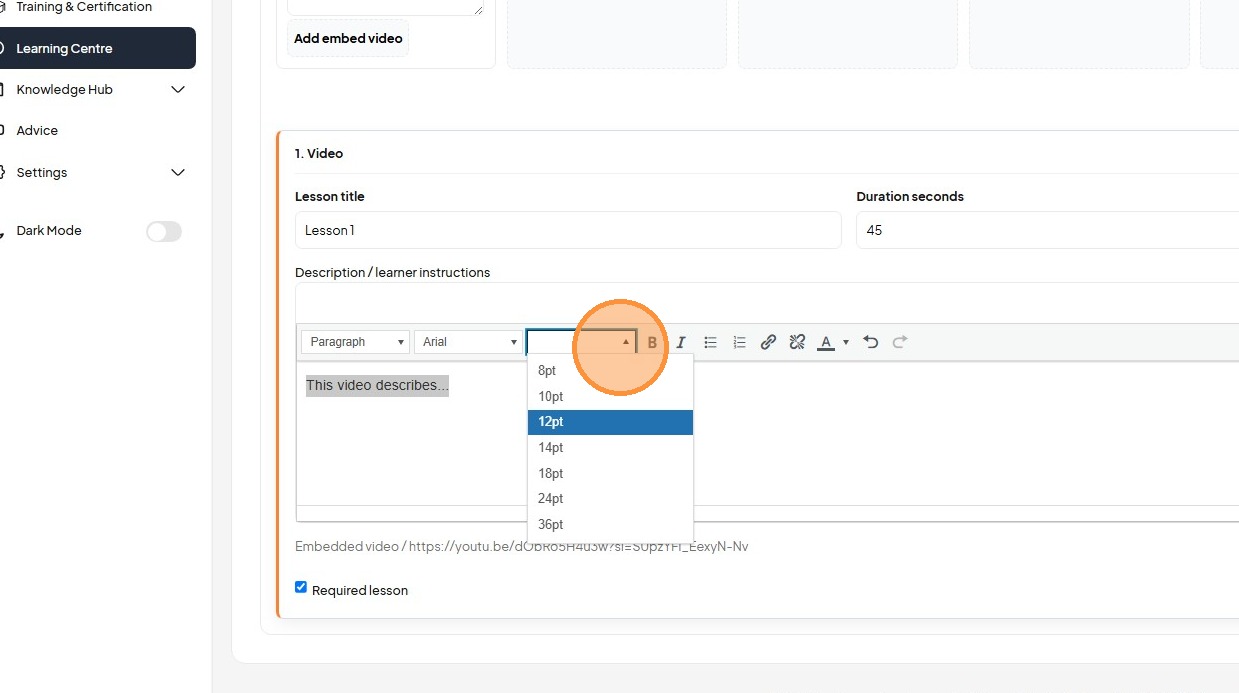
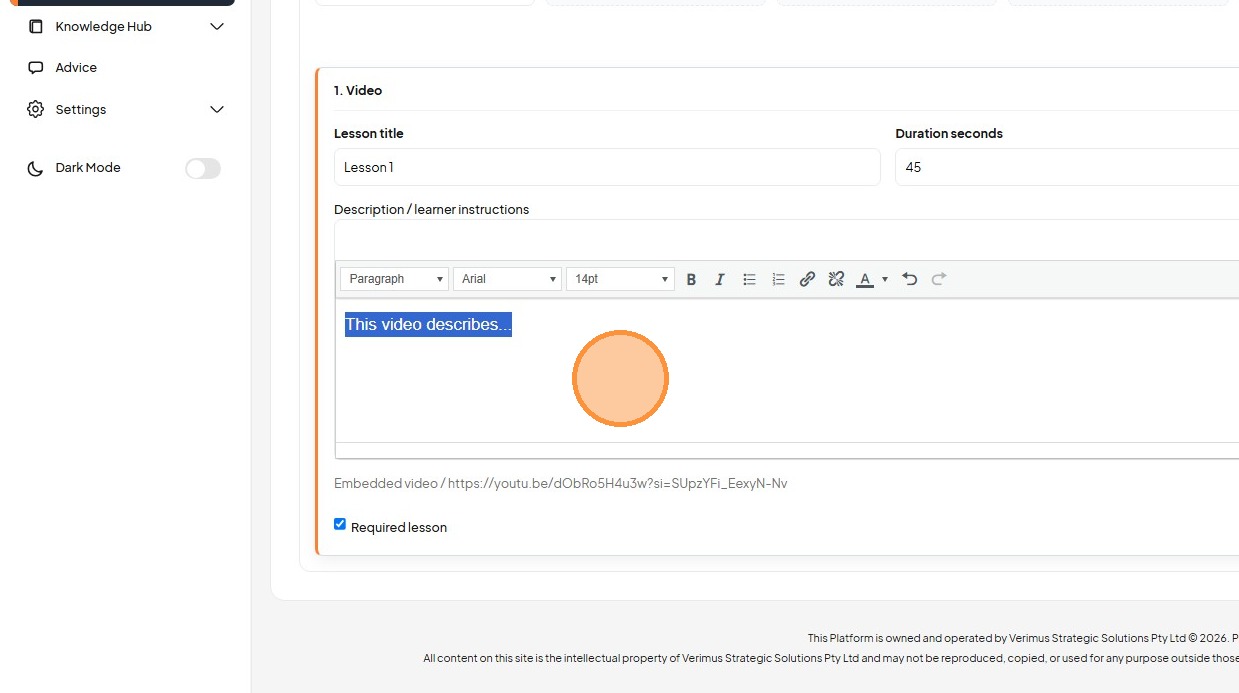
16. Format the description text using the font and size controls.
17. Click "Save draft" to preserve lesson changes.
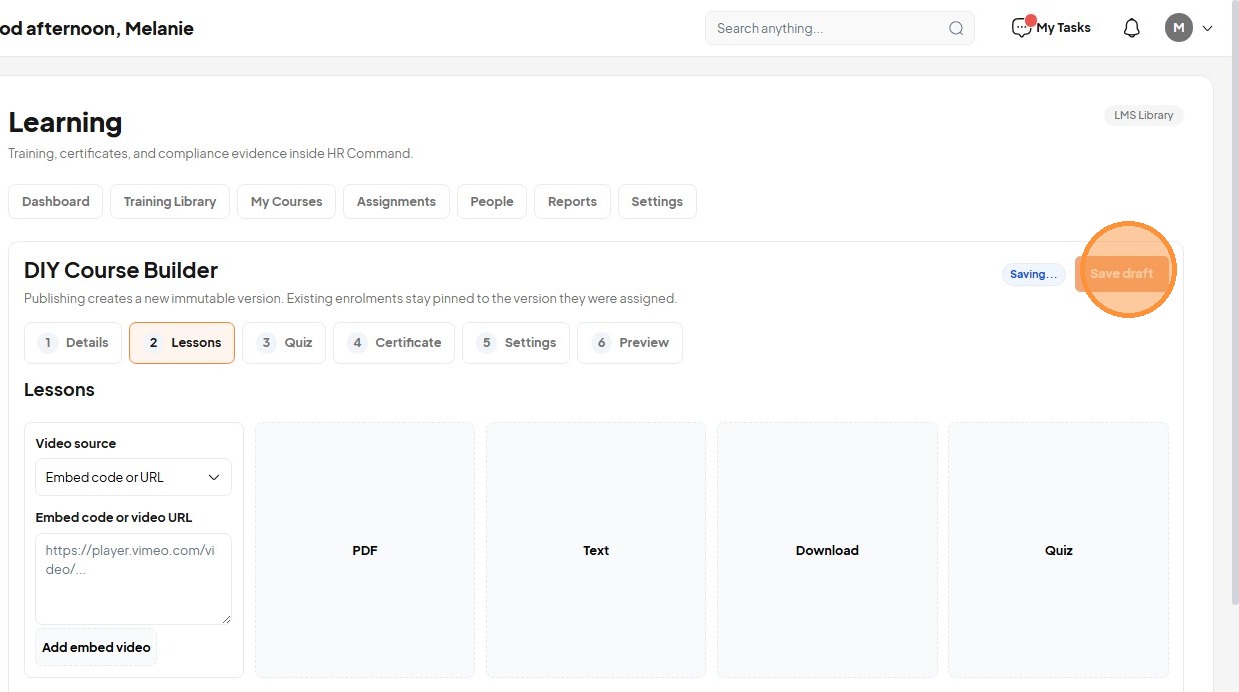
18. Click "PDF"
19. Enter a title for the PDF lesson.
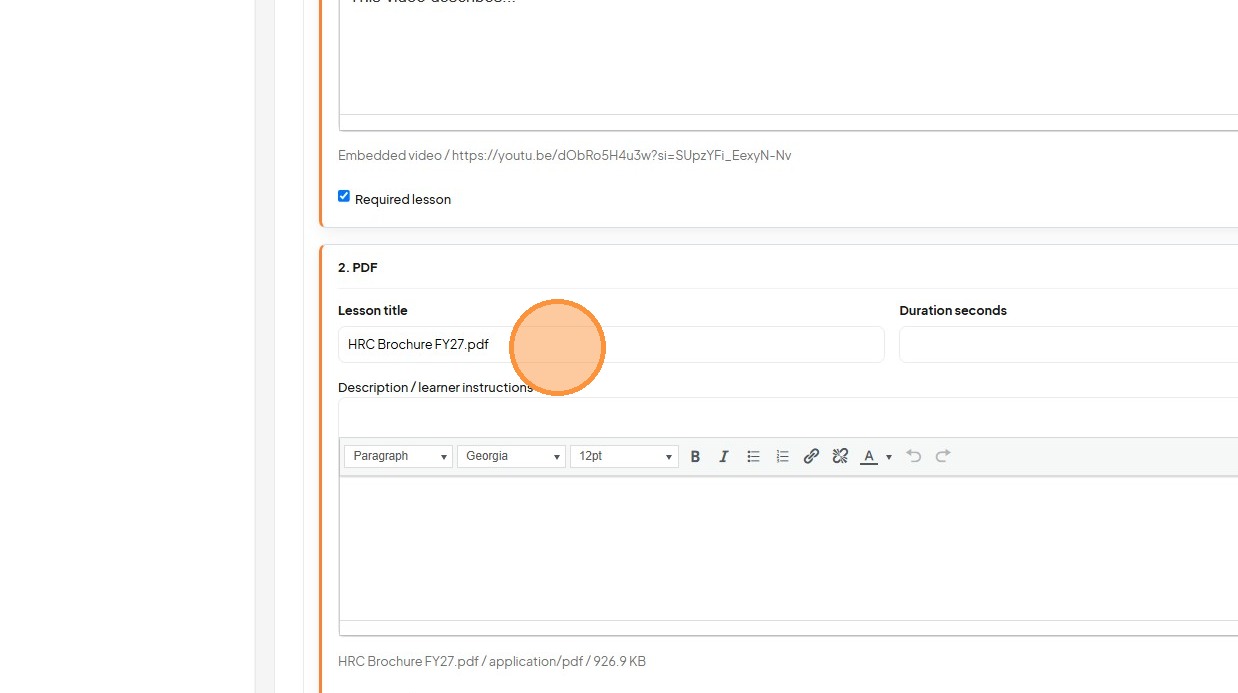
20. Add learner instructions for the PDF lesson.

21. Click "Text"
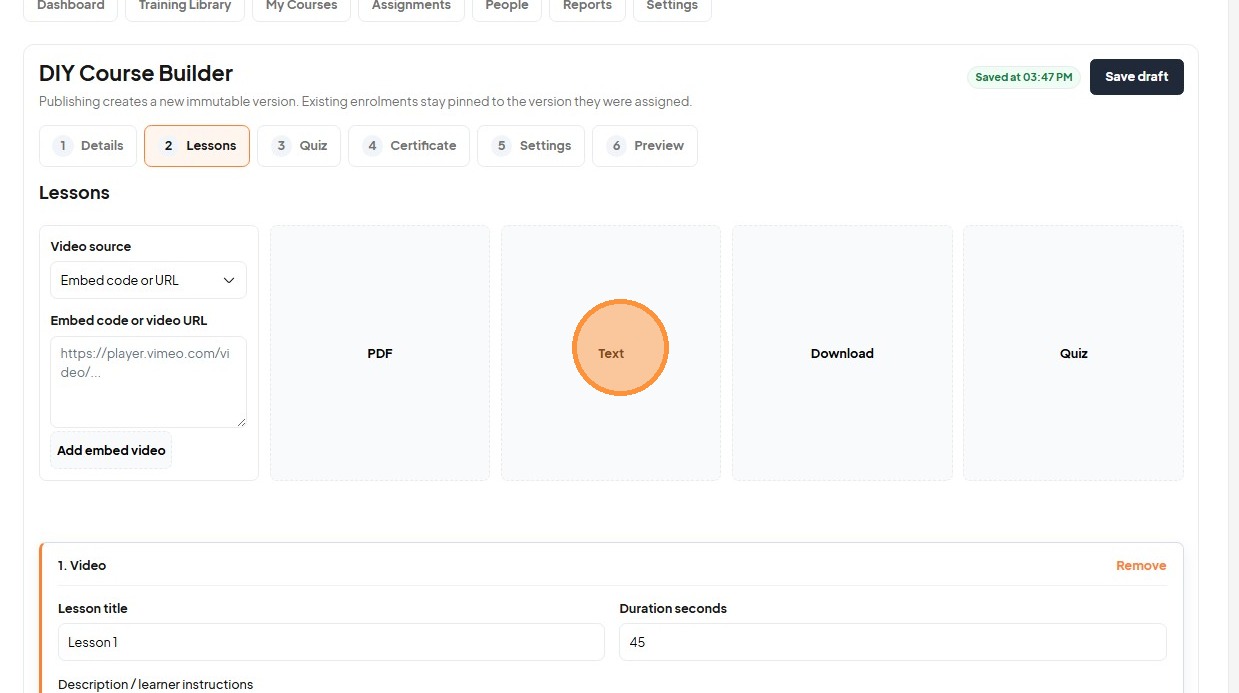
22. Set the title for the text-based lesson.
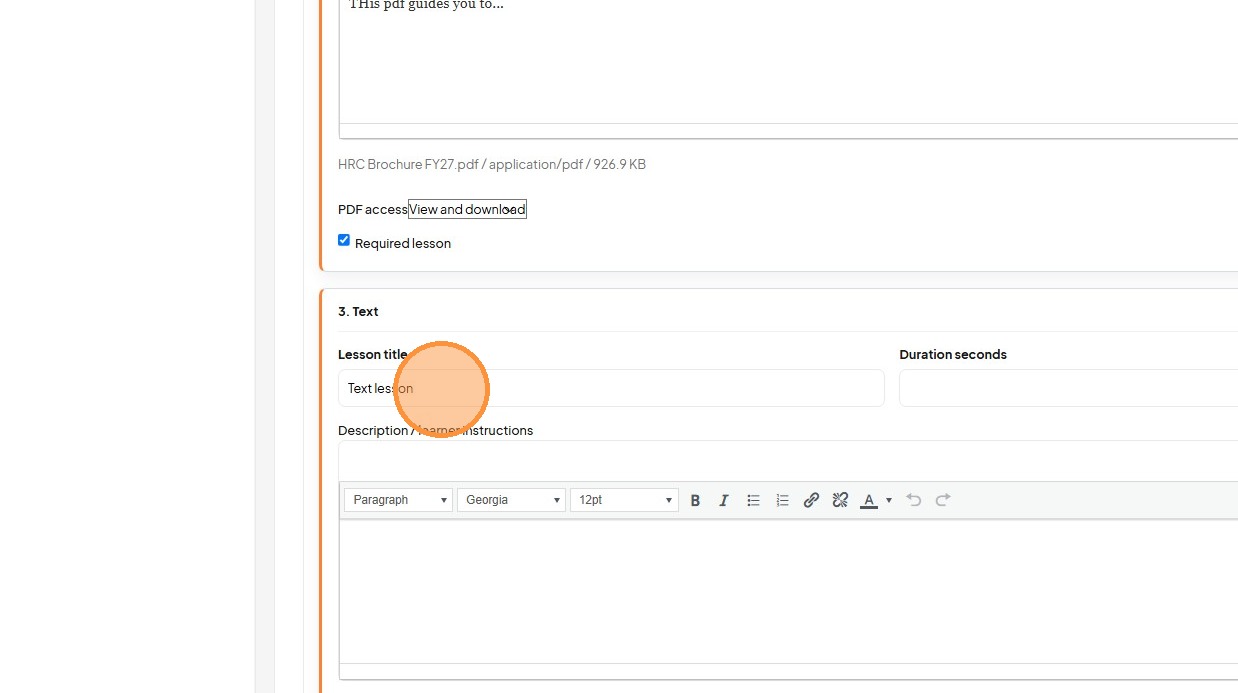
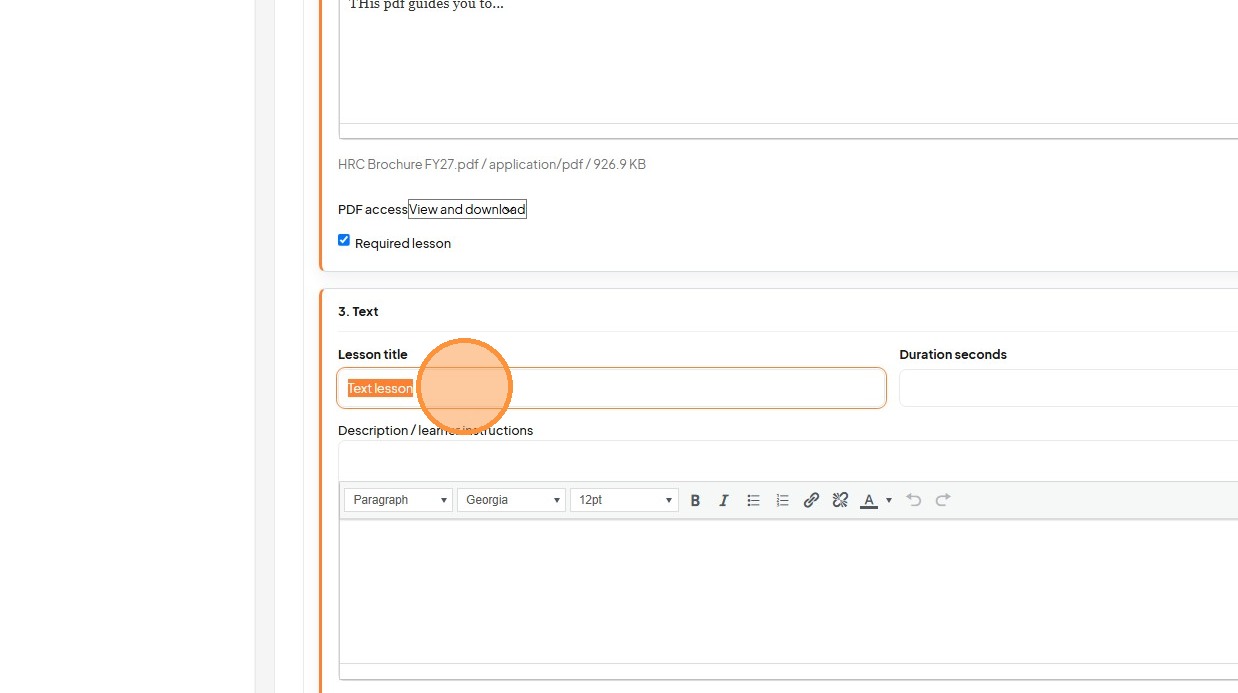
23. Enter the text content and instructions for Lesson 3.
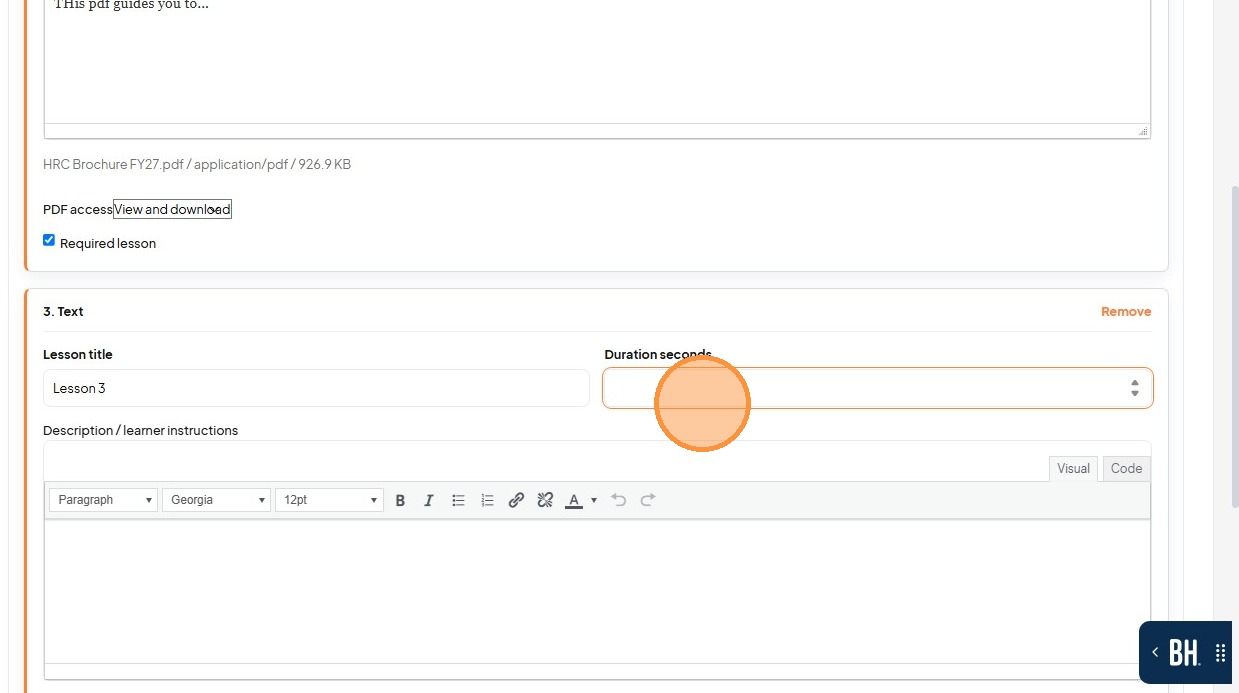
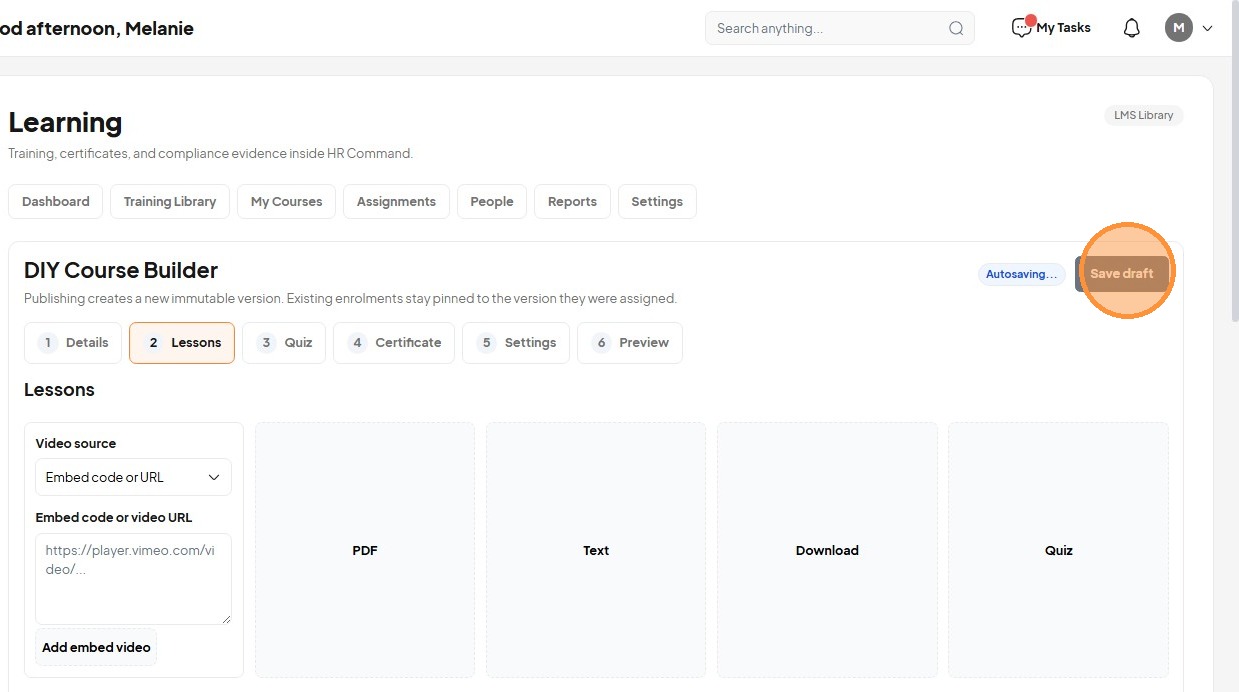
24. Click "Saved at 03:48 PM Save draft"
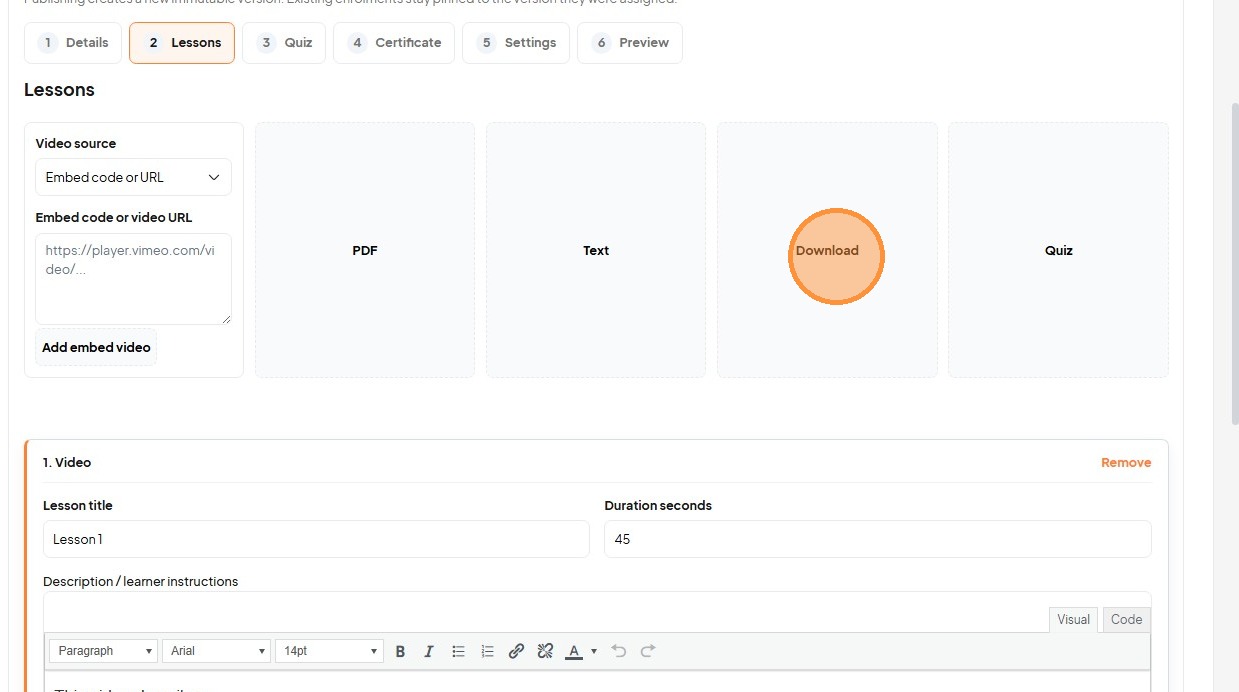
25. Click "Download"
26. Add a description for the downloadable file lesson.
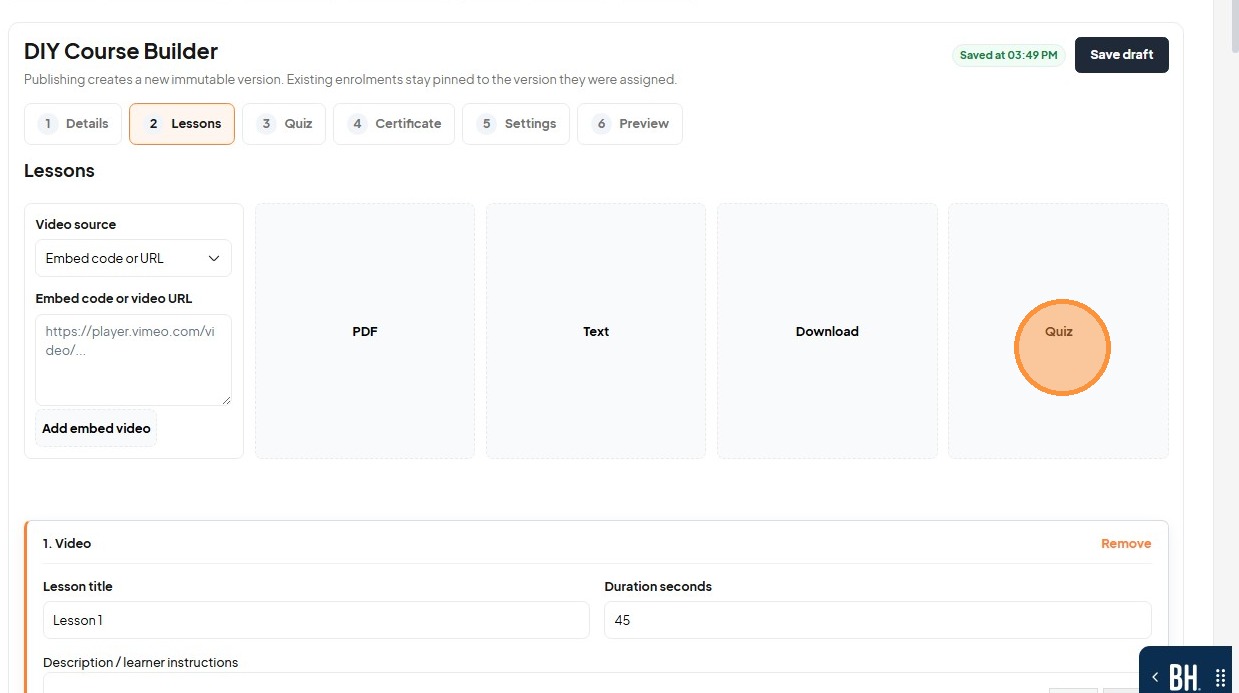
27. Navigate to the "Quiz" tab to set up assessments.
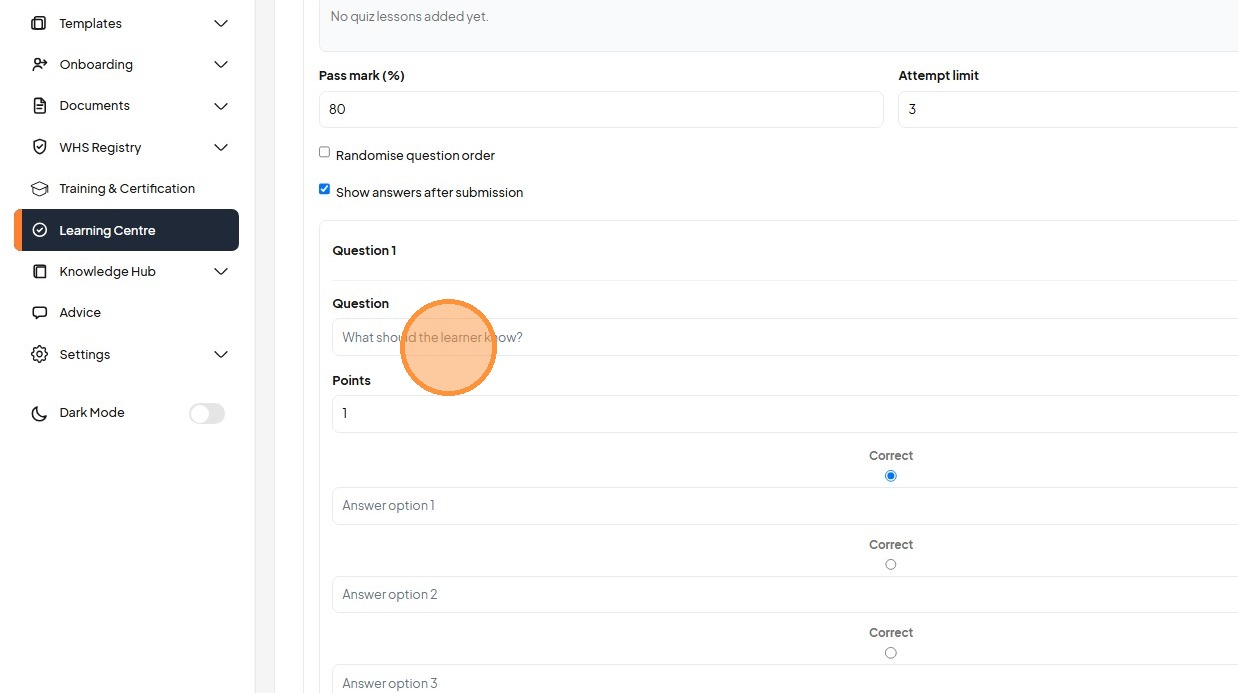
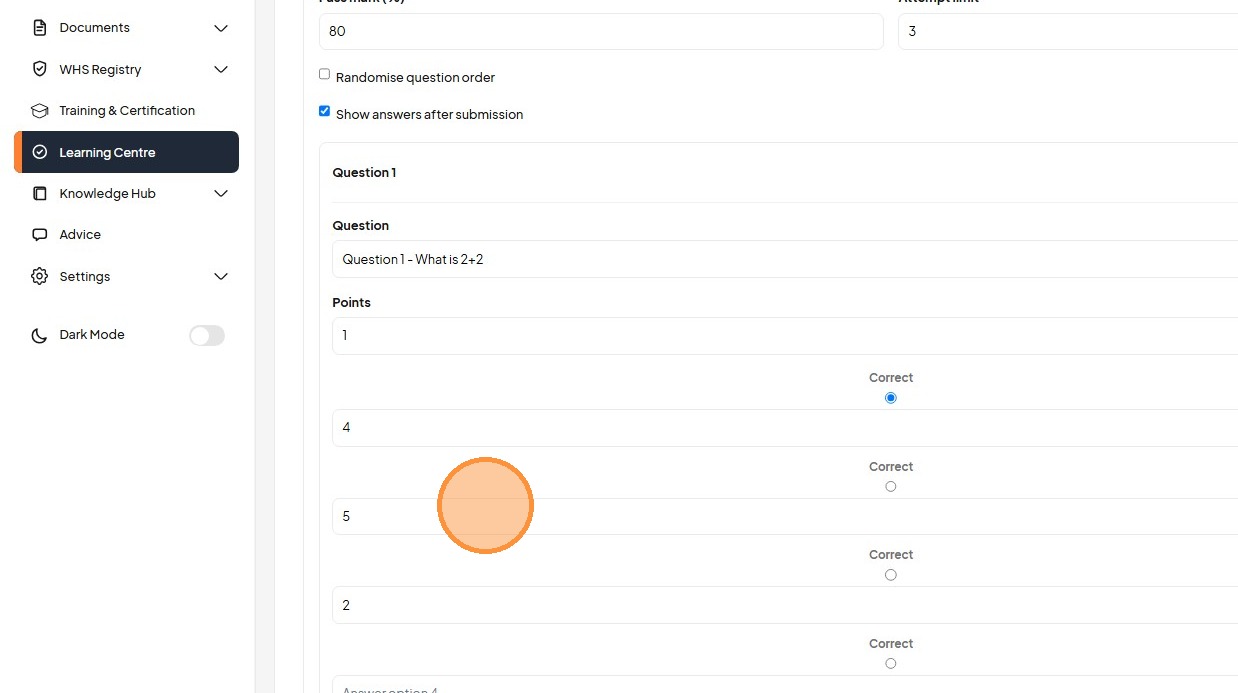
28. Type the first quiz question into the field.
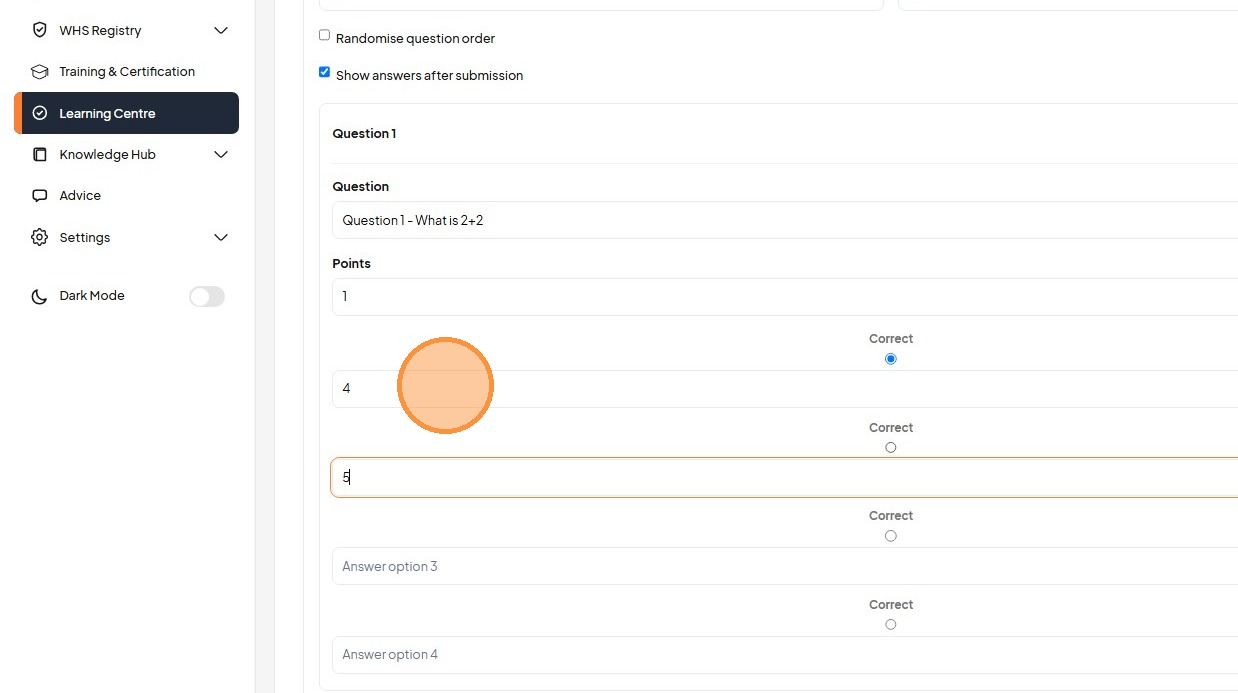
29. Enter multiple-choice answer options for Question 1.
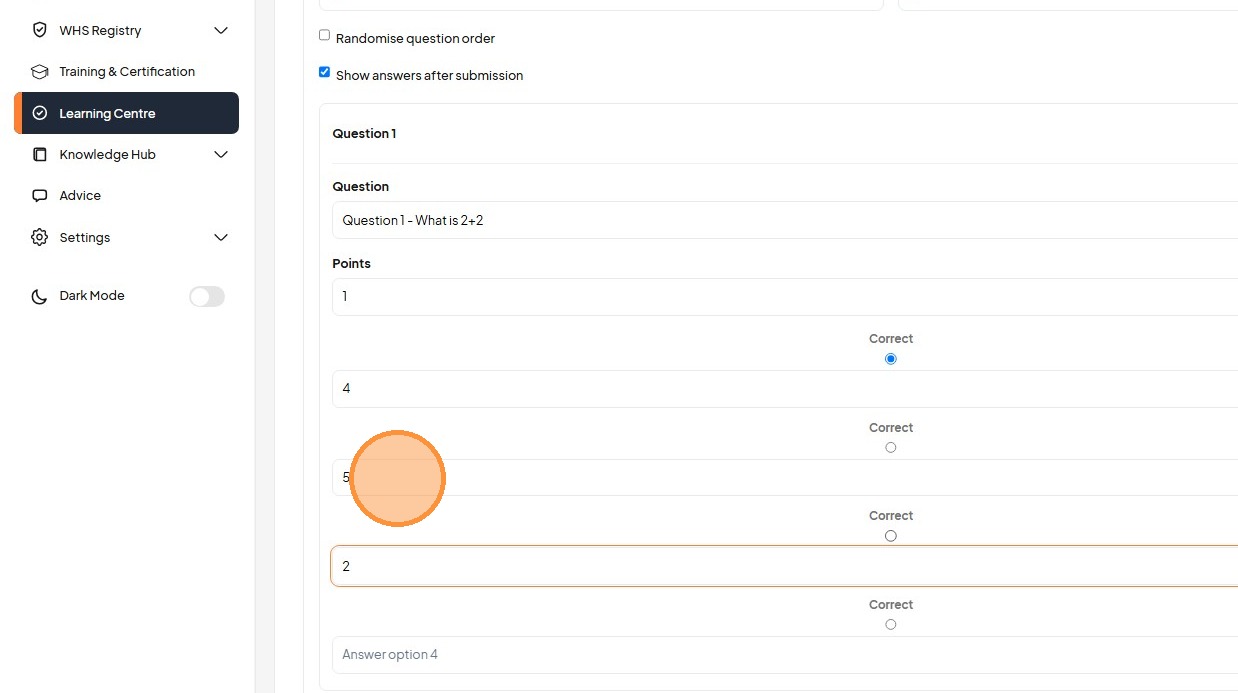
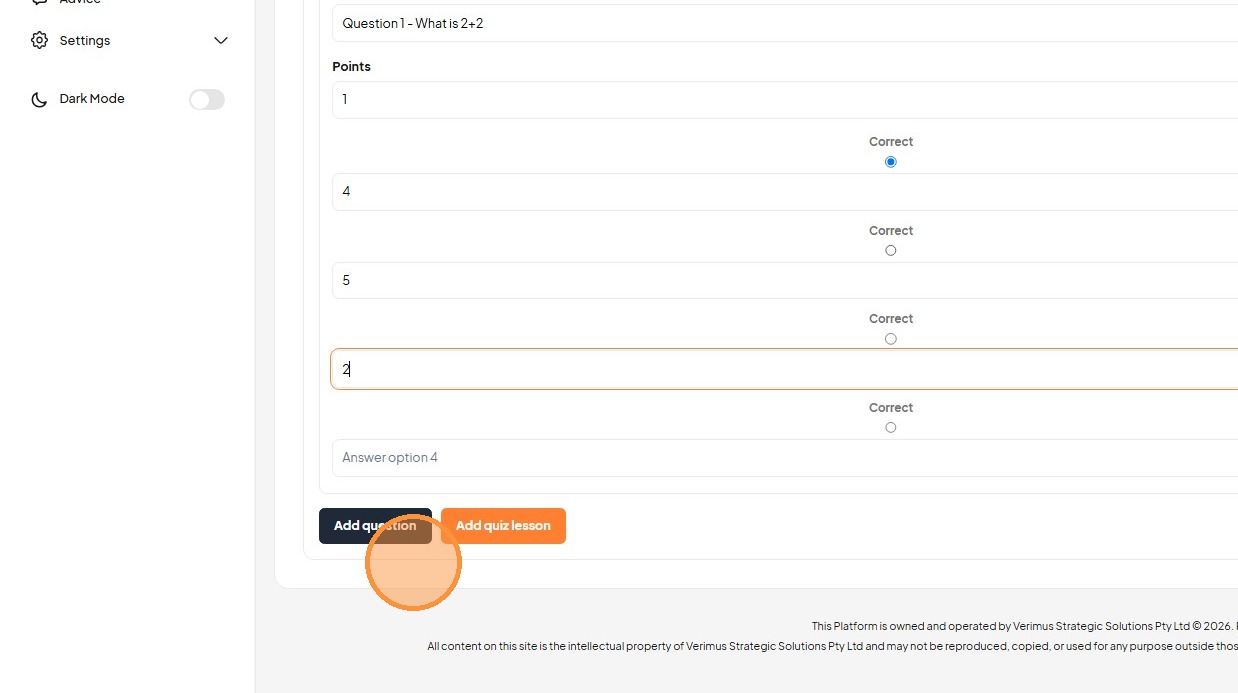
30. Type "Question 2 -"
31. Click "Add question"
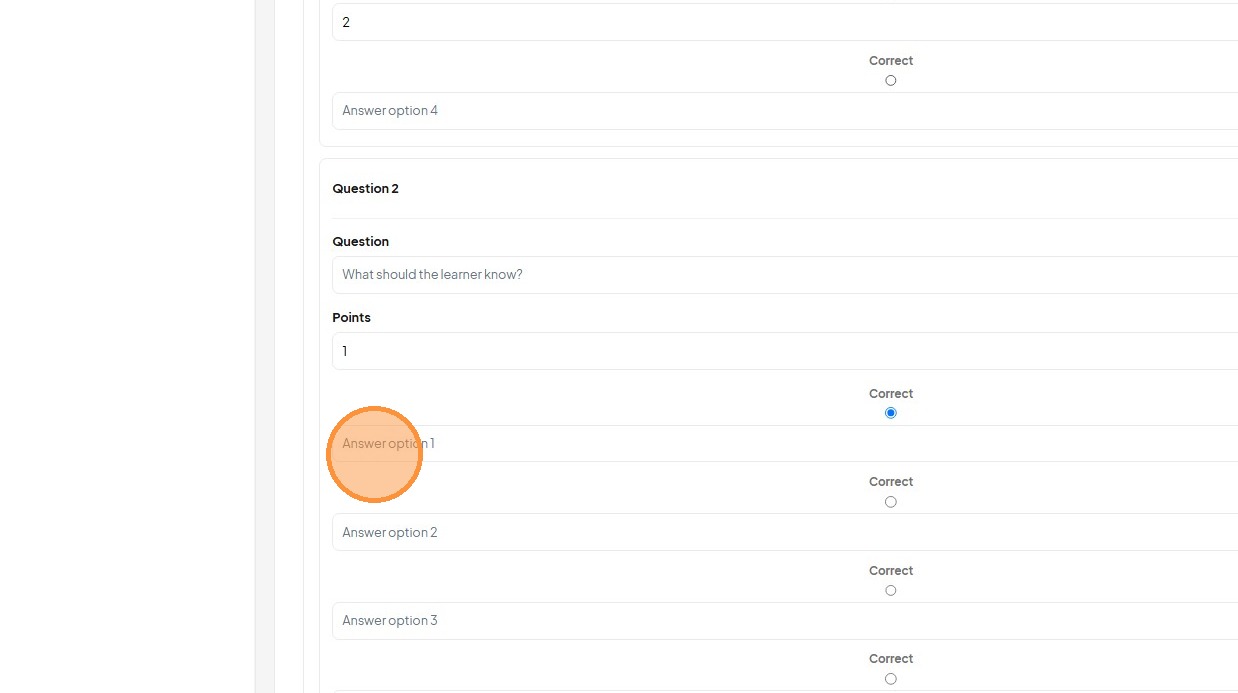
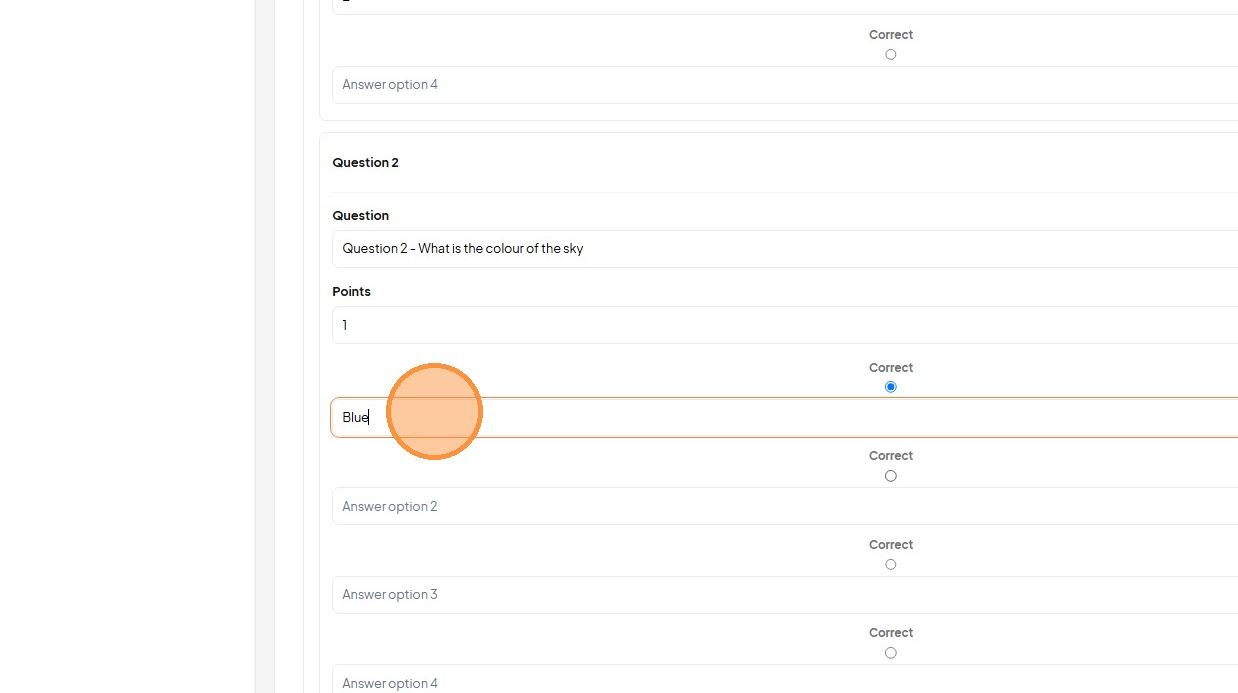
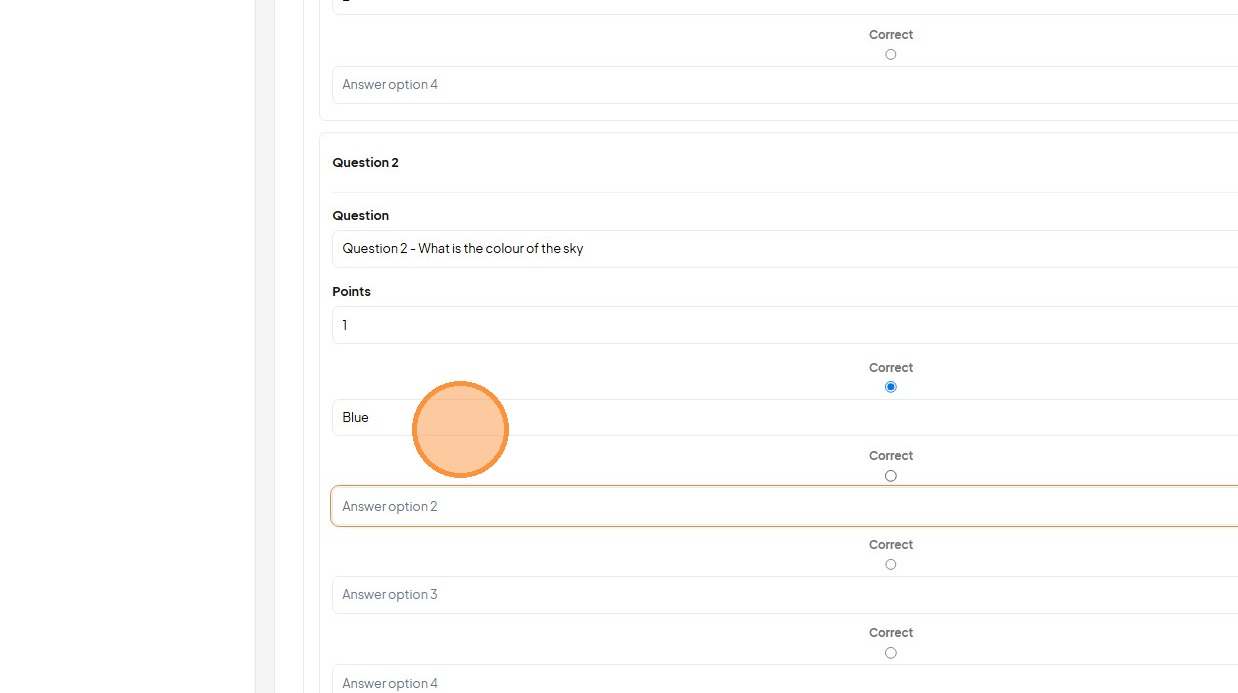
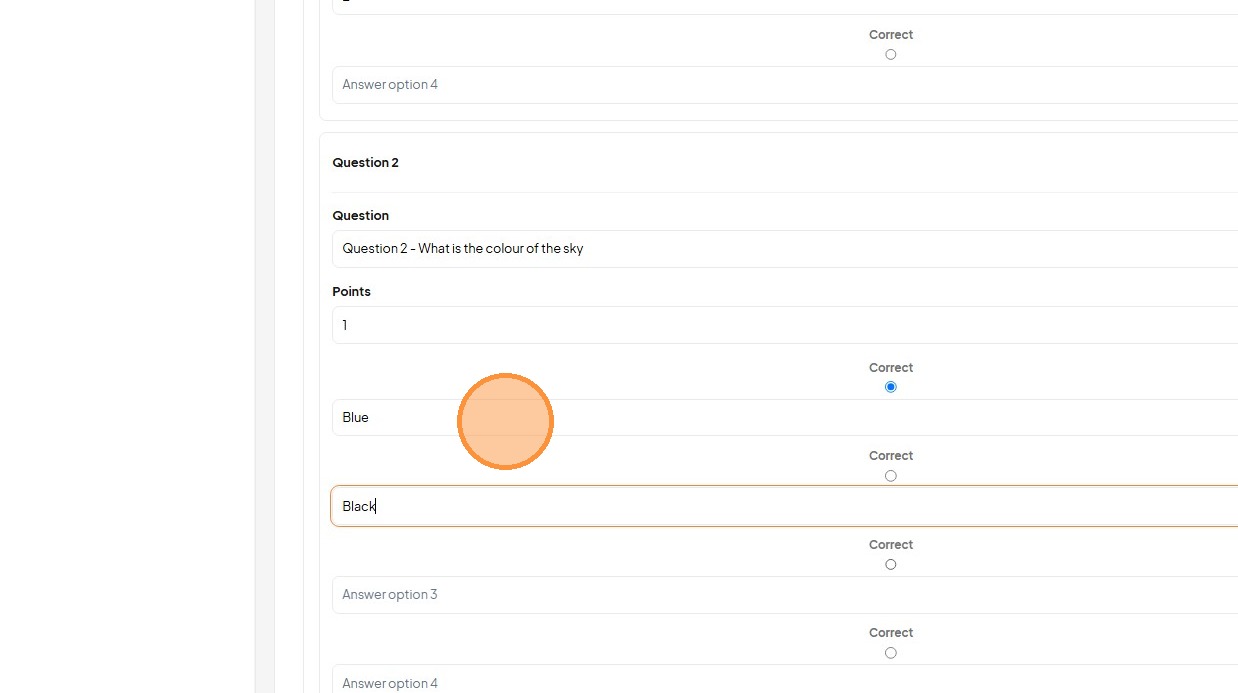
32. Enter the second quiz question.
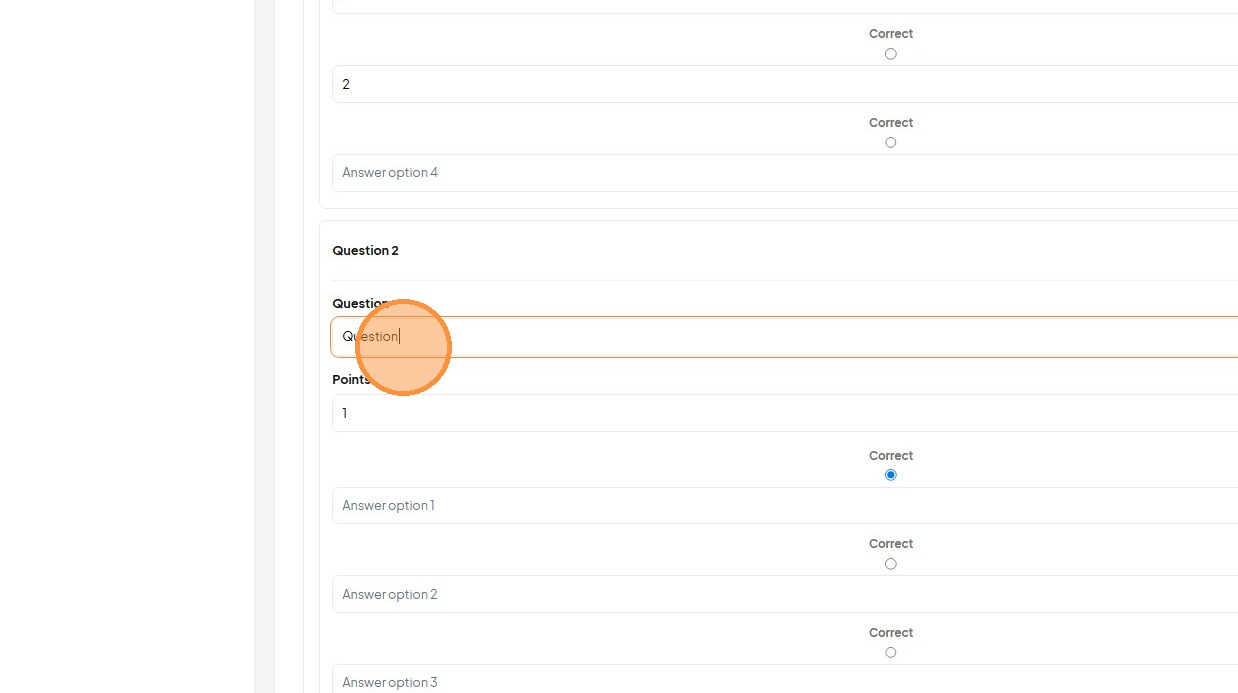
33. Enter answer options for Question 2.
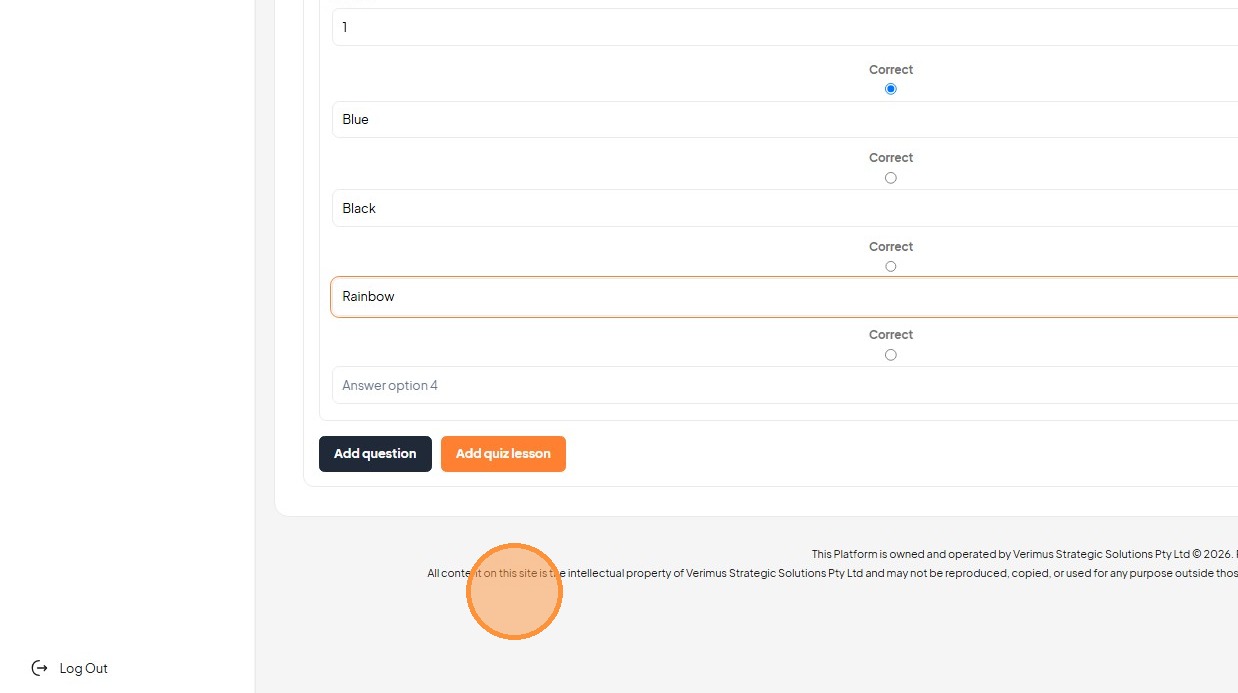
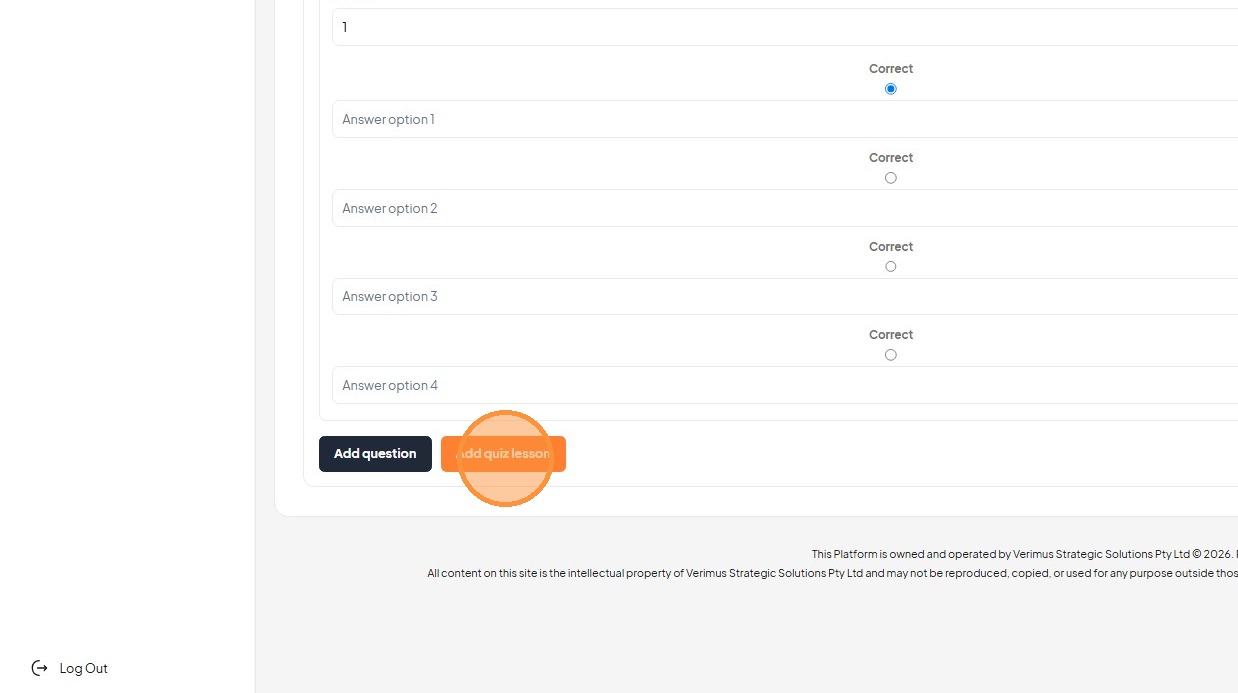
34. Click "Add quiz lesson" to finalize the assessment section.
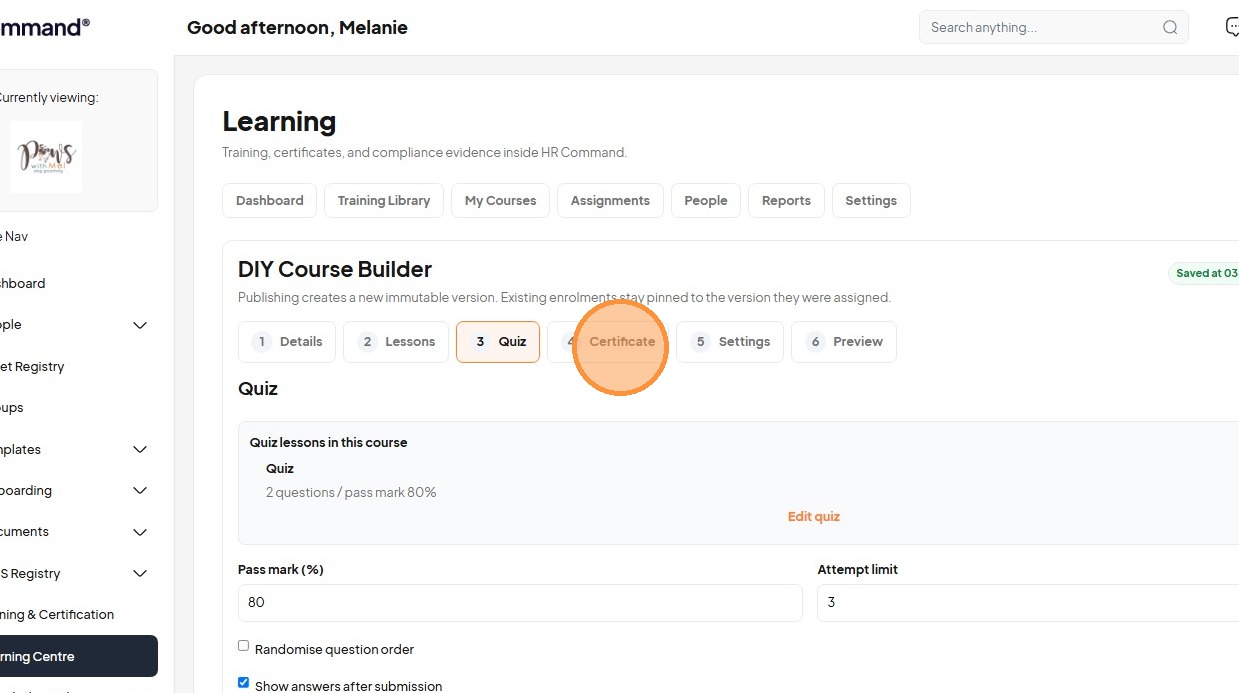
Certification and Settings
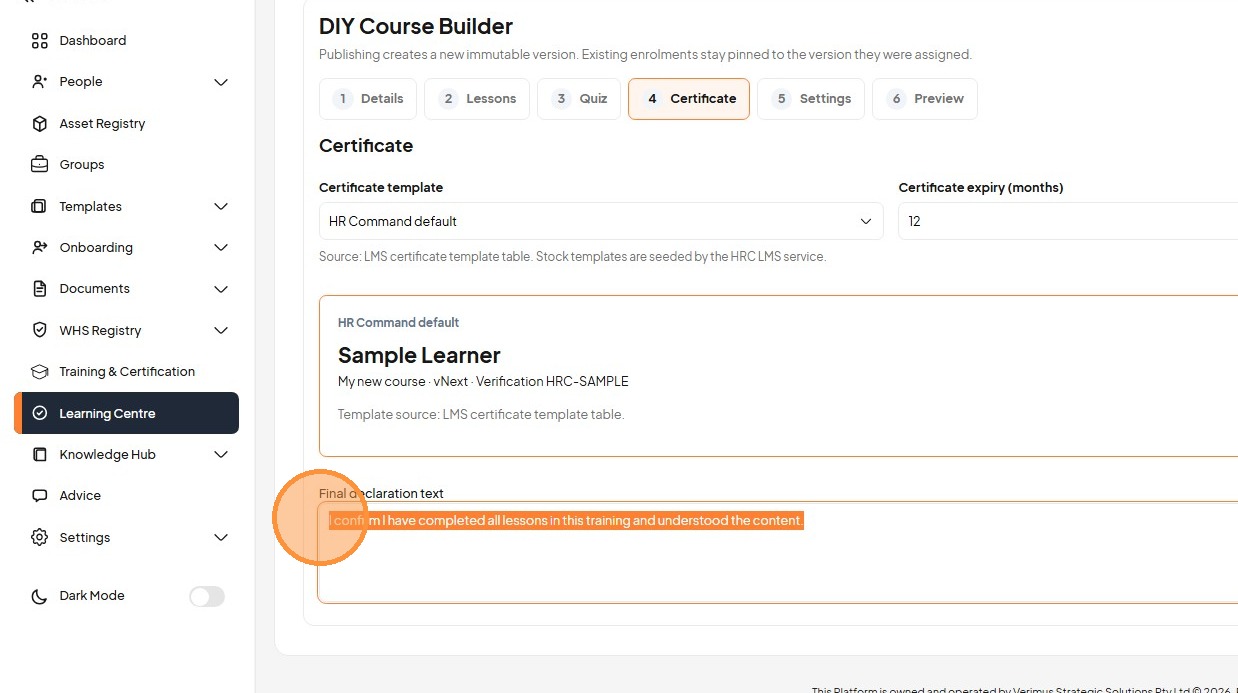
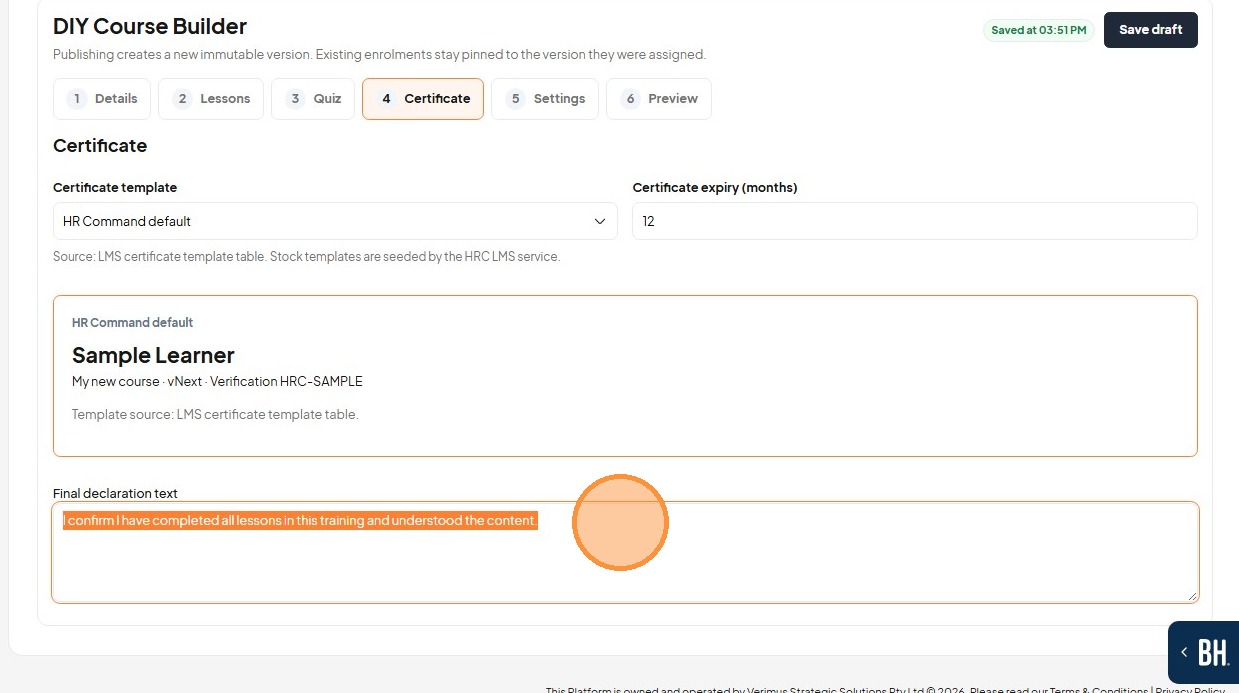
35. Select the "Certificate" tab to configure completion criteria.
36. Verify the final declaration text for the certificate.
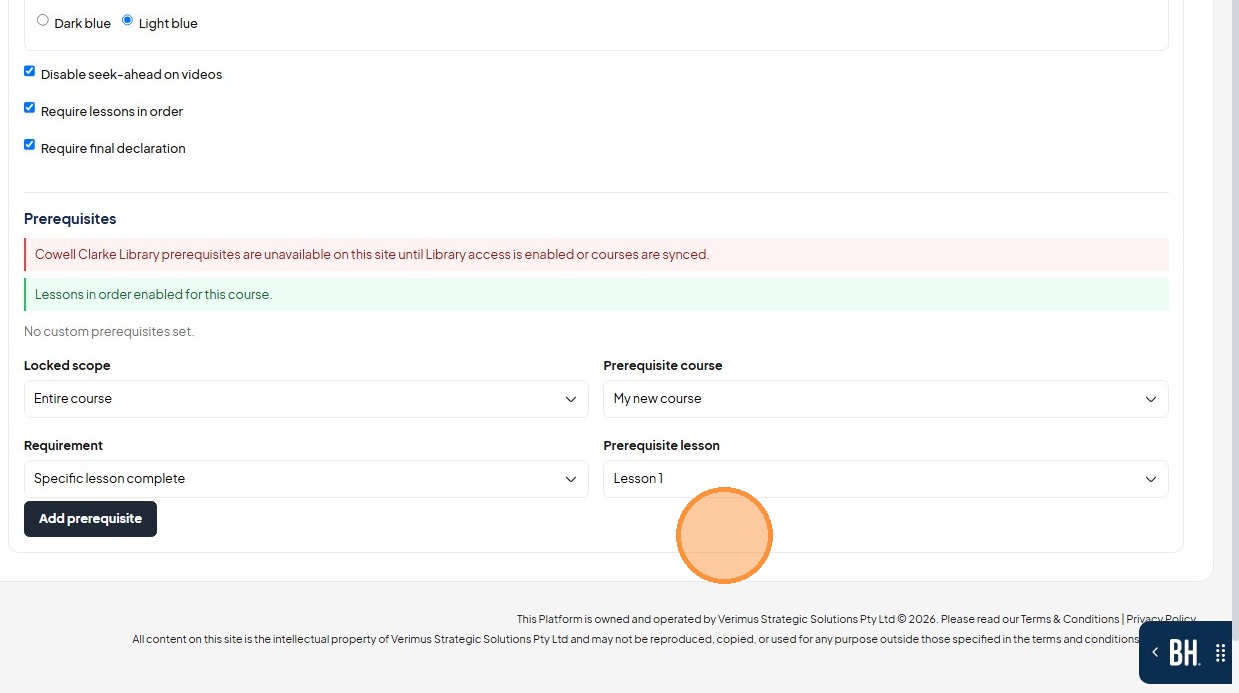
37. Go to the "Settings" tab to adjust player preferences.
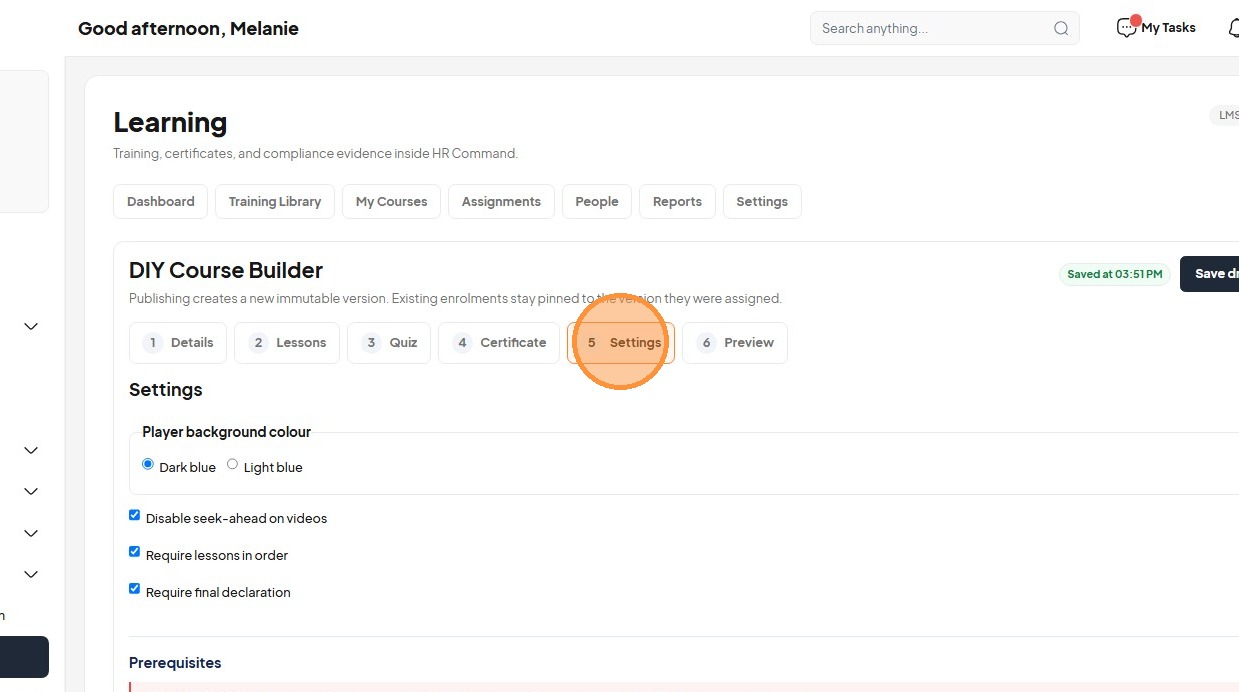
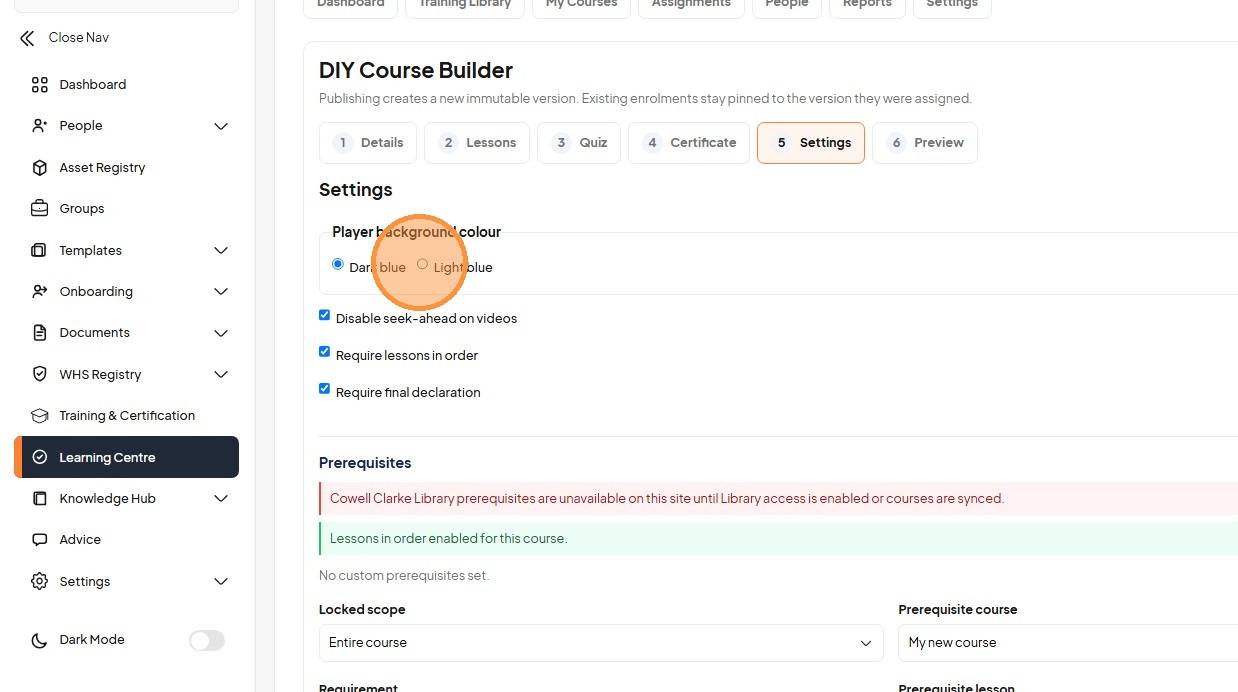
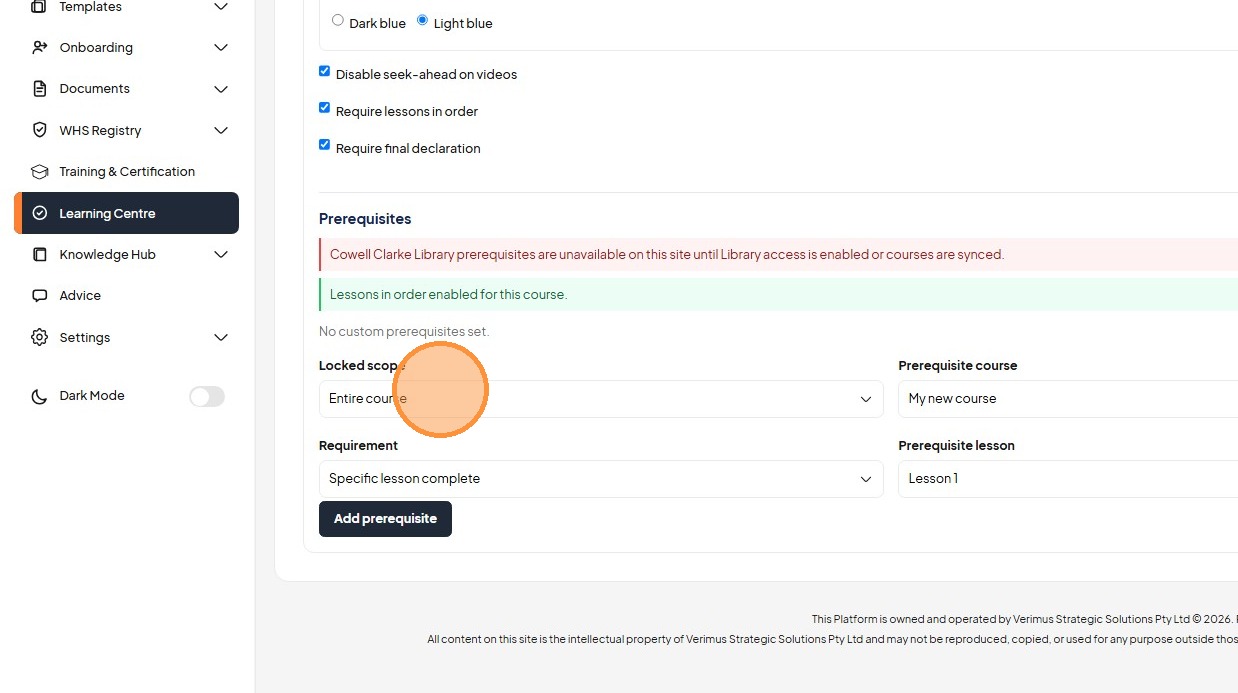
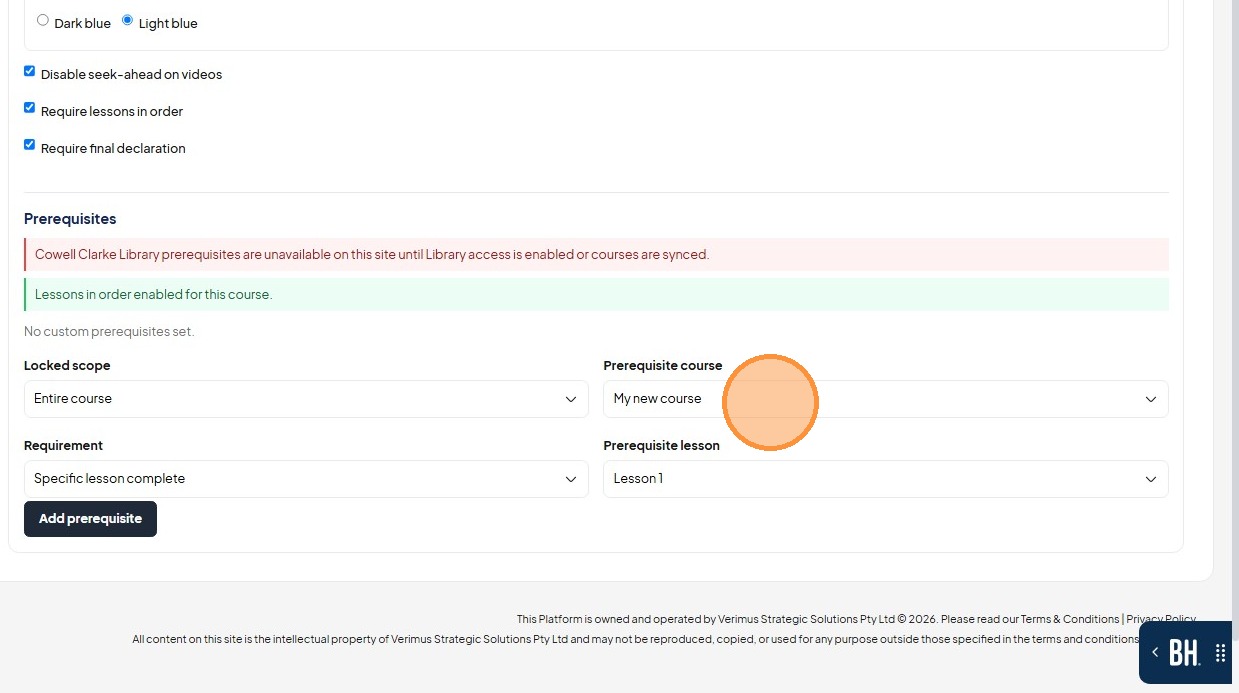
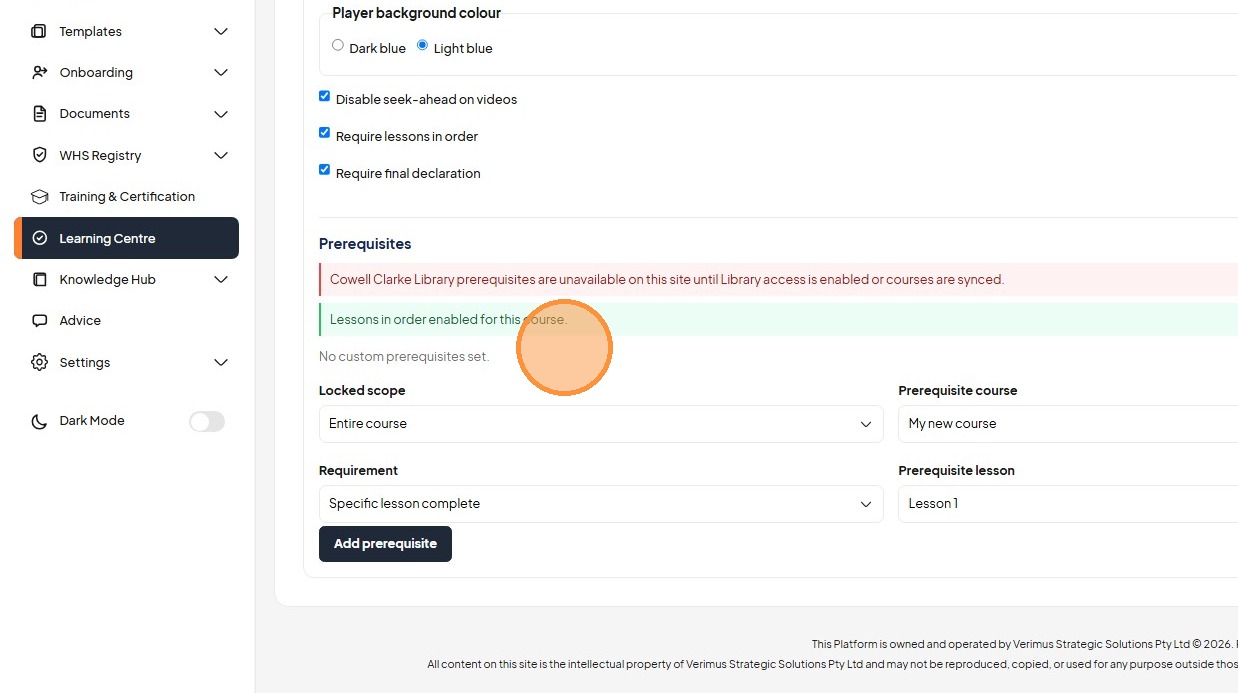
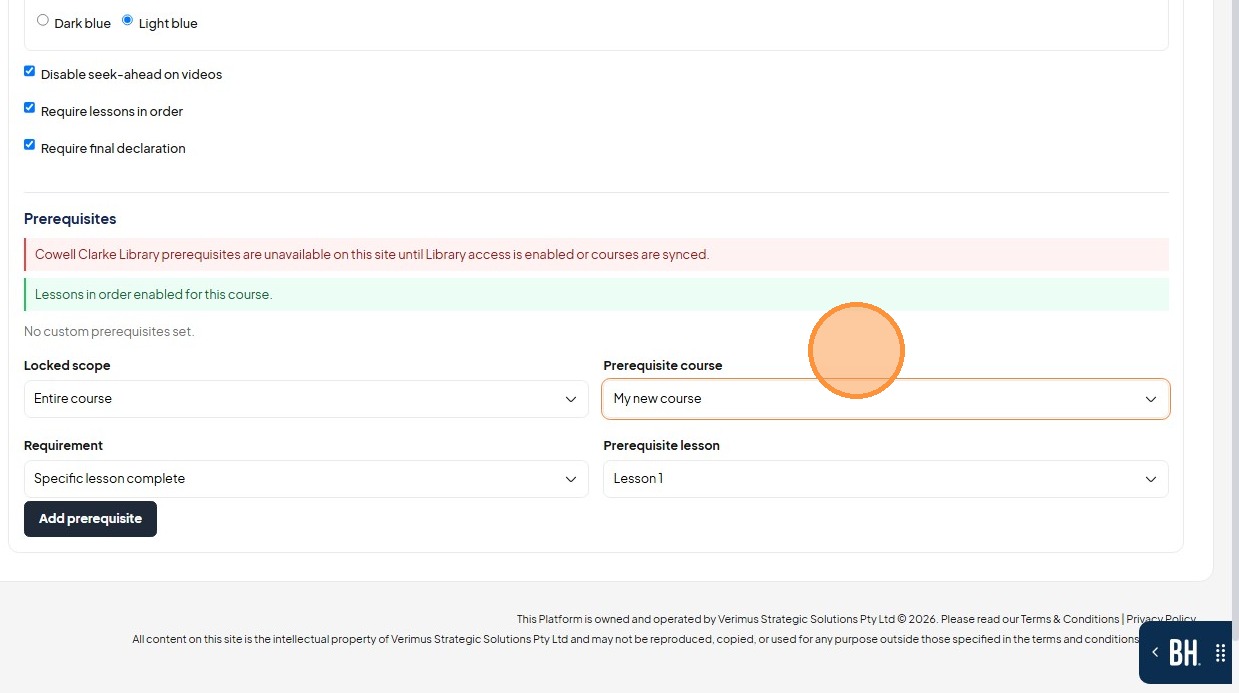
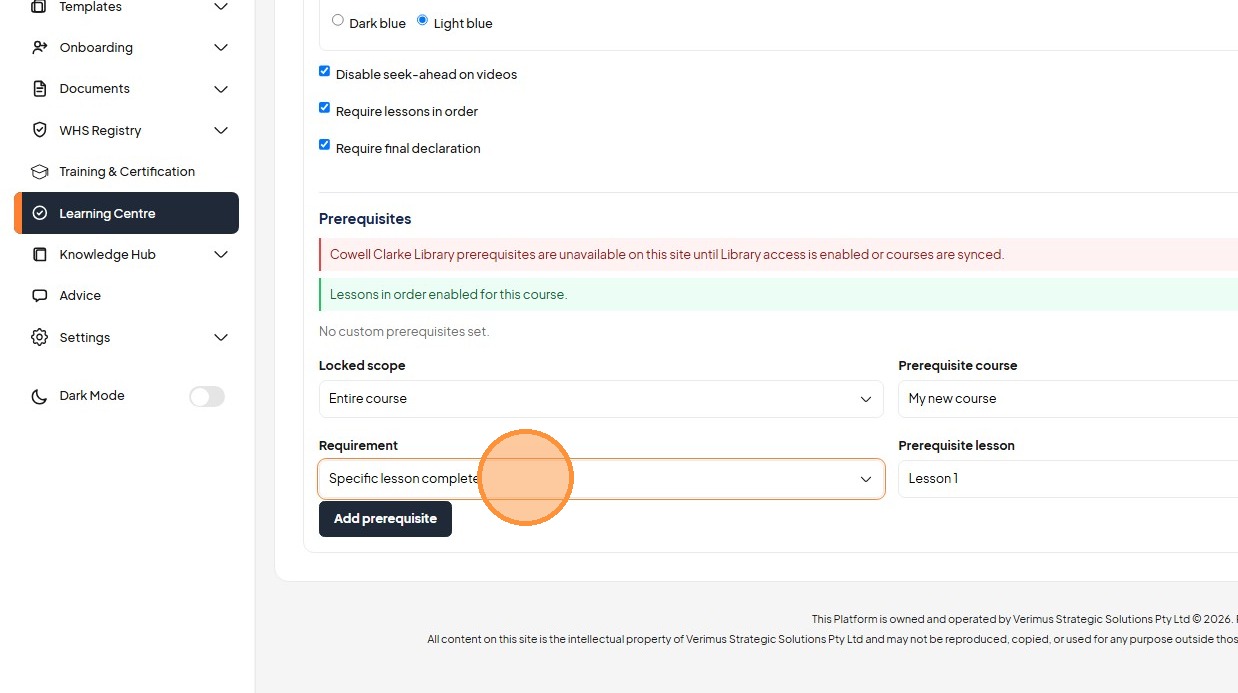
38. Configure course settings, player color, and prerequisites.
Publishing and Assignment
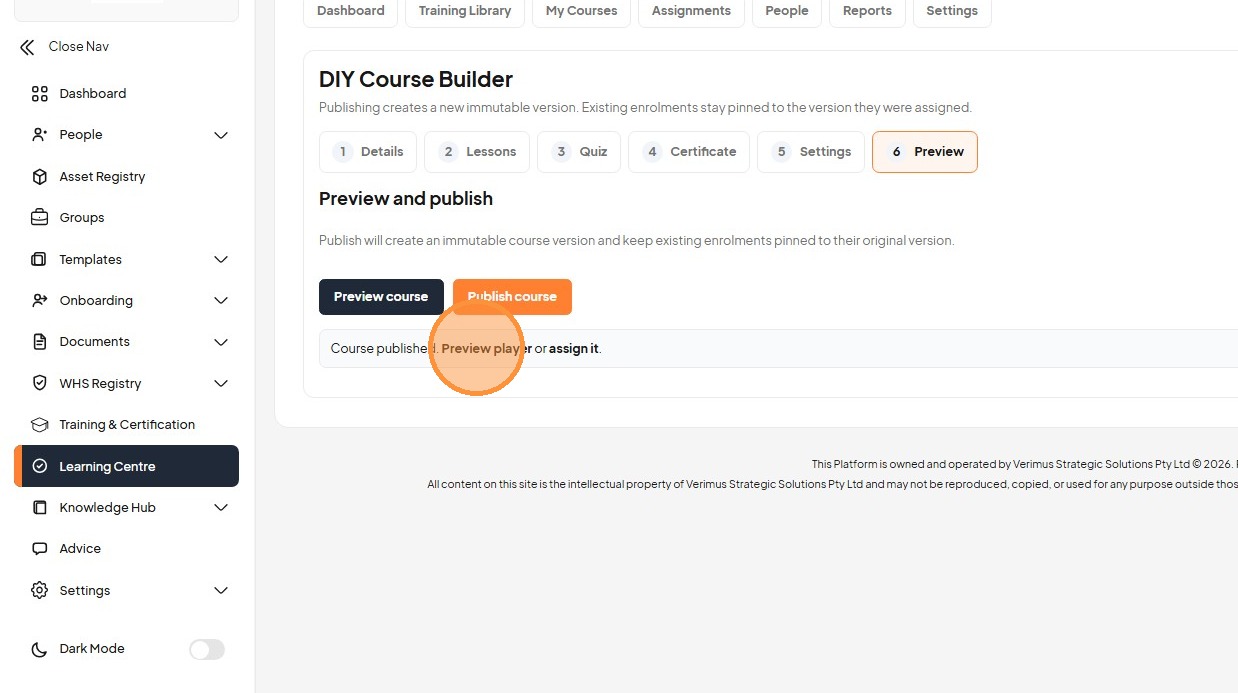
39. Open the "Preview" tab to review the course.
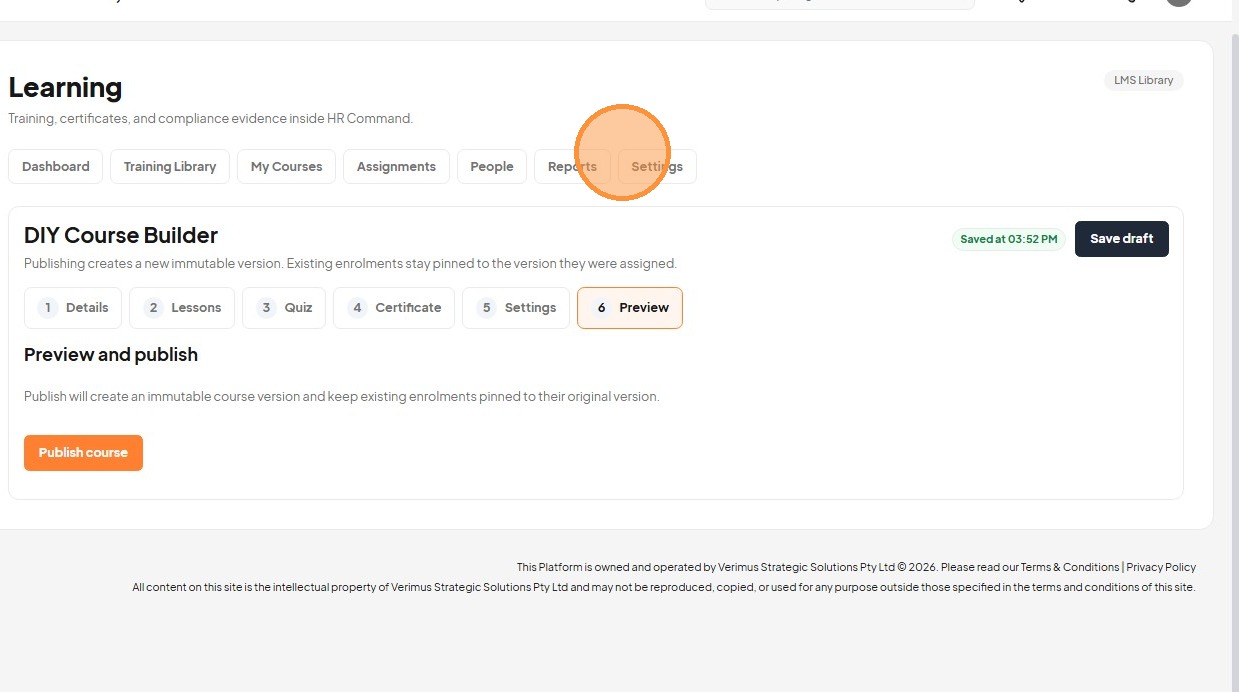
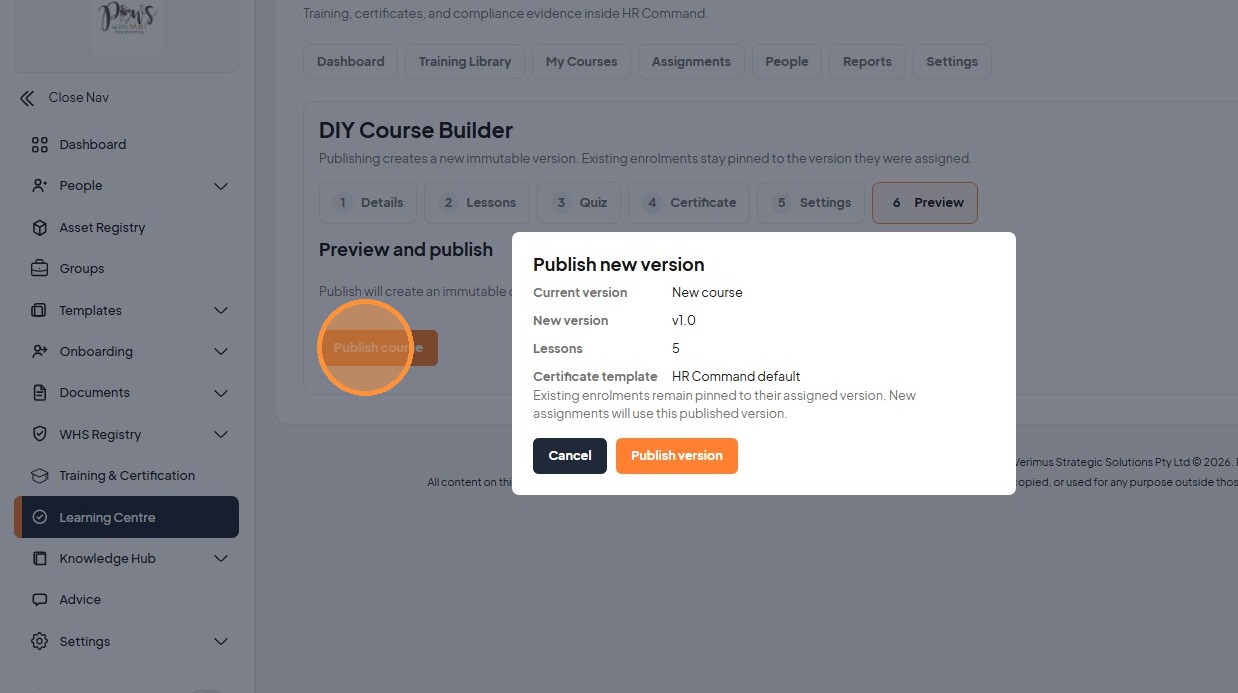
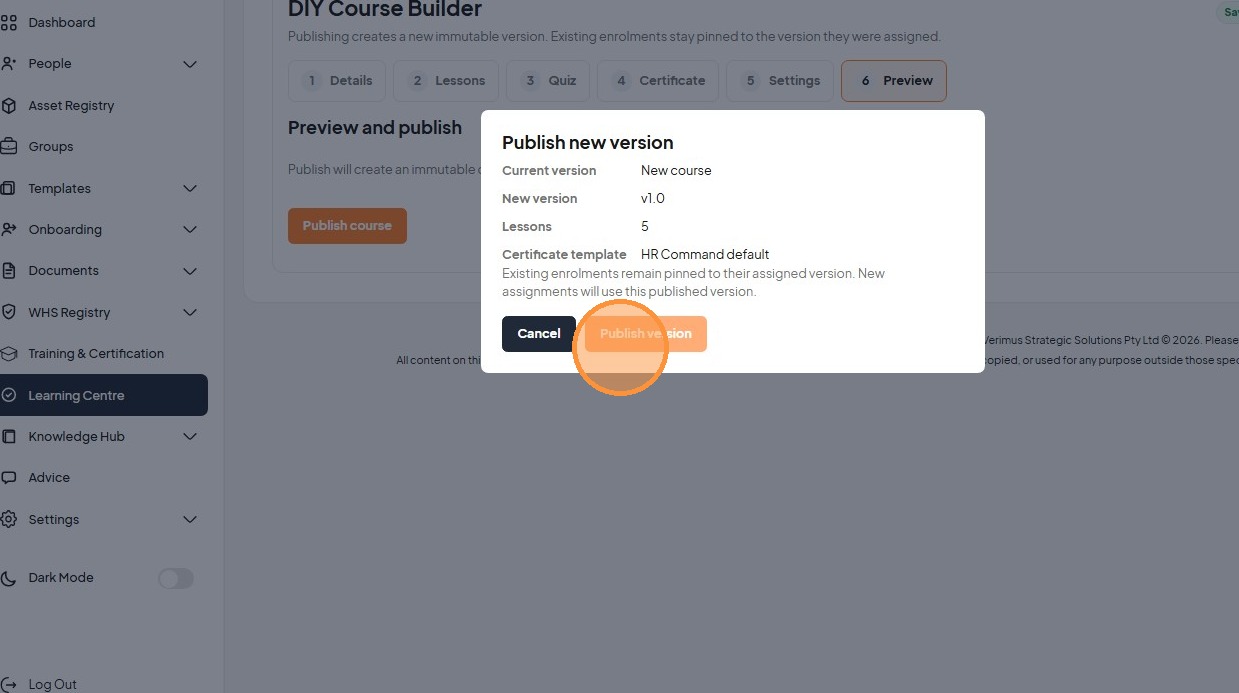
40. Publish the new course version.
41. Click "Preview player"
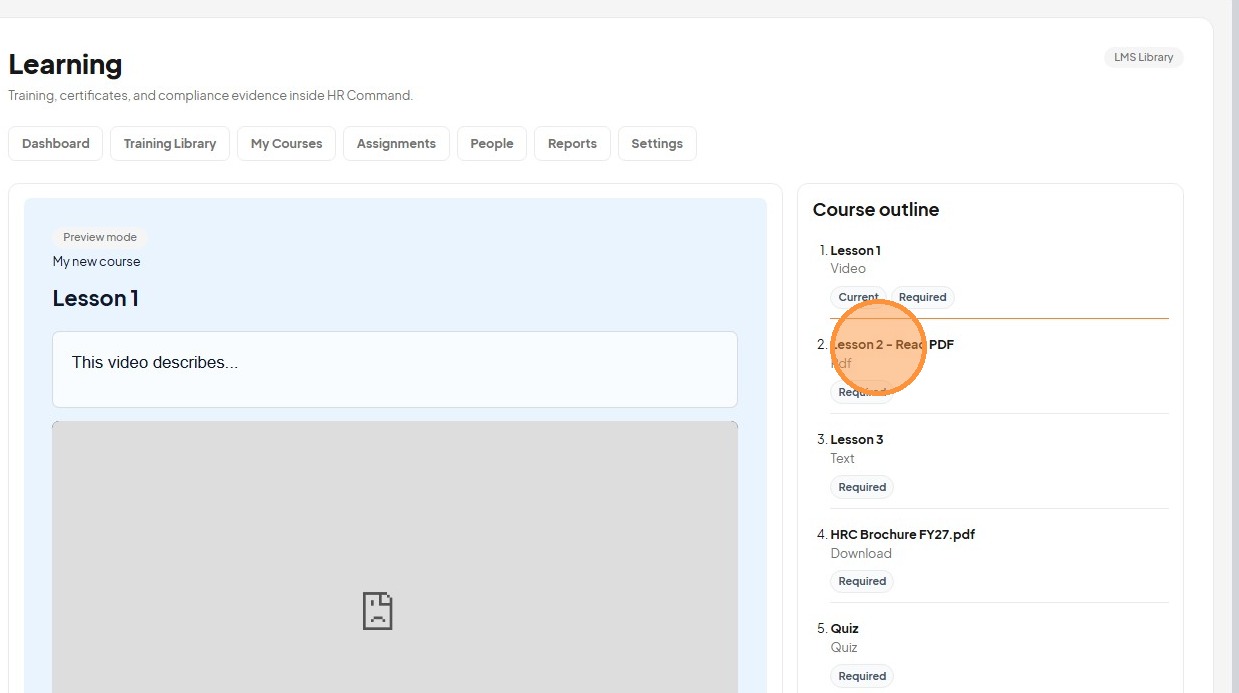
42. Click "Lesson 2 - Read PDF"
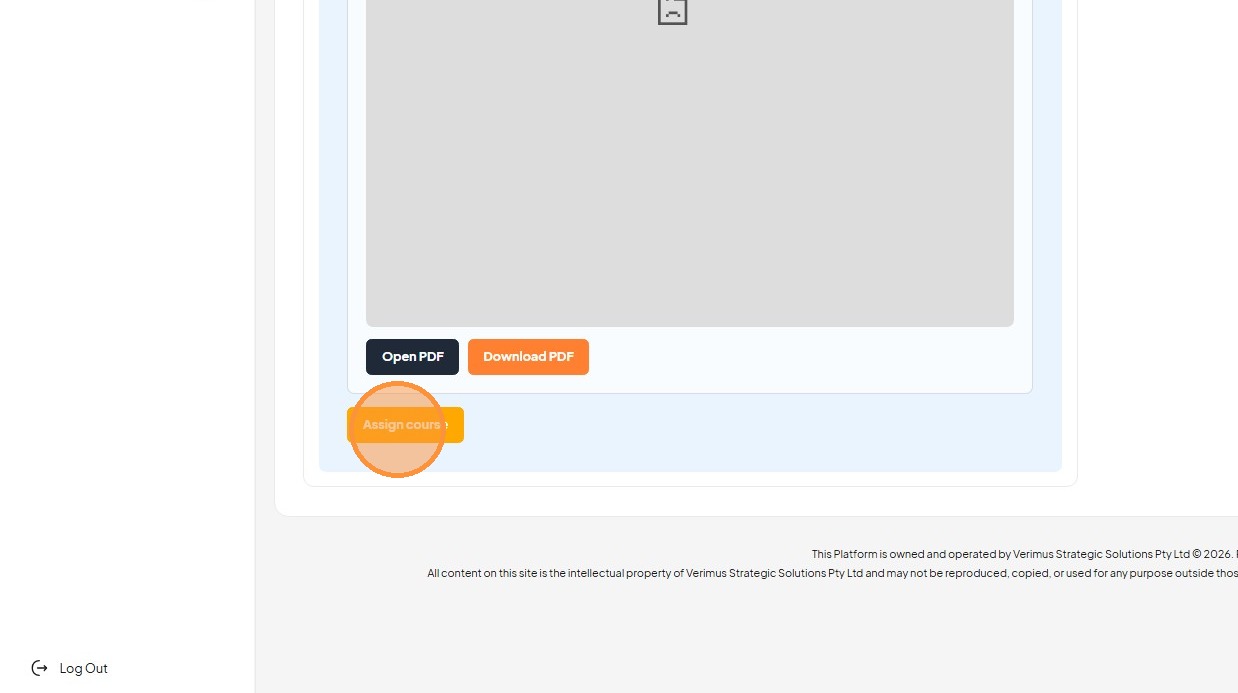
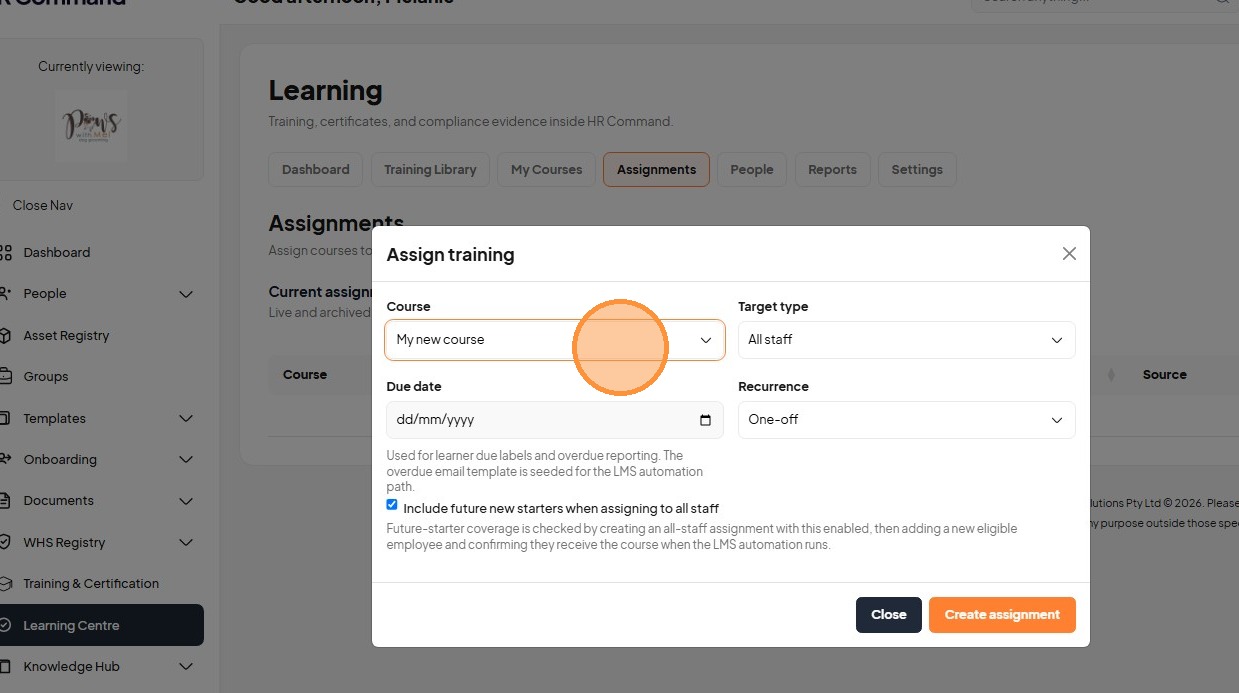
43. Click "Assign course" to distribute the training.
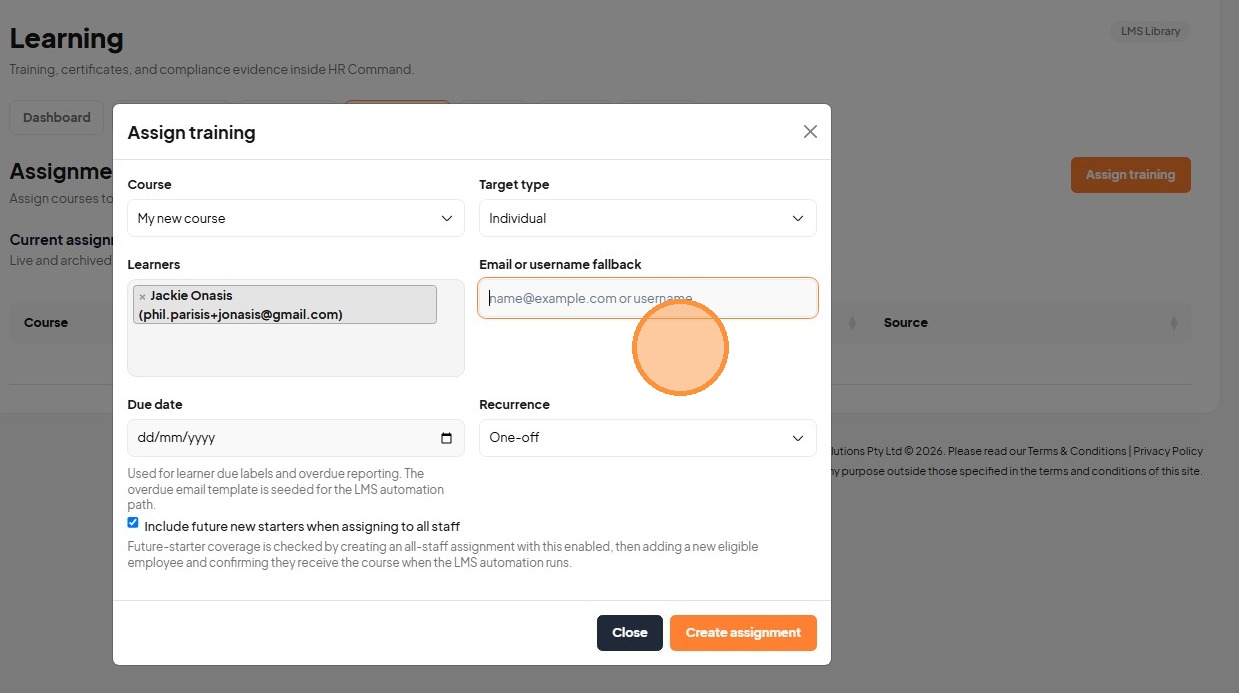
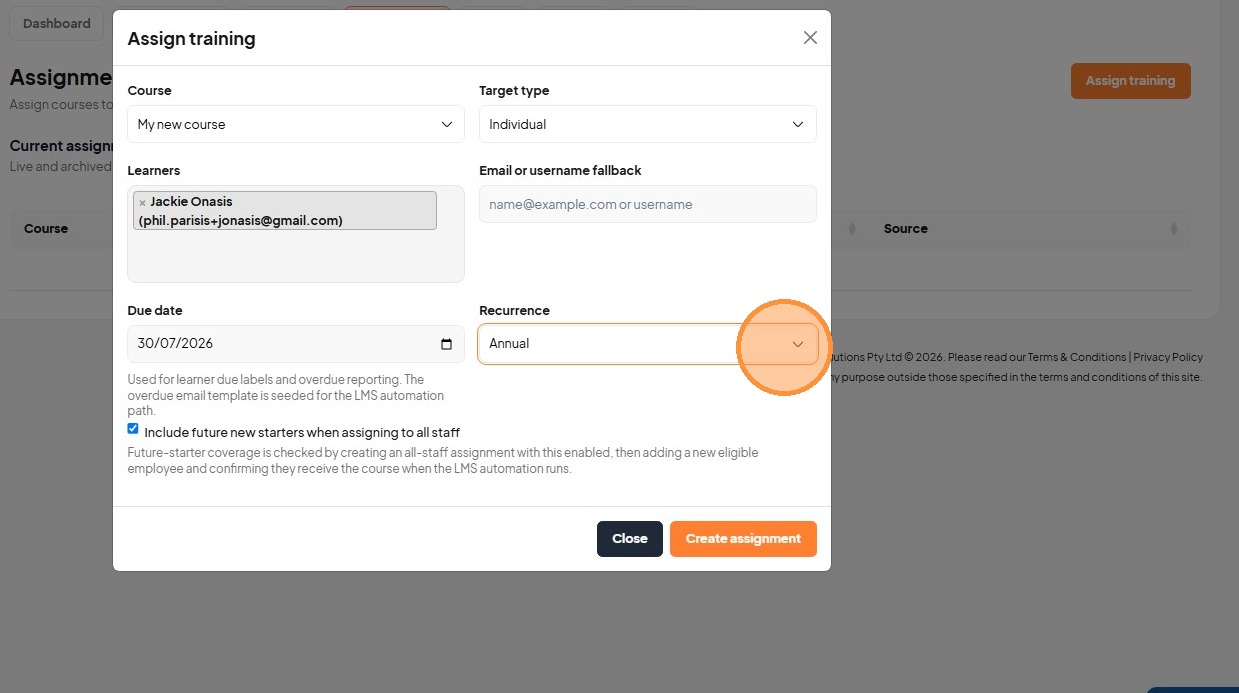
44. Set the assignment target type to Individual.
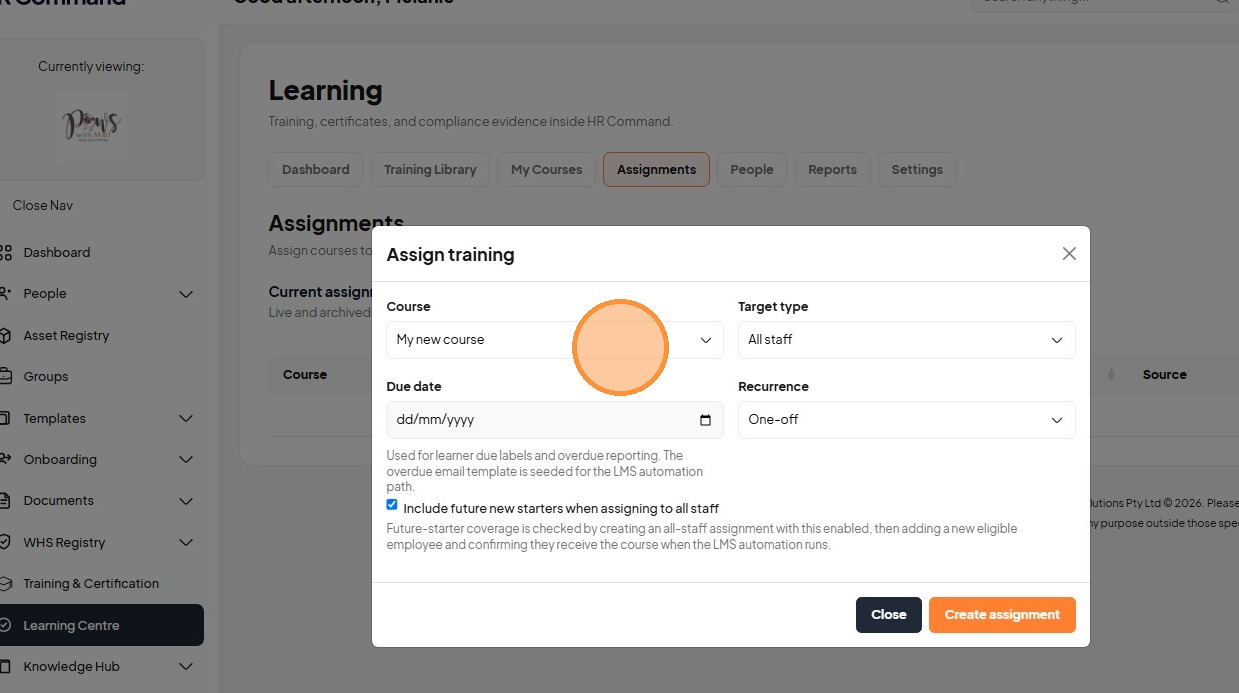
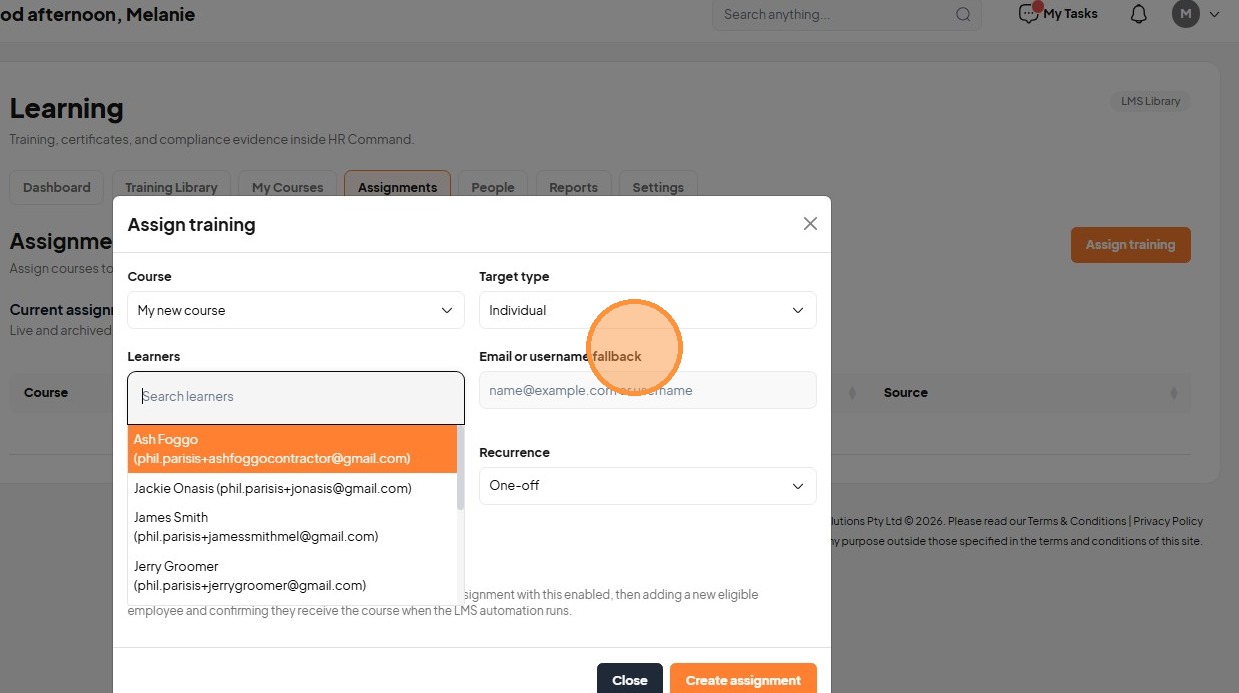
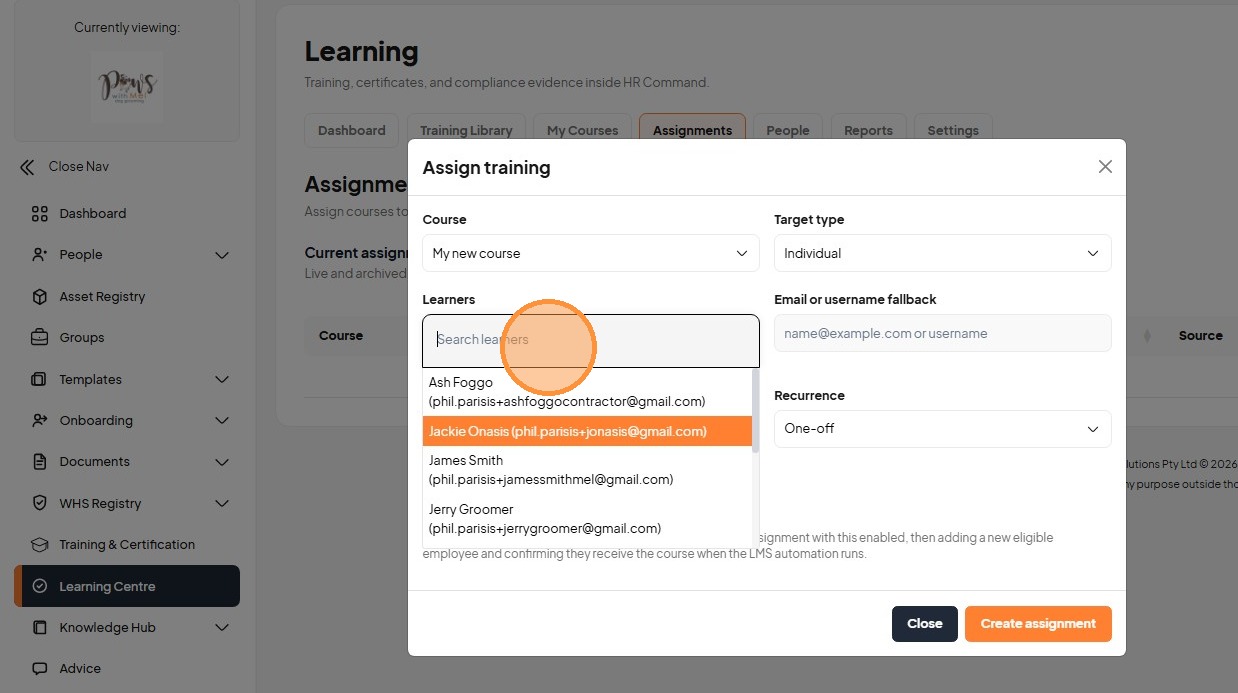
45. Select the learner name to assign the course.
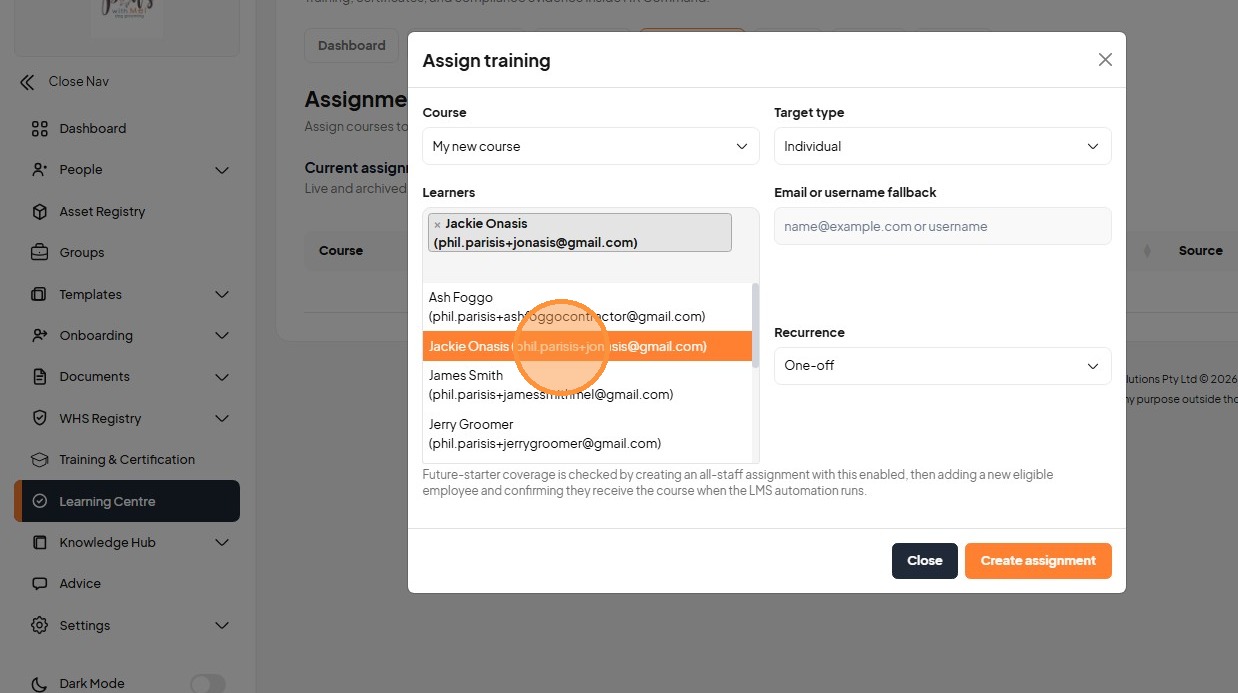
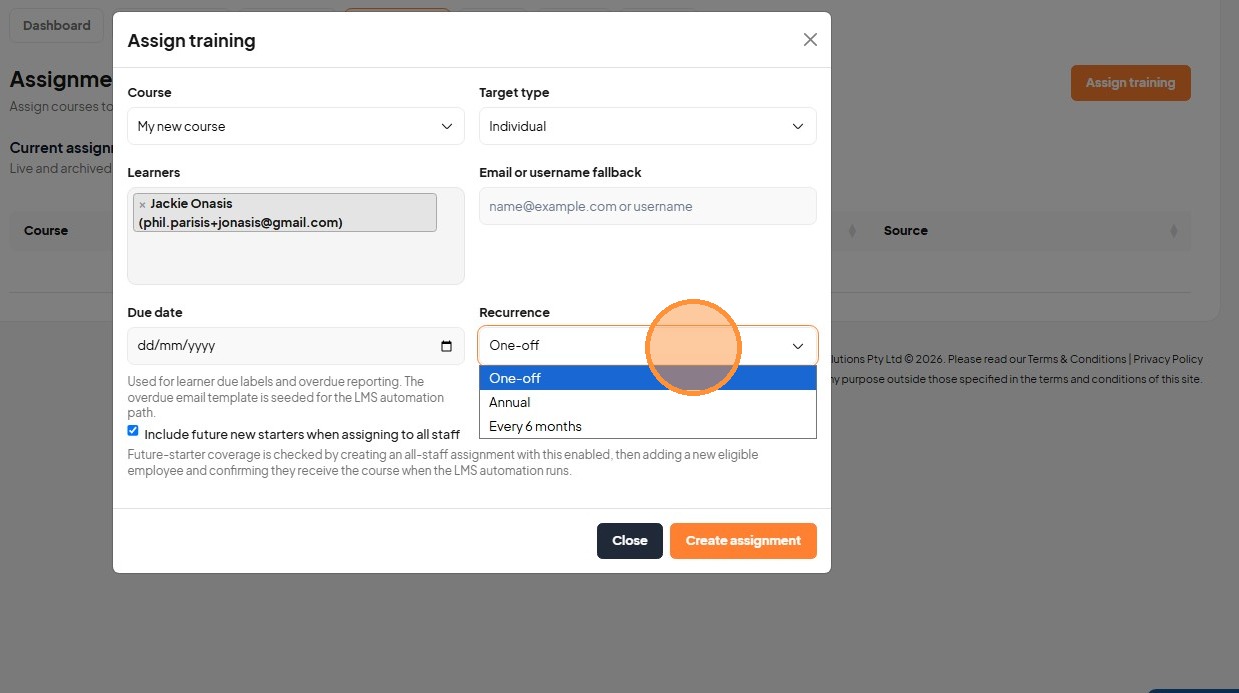
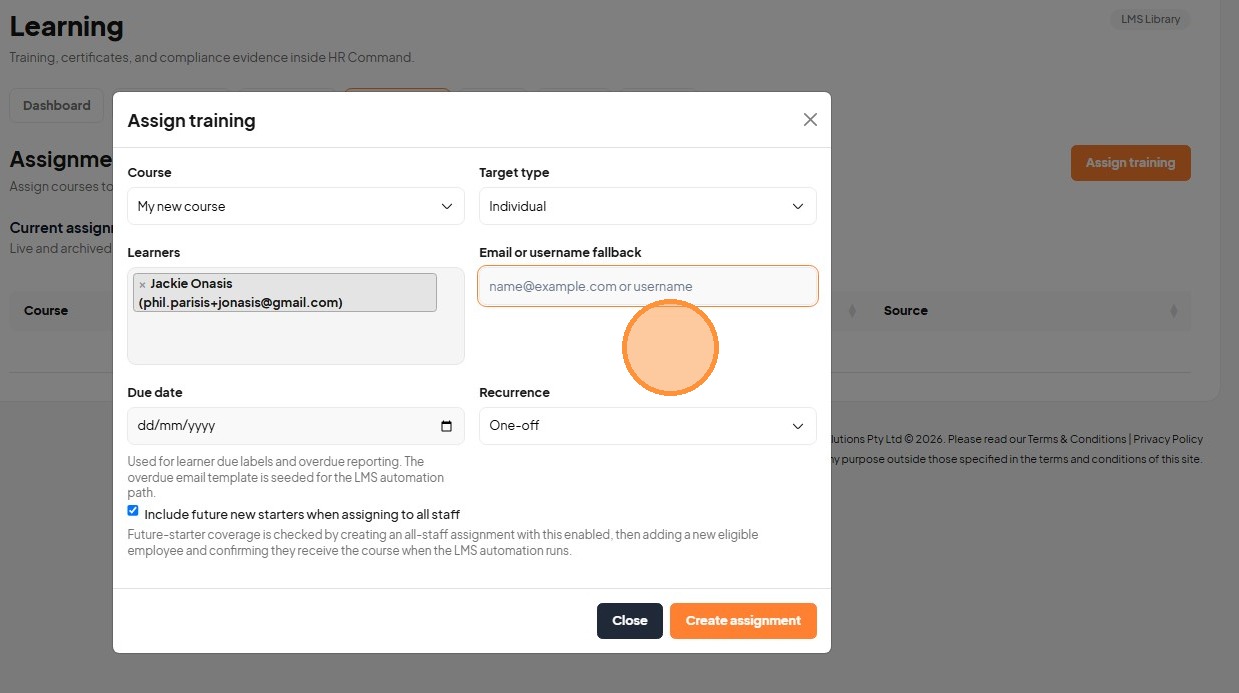
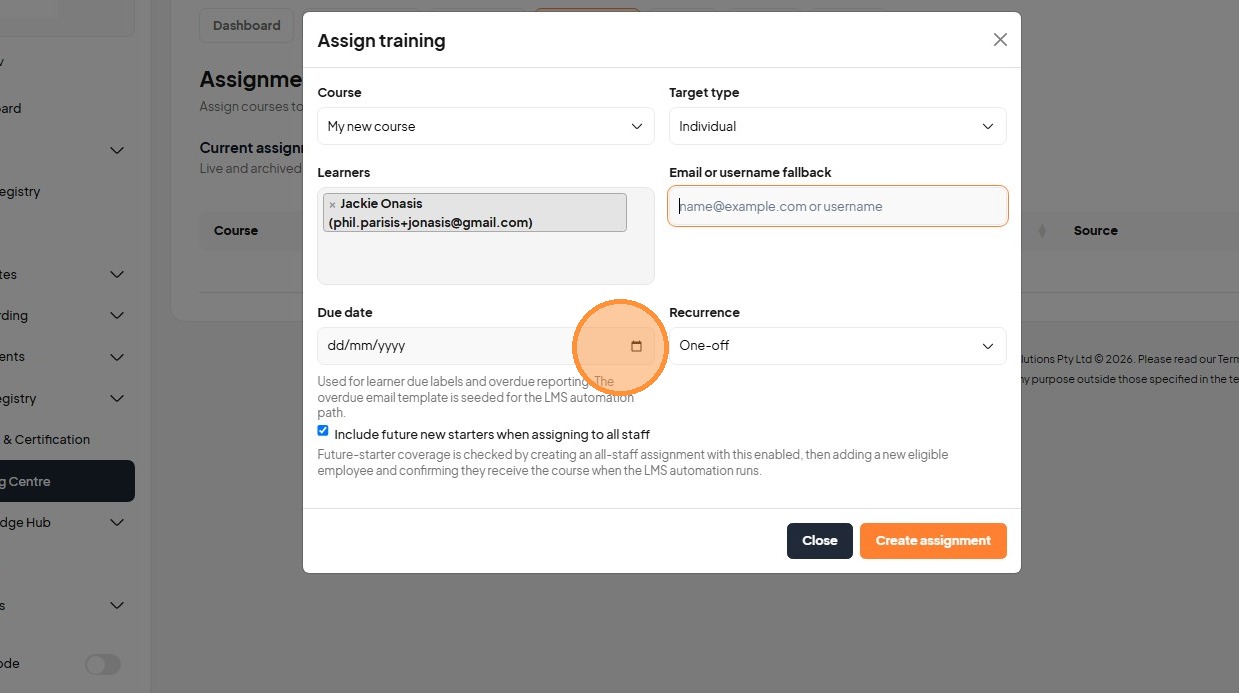
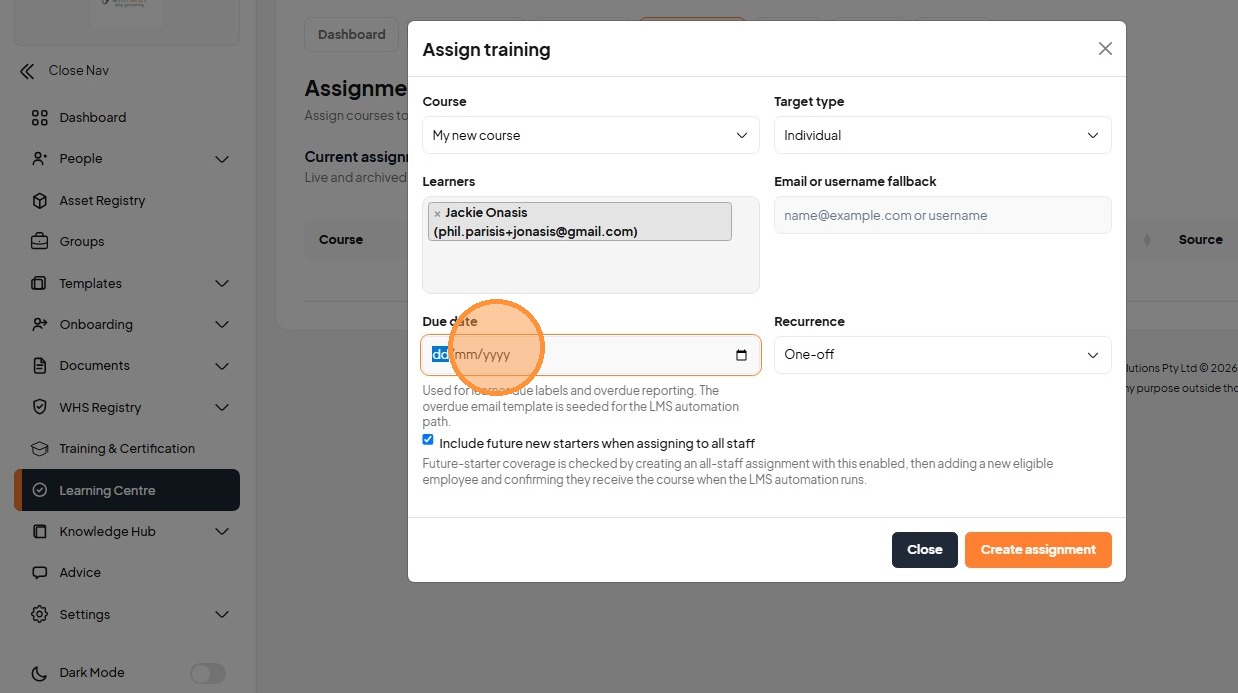
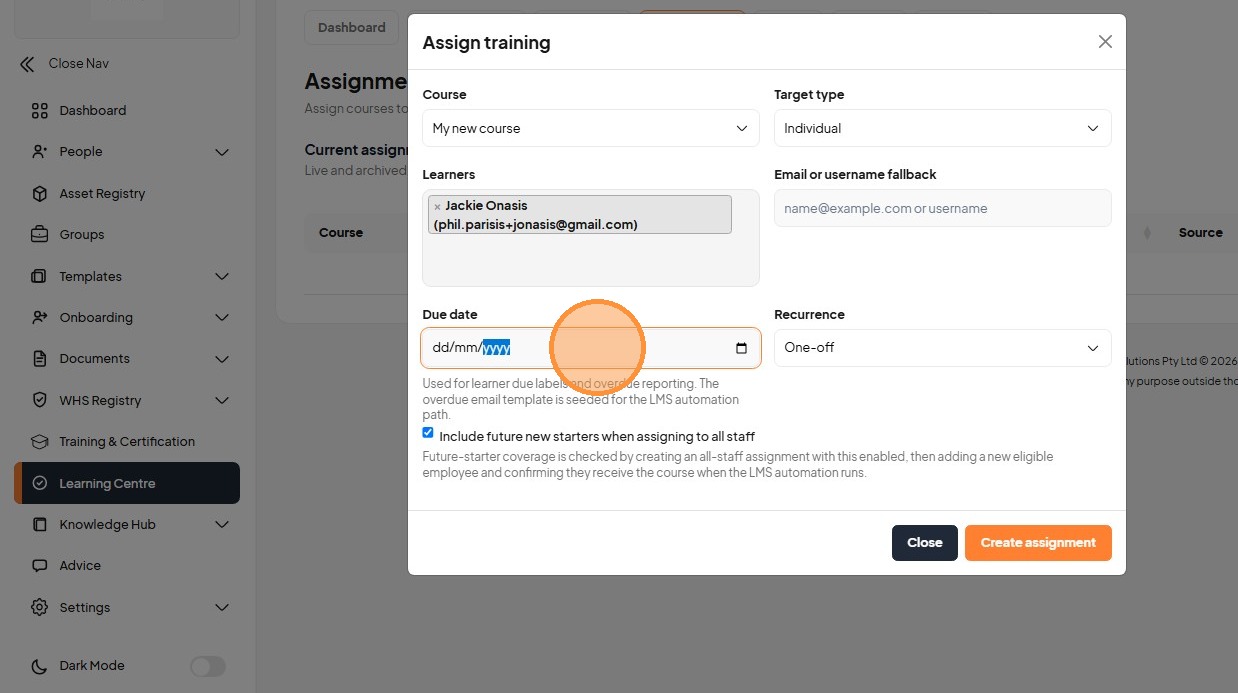
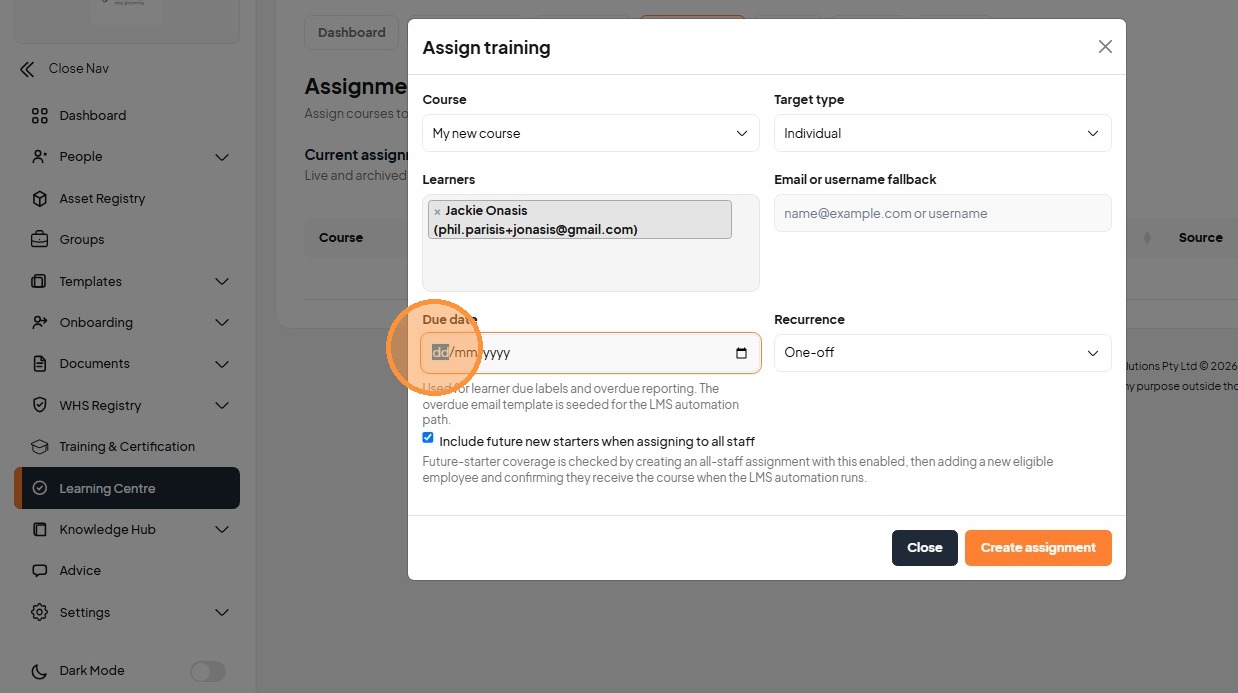
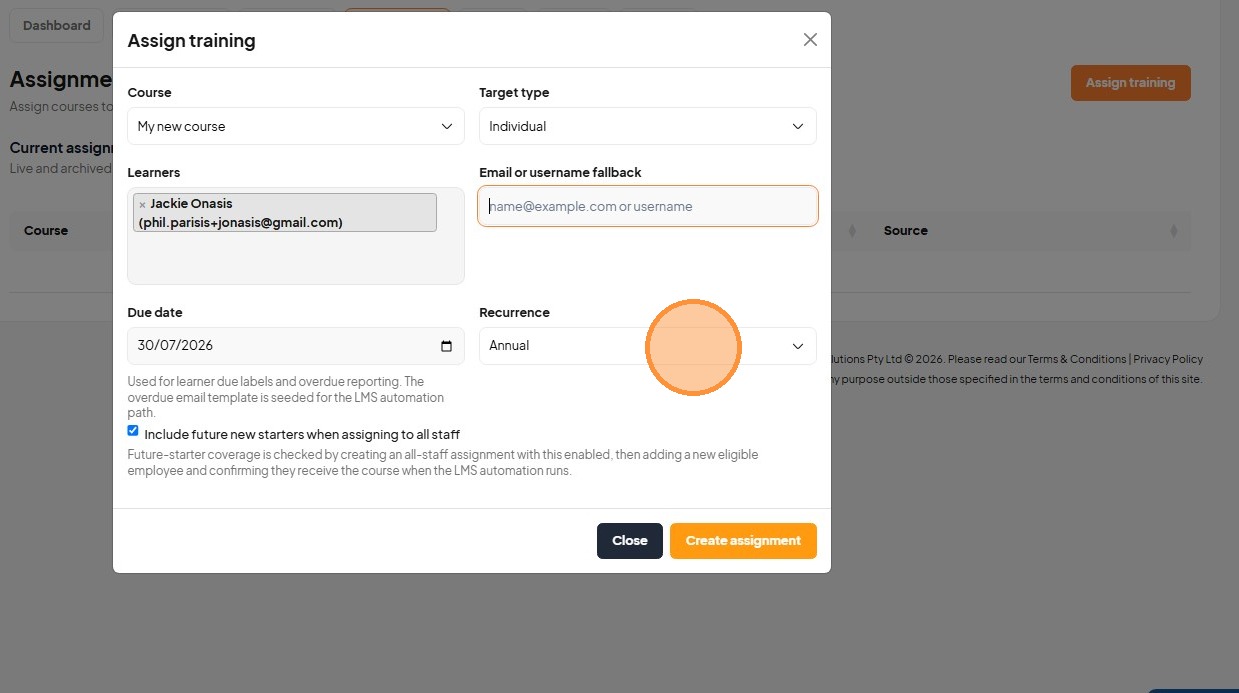
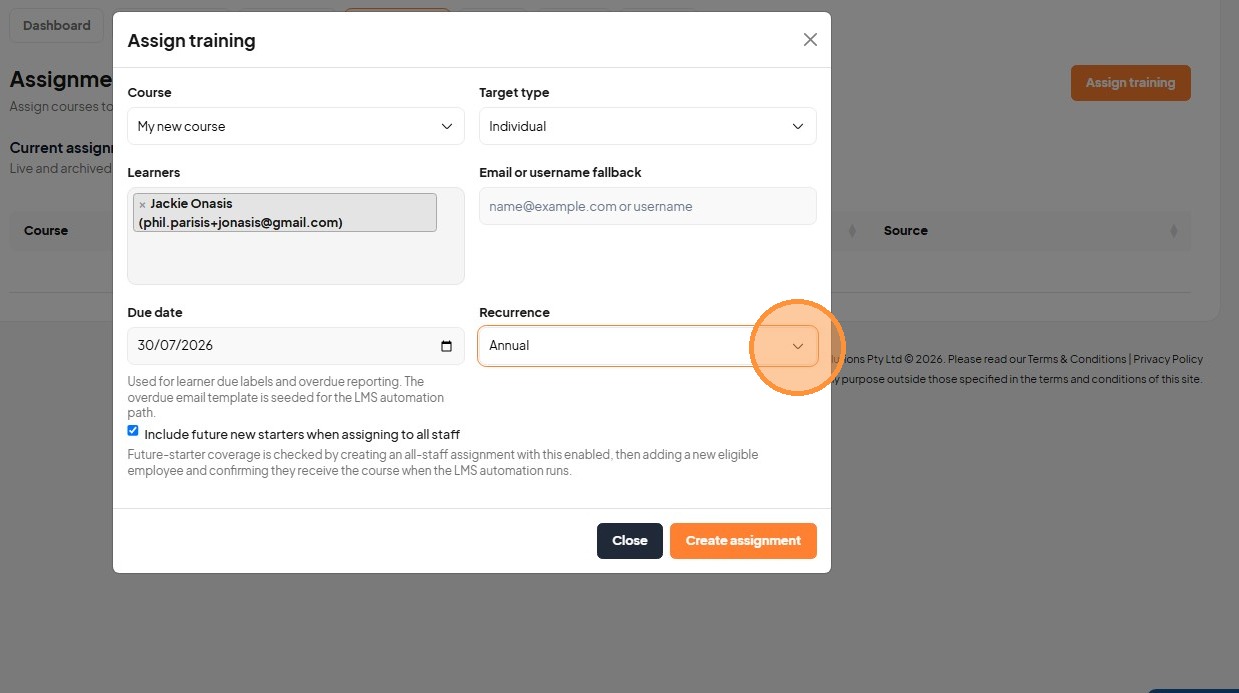
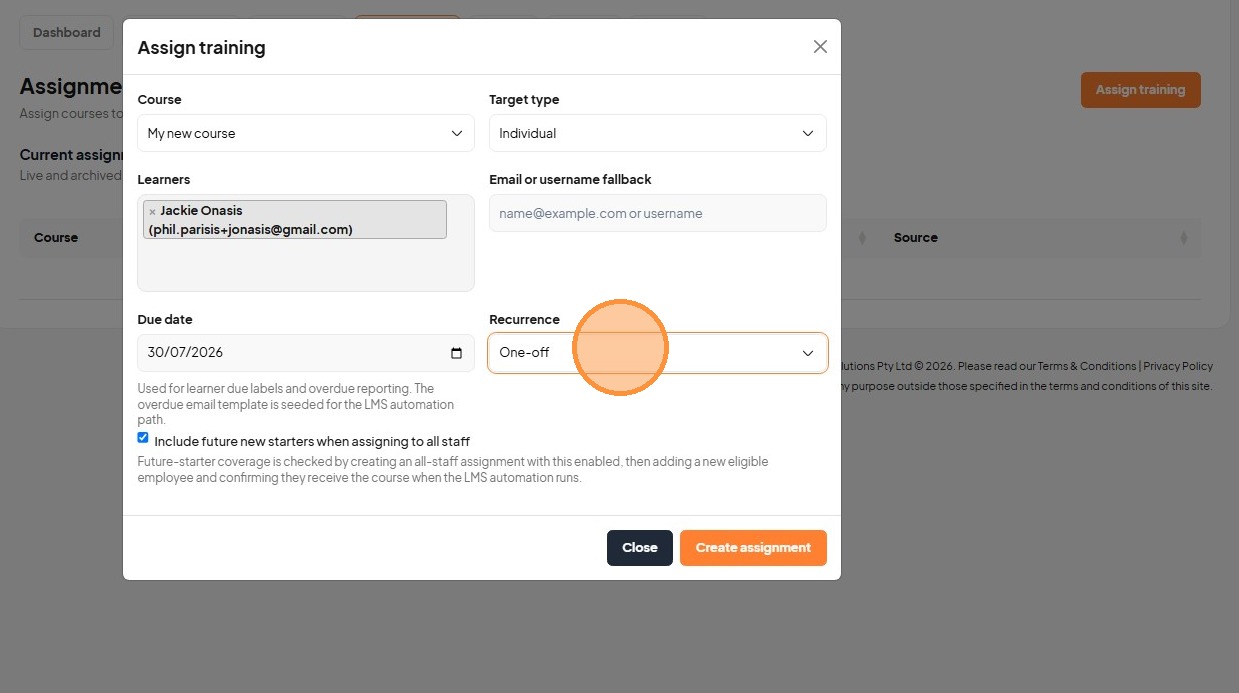
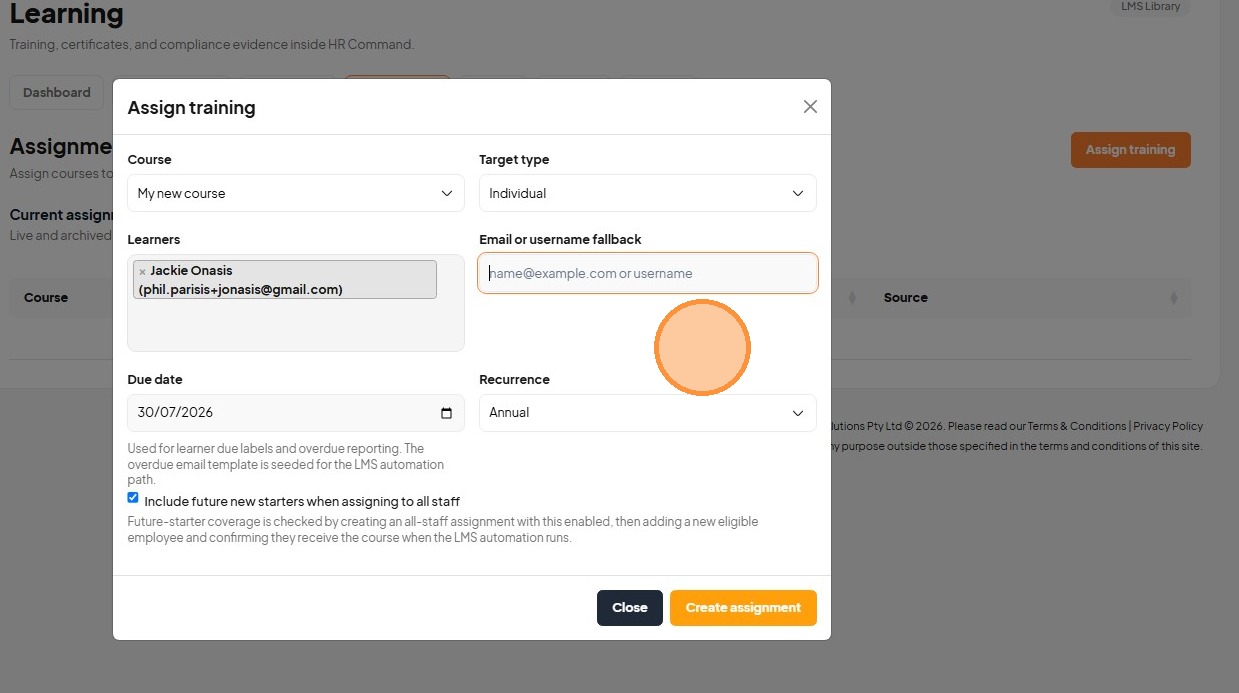
46. Set the due date, recurrence, and create the assignment.
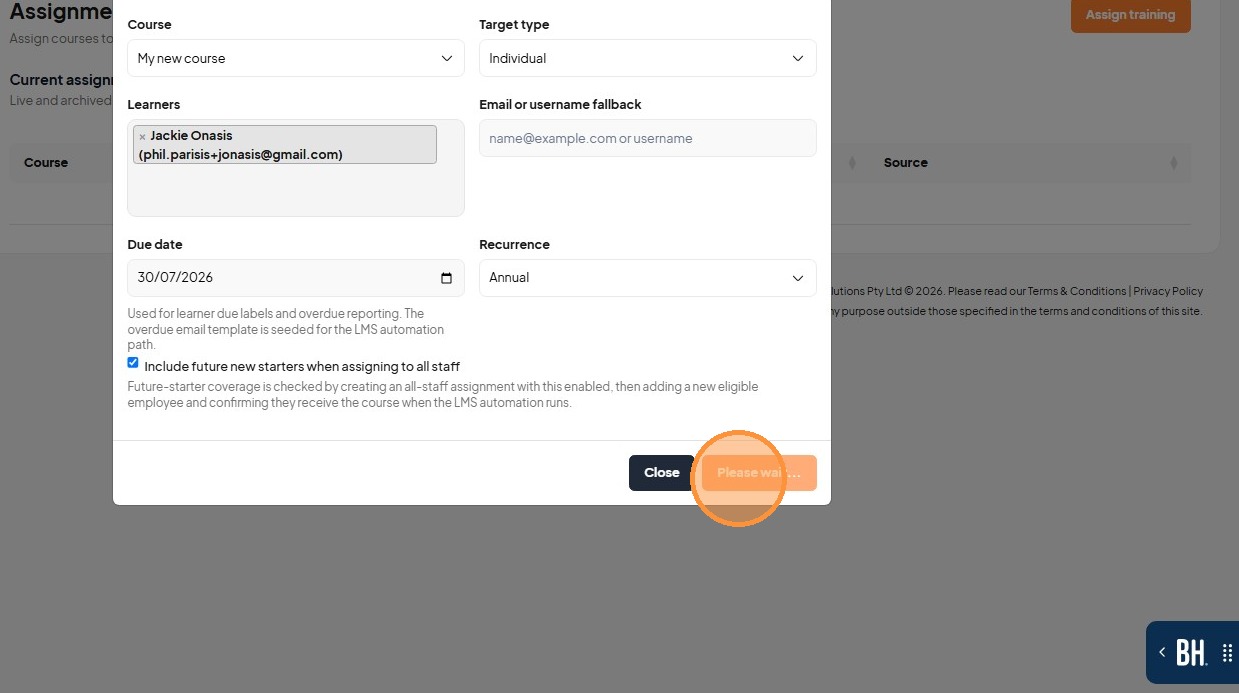
47. Click "Close"
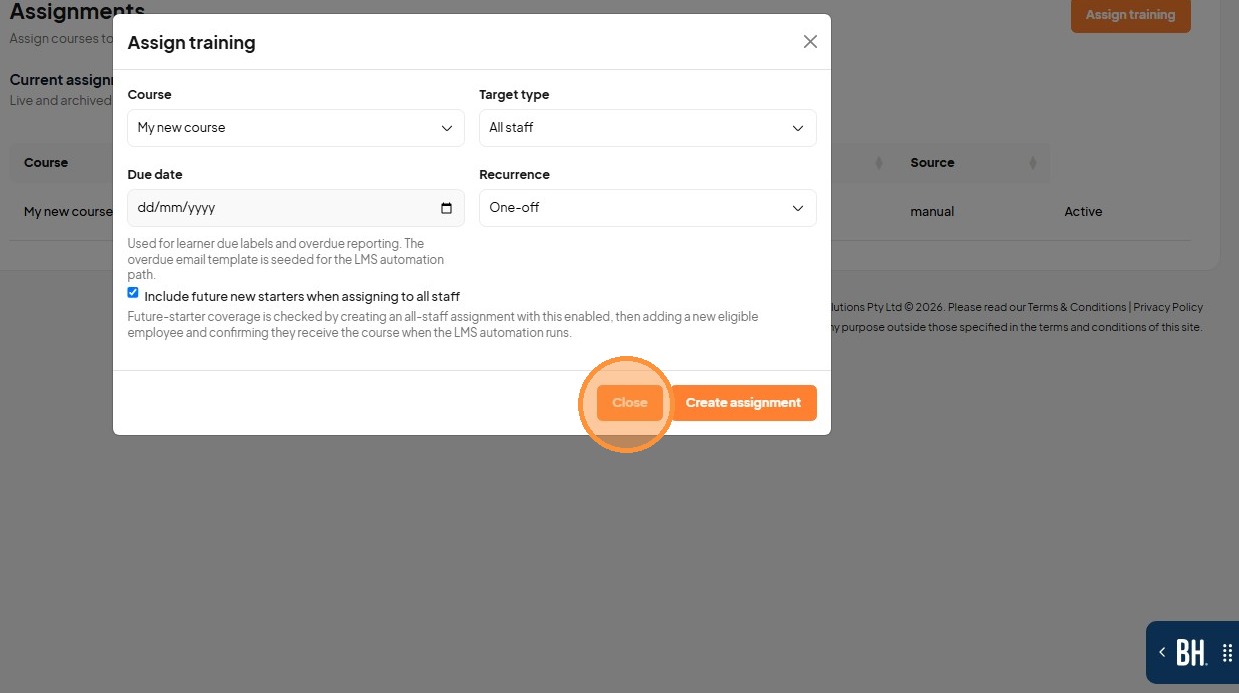
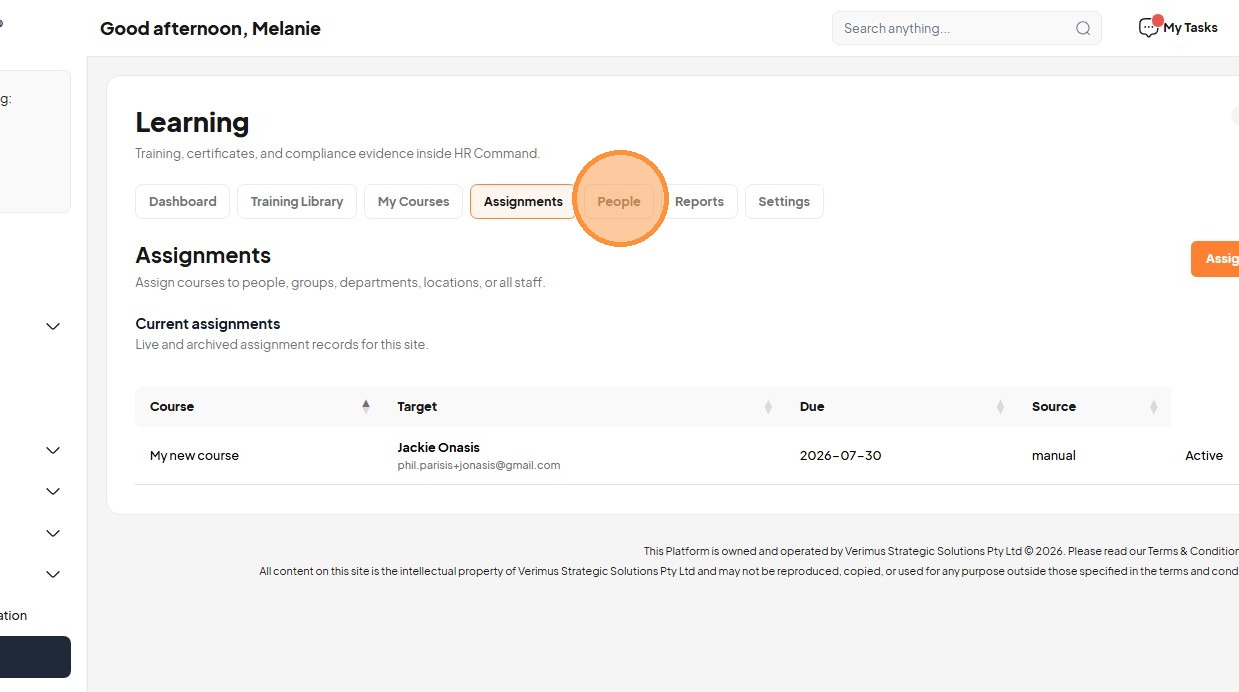
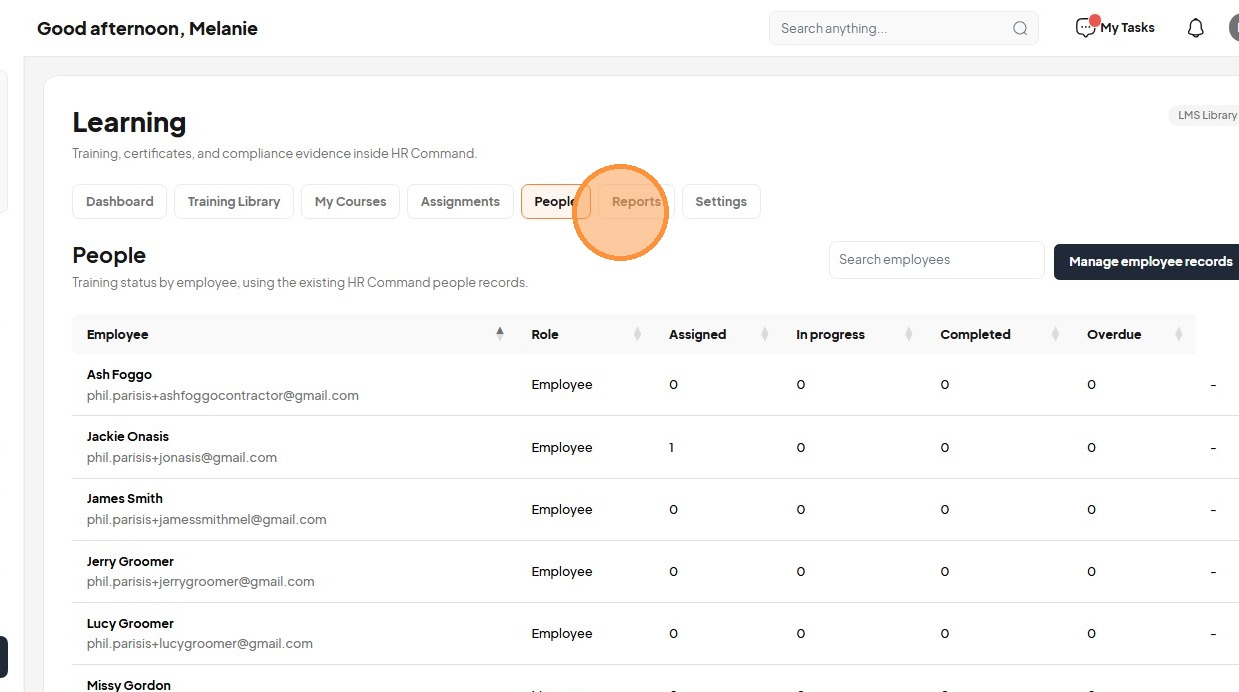
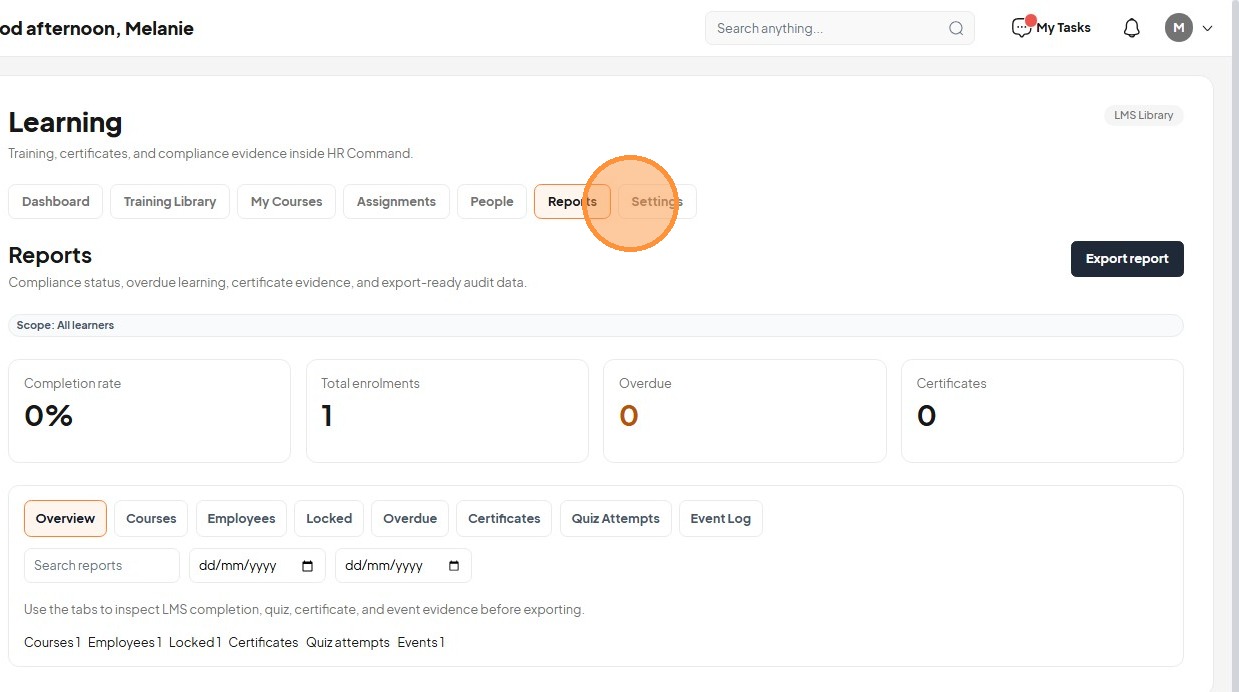
48. Review assignment records under People and Reports tabs.